
Remember me







Creating a video on your PC can seem intimidating, but it can be broken down into five manageable steps. You’ll start by selecting the type of video that aligns with your goals, whether it’s for education or marketing. Next, you’ll set up your recording parameters, ensuring everything is configured properly. Once you’re ready, you’ll begin recording your content. Afterward, you’ll move on to editing to refine your video. Finally, you’ll save and share it in the format you need. Comprehending these steps can greatly improve your video production process.
Key Takeaways Choose the type of video you want to create, such as educational, promotional, or entertaining, to align with your goals. Set up recording parameters, including screen area, audio input, video quality, and any necessary annotation tools. Use screen recording software like Movavi Screen Recorder to capture your content, ensuring you start and stop recording correctly. Edit your video with tools like Clipchamp, where you can trim clips, add text, and enhance audio. Save and export your video in a compatible format, then share it on platforms like YouTube or cloud storage services.
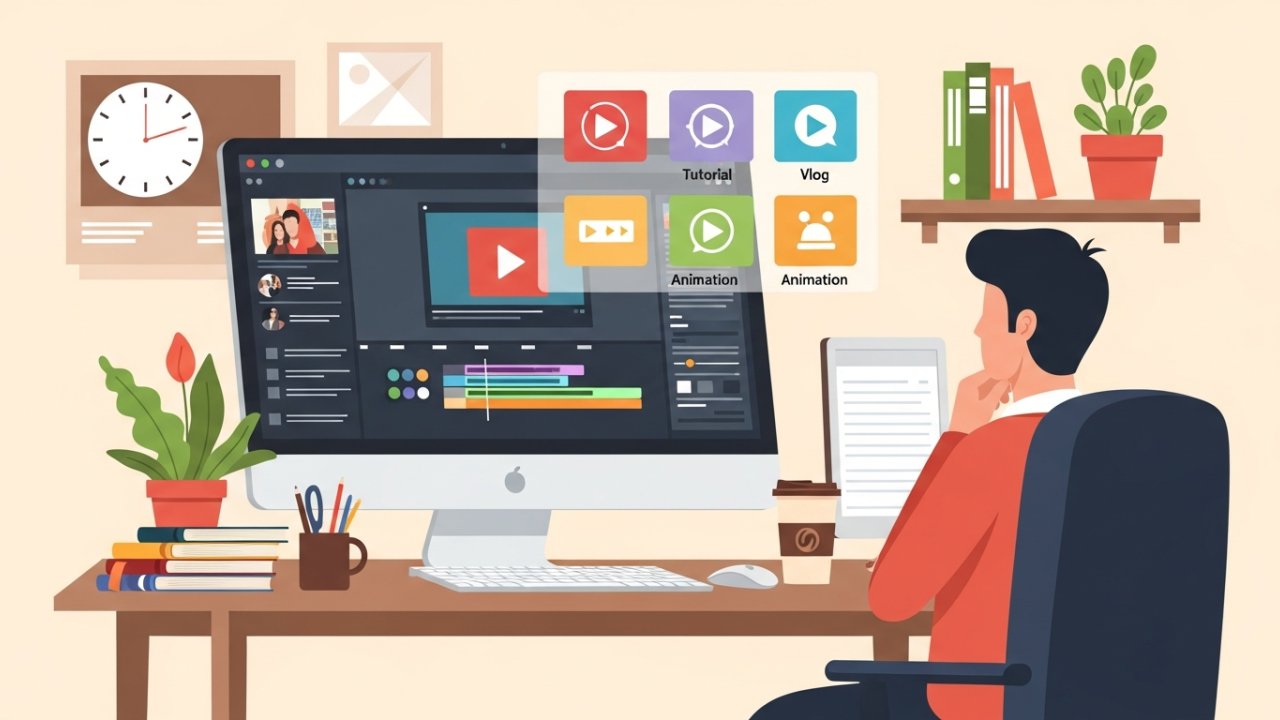
When you’re ready to create a video, how do you decide what type to produce? Start by determining the purpose of your video, whether it’s educational, promotional, or entertaining. This will guide you as you choose your video type.
If you want to capture gameplay or tutorials, screen recordings are the way to go; tools like Movavi Screen Recorder or Windows Game Bar are useful. For personal vlogs or face-to-camera presentations, use webcam recordings with software like BombBomb Video.
Consider your editing features too, since the complexity of your content might require extensive post-production work. By evaluating your goals and audience, you can effectively choose your video type and guarantee your project meets its intended objectives.
Set Up Recording Parameters
Setting up your recording parameters is crucial for achieving the best results in your video production.
First, determine the screen area you want to capture; you can choose the entire screen, a specific window, or a defined region.
Next, adjust your audio input settings to decide if you’ll record system sounds, microphone input, or both, based on your video’s requirements.
Set the video quality and frame rate to match your project, aiming for HD or 4K resolution for clarity.
If available, utilize features like cursor highlighting or drawing tools to improve comprehension.
Finally, review and save your settings to guarantee everything aligns with your intent.
This preparation is key to knowing how to record a video on PC effectively.
Start Recording Your Content
Ready to capture your content? To start recording your video on your PC, follow these steps for a smooth process:
Choose a screen recording software like Movavi Screen Recorder or AceThinker Aqua Demo. Adjust your recording parameters, including the screen area and audio input settings. Click the start button, usually labeled REC, to begin recording. Utilize any real-time annotation tools if necessary to improve your content.Once you’ve captured what you need, stop the recording by clicking the stop button.
Make sure to preview your video before saving it. Finally, save your video in the desired format and resolution, so it meets your needs for uploading to social media or presenting.
Now you know how to record a video on your laptop!

Editing your video is a crucial step in the content creation process, as it allows you to refine and improve your footage.
To edit a video on Windows, you can use Clipchamp, the built-in video editor for Windows 11. This user-friendly tool helps you trim, cut, and merge clips easily.
You can as well add text, shifts, and audio to elevate your project, whether you’re focusing on how to edit movies on Windows or how to create tutorial videos.
Access Clipchamp by searching in the taskbar or Start menu.
If you’re wondering how do I edit videos on Windows 10, keep in mind that Clipchamp is now the go-to solution for all your video editing needs on a laptop.
Save and Share Your Video
How can you effectively save and share your video after editing it in Clipchamp? Start by clicking the “Export” button in the top right corner to save your video in HD or 4K resolution.
You’ll want to evaluate the right file format for your needs, like MP4, to guarantee compatibility when you upload.
Here are some steps to streamline your process:
Select your desired resolution for exporting. Share directly to platforms like YouTube, Facebook, or Instagram. Utilize cloud storage services like OneDrive or Google Drive for easy access. Save locally using Windows 10 tools like the Photos app or Game Bar.These steps will help you efficiently save and share your video with others.
Frequently Asked Questions
To make a video step by step, start by defining your video’s purpose and create an outline for clarity.
Choose a recording method, like screen capture software or a camera. Set up your environment to minimize distractions and guarantee good lighting.
Record your footage, then edit using software to trim unnecessary parts and improve visuals.
Finally, export your video in the appropriate format for your intended platform, confirming it meets quality requirements.
To start a video on your computer, you can utilize built-in tools like Windows Game Bar by pressing Win + G.
If you need more features, download software like Movavi Screen Recorder for high-quality captures.
On the other hand, use Microsoft PowerPoint by selecting the Insert tab and choosing Screen Recording.
For online options, Screencapture.com allows recording directly from your browser.
If you prefer webcam recording, the Windows Camera app offers a straightforward interface for capturing video.
To video yourself on your computer, start by selecting a reliable application. Use the Windows Camera app for basic recording.
If you want higher quality, try Movavi Screen Recorder, which captures HD or 4K video. On the other hand, leverage Microsoft PowerPoint’s screen recording feature, or install the BombBomb Video Chrome extension for quick webcam captures.
Make certain your webcam and microphone are of good quality, and adjust your recording settings for maximum results before you begin.
To make a video from pictures on your computer for free, you can use Clipchamp.
First, upload your images and arrange them on the timeline. Utilize the drag-and-drop feature to customize the duration each image appears.
Improve your video by adding changes, text overlays, and audio tracks.
Once you’re satisfied, export the final product in various formats suitable for social media or personal sharing.
For detailed guidance, check Clipchamp’s support hub.
Conclusion
To conclude, creating a video on your PC is a straightforward process that involves five key steps. By choosing the right video type, setting up your recording parameters, and using reliable software for recording, you can capture your content effectively. Editing your video improves its quality, and finally, saving and sharing it in the appropriate format guarantees your audience can access it easily. Following these steps will help you produce professional-looking videos efficiently.
Image via Google Gemini
Comments (0)