
Remember me


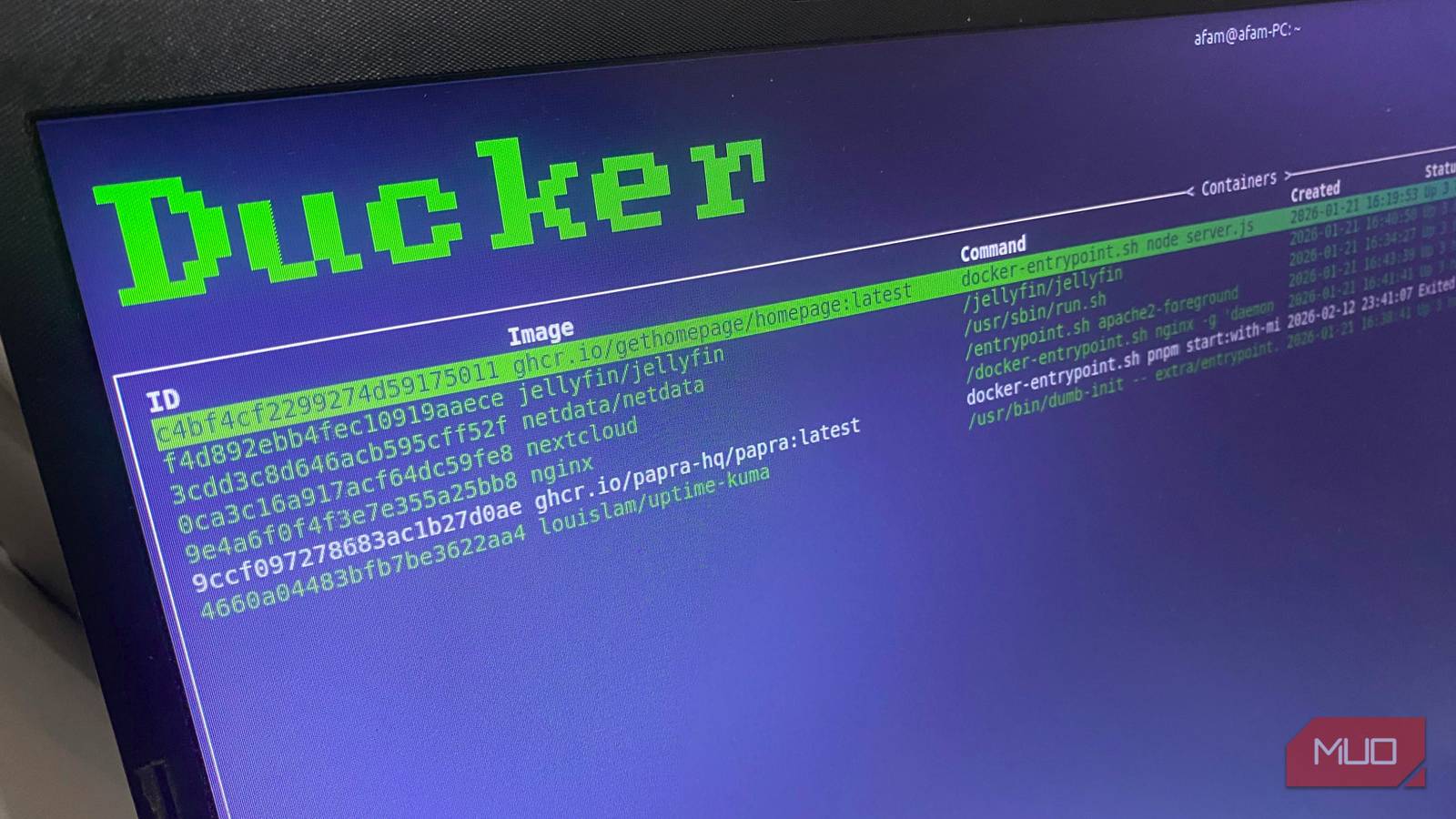


No doubt Docker's CLI is powerful. The only limitation is that as containers grow, Docker can start to feel fragmented. For me, one pane runs docker ps, another tails logs, and a third waits for docker exec -it. It gets the work done, but it's a bit noisy. The hardest parts of it are constant context switching, retyping container names, and the mental strain of handling it all.
Since I started using Ducker, a lot of the fragmentation has eased. This Rust-based terminal UI is built for Docker and offers me structured pages for containers, images, volumes, and networks. After using a tool to shrink my containers, I found Ducker to be the next-best Docker tool I've tried.
The moment Ducker clicks When you realize you don’t need five Docker commands open anymore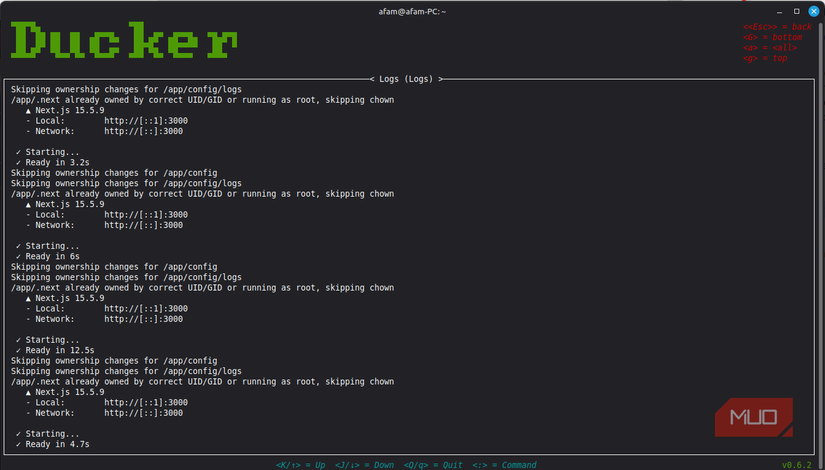 Afam Onyimadu / MUO
When I have local dev sessions, I can run API, Redis, Postgres, a worker, and a frontend container simultaneously. The only way to manage this in the past was with a docker ps pane, a separate pane for tailing logs, and a docker exec -it container. The main problem with this is that if I hit a problem, it is usually scattered, even if it's manageable.
The day I saw the value of Ducker was the day I realized that all these components can be monitored on a single container page. I use j and k to move through the list. Ducker also offers sorting options using status or creation time. It's very handy and easily navigable. Pressing l takes me to logs, and I return to my list of containers by pressing the Esc key. It ensures that I have no need to type container names or IDs; the a key on my keyboard takes me straight inside the container shell.
It's one of the most cohesive Docker tools I have used, and it has a tight feedback loop. While I had gotten used to thinking in terms of commands, Ducker showed me how much more efficient it is to think in terms of actions on objects. The loop was simple and efficient: highlight, act, and return. The downside, though, is that Ducker's exec action assumes bash is available, which fails for minimal images that lack bash. However, it still offers a noticeable workflow shift.
Navigation that feels built for terminal people Vim-style movement and sorting that rewards muscle memoryAfter using the terminal for several years, I feel at ease when new tools don't force me into a new kind of workflow, and Ducker leans into this. By using the : prompt, Ducker gives me a bar to type containers, images, volumes, or networks. This is one of the most fluid ways of jumping between top-level pages. It reminds me of Vim, Tmux, and some other Linux tools I use for multitasking.
When I use j and k to move up and down, I can press g to jump back to the top or G to go straight to the bottom. Even though none of these are flashy, they are real lifelines when I have to scroll through dozens of containers or images. It was a new tool I was trying out, it never felt like I was fighting the interface.
It felt even more useful when I tried sorting. Once on the Containers page, I sort by status using Shift + S, by creation time using Shift + C, and by name using Shift + N. To toggle ascending or descending order, I only have to use the same key again. Sorting by creation time saves me a lot of time when I'm in active development.
Cleaning up Docker stops being annoying Images, volumes, and dangling resources become visible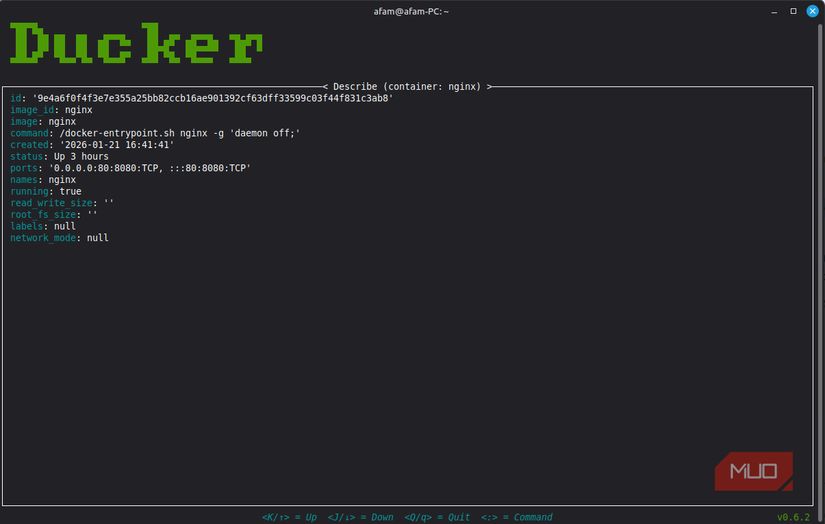 Afam Onyimadu / MUO
After a while using Docker, I was left with dangling images, unused volumes, and leftover networks. I could clean it up, but I had to manually track it, and it felt like a chore. Pressing Alt + d in Ducker's Images page toggles my dangling images, and I instantly see the ones that are safe to review. If I need to describe the image, I hit d, and when I am satisfied, hitting Ctrl + d deletes it. The biggest difference between this approach and the traditional method in Docker is that I no longer have to guess which image ID corresponds to what. If I need to identify heavy build links, I sort them by size. I can use the same pattern to manage volumes and networks. Using consistent keys for these operations improves muscle memory.
Installing it is easy enough to justify trying Cargo, package managers, and testing without commitment Afam Onyimadu / MUO
Installing Ducker was simpler than I expected. I only had to run this Cargo command:
cargo install --locked duckerIt's important to include the --locked flag so that upstream dependency drift doesn't break the build. Cargo 1.88 or higher is required, and since there are no prebuilt binaries at the moment, you should be comfortable with Rust tooling.
You can handle it directly with pacman -S ducker on Arch, and Homebrew users may use brew install ducker. I love NixOS because it has a unique approach to Linux and even allows you to test Ducker without permanently installing it by using nix run nixpkgs#ducker.
 Related
I replaced Google Drive with a self‑hosted cloud and the freedom is worth it
Related
I replaced Google Drive with a self‑hosted cloud and the freedom is worth it
A self-hosted cloud is very liberating and surprisingly not as hard to set up.
Config, theming, and small details that make it feel nativeIf you live in the terminal, you'll feel at home using Ducker. Out of the box, it comes with defaults that are quite efficient; you get options for customizing shells, Docker sockets, and autocomplete behavior. There's an option for theming if you feel like fine-tuning the default environment. Ducker doesn't overlook the tiny details for anyone using the tool daily, and it's built to be practical and enjoyable.