
Remember me
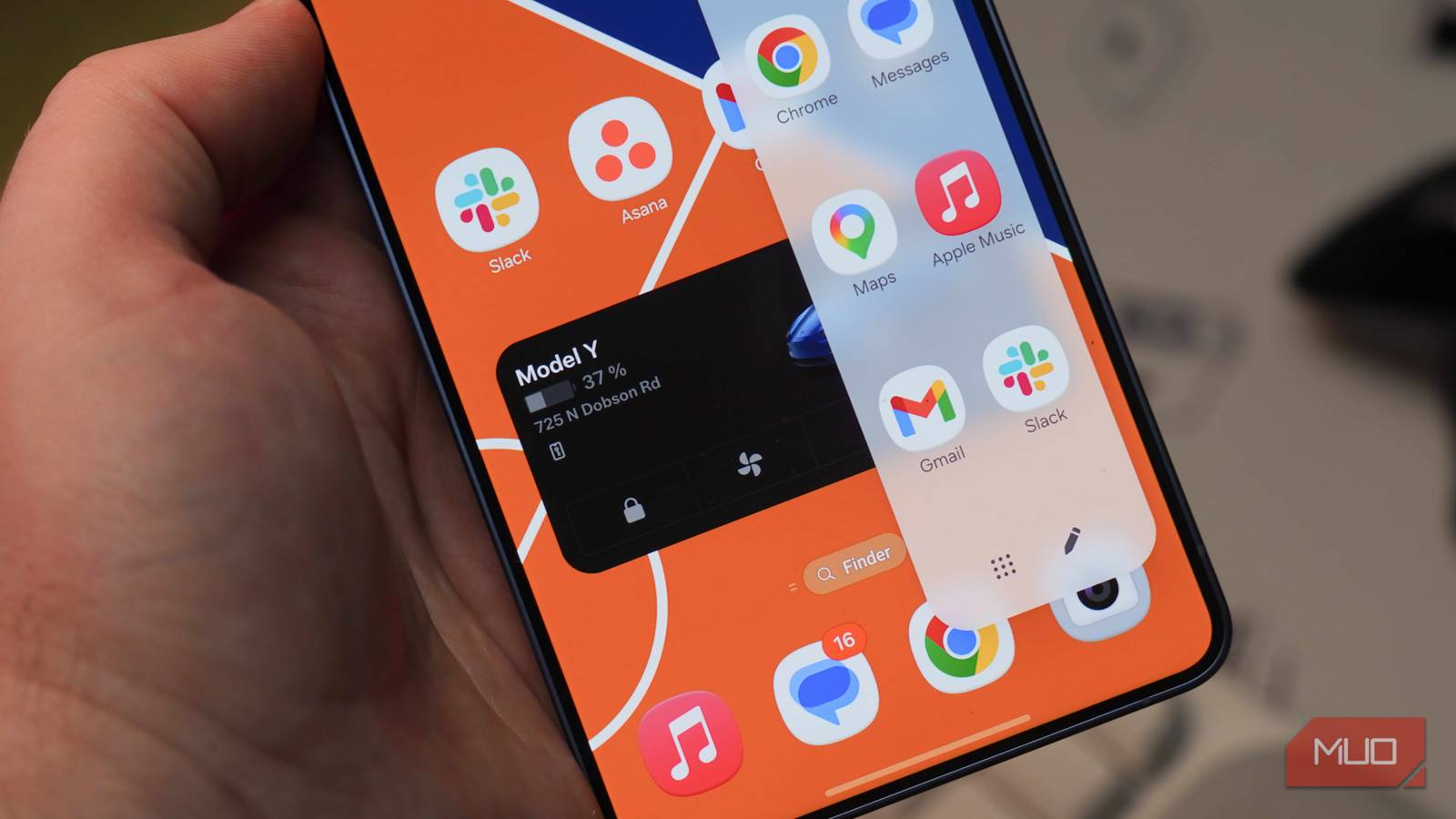
If you have a flagship Samsung phone, you've likely bought it for the top-notch hardware, the great camera, and One UI, which I think is the best Android skin out there. But one of the most underused One UI features is hiding on the side of your screen, and I've barely seen anyone make the most out of it. Most people simply turn it off, considering it a nuisance and a glorified app launcher.
But the fact is, the Edge Panel can be a whole lot more than just an app launcher. You can use it as a Ring app for your doorbell, a Nest app for your thermostat, a clipboard manager, a digital compass, quick access to contacts and Google Maps for directions, and even to get a quick weather forecast. With a bit of setup, it's become the most useful part of my phone.
Picking the right apps Start with what you actually open every dayThe Edge Panel ships with a set of default apps like Messages, Dialer, and Calendar. Those are fine, but they're already a swipe or tap away from your home screen. The whole point of the Edge Panel is to show the apps that you use frequently but don't want cluttering your main screen.
For me, that list includes my payment apps, work apps like Slack and Asana, the Ring app for my doorbell, and my password manager. These are apps I open several times a day, but I'd rather not see their icons staring back at me every time I unlock my phone. Your list will look different depending on your routine. If you work from home, a thermostat app or a smart plug controller might earn a spot. If you travel a lot, maps or a translator app make more sense.
To add an app, swipe in from the edge to open the panel, then tap the pencil icon at the bottom to enter the editor. Drag apps from the list below into the empty slots on the panel. You can also create folders inside the Apps panel to group similar apps together, which keeps things tidy if you end up adding more than a handful.
Another trick worth setting up is the app pair. If you regularly use split screen on your Samsung phone with the same two apps, say, YouTube on top and a notes app below, you can save that pair to the Edge Panel and launch both in split view with a single tap. It saves the three or four taps it usually takes to set up split view manually.
 Related
The Edge Panel does more than just launch apps
Contacts, clipboard, compass, and whatever else you need
Related
The Edge Panel does more than just launch apps
Contacts, clipboard, compass, and whatever else you need
 Tashreef Shareef / MakeUseOfCredit: Tashreef Shareef / MakeUseOf
Edge Panels are largely seen as glorified app launchers, but they are more than that. The Edge Panel supports multiple panel types, and switching between them is just a swipe left or right once the panel is open. To enable them, head to Settings > Display > Edge panels > Panels and tick the ones you want.
After trying a few of those panels, I've largely stuck with four of them, namely, Apps, Clipboard, Tools, and Reminder. The Clipboard panel stores the last several things I copied, which is useful when I'm bouncing between messages and a document and need to paste something I copied that may be a day or two ago. The Reminder panel lets me jot down quick notes or tasks without opening a separate app. The Tools panel opens a compass by default, but if you tap the three-dot menu, you can switch it to a tally counter, a flashlight, a surface level, or a ruler. I mostly toggle between the tally counter and the compass, but the others are handy to have when you need them.
Samsung also lets you download additional panels from the Galaxy Store, which is where the Edge Panel really starts to shine. The one I use the most is Browser Quick Links, which lets you add frequently visited websites as shortcuts directly on the panel. I have a few work dashboards and a couple of reference sites pinned there, so I can open them without launching my browser first or cluttering my home screen with URL shortcuts. There are also panels for quick notes, finance tracking, and RSS feeds if you want to go further.
Ideally, try to keep the number of enabled panels to three or four. I tested it with seven at one point, but the swipe-through gets tedious fast, so add them sparingly.
Customizing the Edge Panel with Good Lock Home Up adds the controls Samsung left out Tashreef Shareef / MakeUseOfCredit: Tashreef Shareef / MakeUseOf
Out of the box, the Edge Panel handle itself is barely customizable. You can set the position to the left or right edge, lock it in place, and tweak the color, size, and transparency. That's about it. If you want to change how the panel behaves when you actually use it, you need the Good Lock app and its Home Up plugin, both free from the Galaxy Store.
Once Home Up is installed and enabled, scroll down to the Edge panel toggle and flip it on. This unlocks a new settings page with options that Samsung's main interface doesn't expose. Here, you can turn on Show more items at once without scrolling, which packs more apps into the visible panel so you don't have to scroll through a long column. There's also a setting to scroll through the recent apps section, which makes the recents area on the panel scrollable instead of fixed.
The most useful option for me is the view type. By default, apps launched from the Edge Panel open in full screen, but Home Up lets you set them to open in split-screen or pop-up screen view instead. Popup mode is especially handy when you just need to glance at something quickly, like checking a message or a payment confirmation, without leaving whatever you were already doing.
Home Up also adds a Show edge handle in immersive mode toggle, which keeps the Edge Panel accessible even when an app is running at full screen. Normally, the handle disappears in full-screen apps, which defeats the whole purpose if you live in YouTube or a game.
The Edge Panel gets dismissed as a gimmick because the default version really is pretty limited. A few app shortcuts on the side of your screen aren't going to change how you use your phone. But once you add the right panels, pick the right apps, and let Home Up fill in the gaps, it turns into something closer to a floating toolbox you can pull up from anywhere.
If you've had Edge Panel turned off for years, like most people, it's worth spending a few minutes setting it up properly. The defaults won't sell you on it, but the version you build for yourself might. You can always switch it back off if it doesn't click, but I'd bet it will.