
Remember me
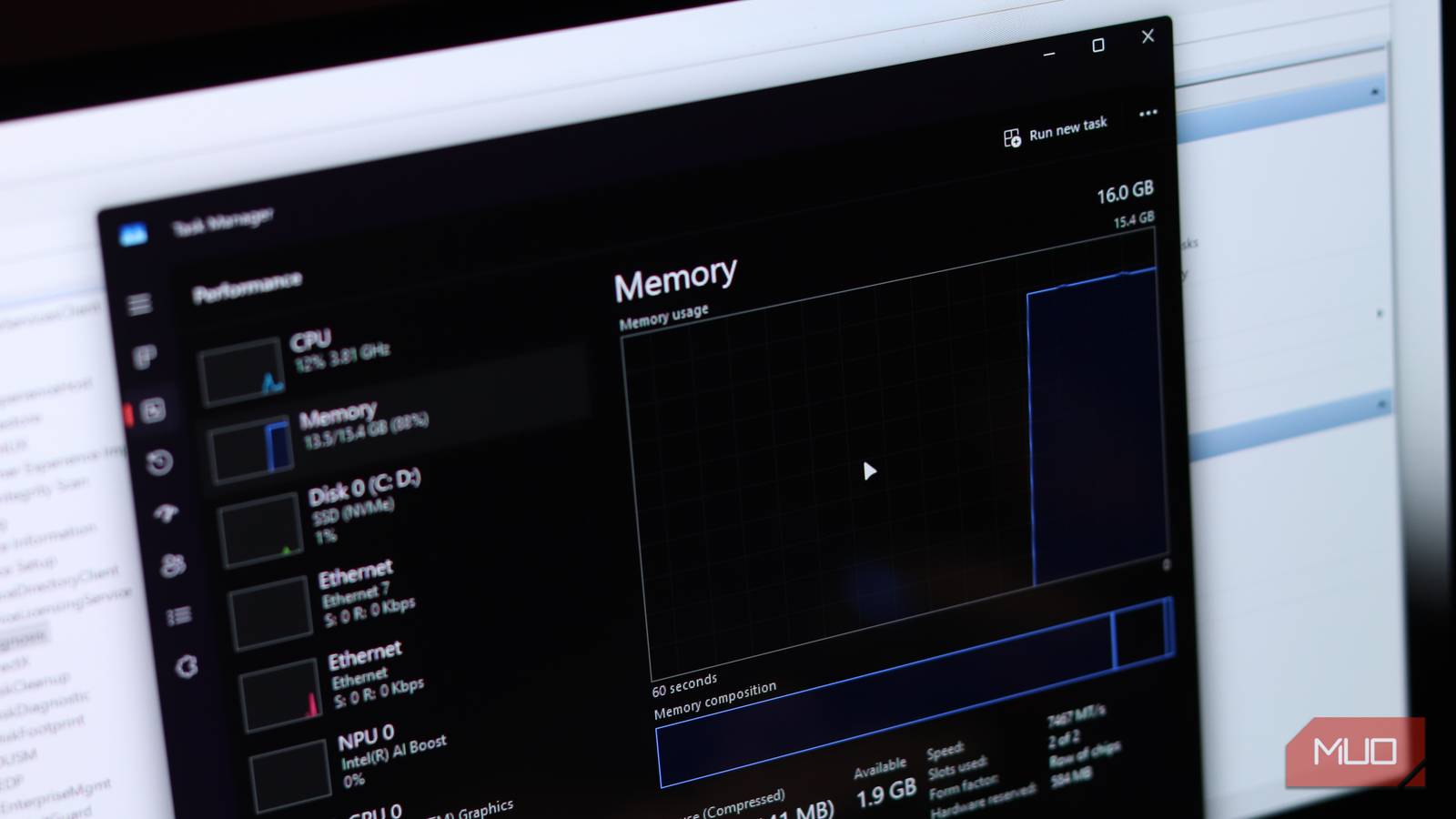


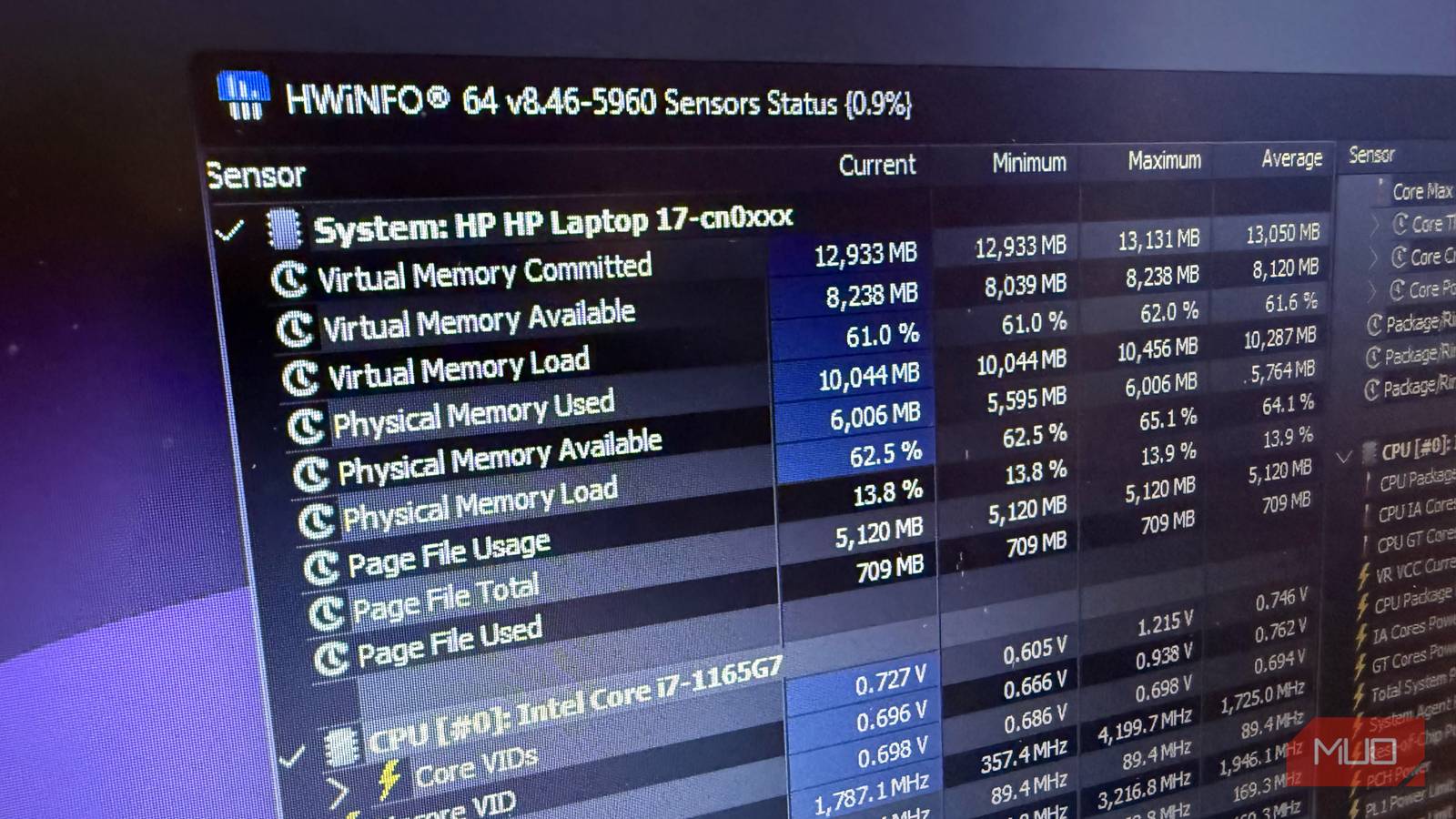
When I upgraded to a laptop with 24 GB of RAM, it honestly felt like overkill for the kind of work I do. But somehow, that didn't turn out to be the case. Every now and then, my PC's RAM usage would spike and stay there. And this used to happen even when I wasn’t running anything particularly heavy.
It turns out it wasn’t one big app or setting causing the issue but a bunch of small things adding up. Startup programs, background apps, browser tabs, and system services were all chipping away at my RAM. Once I cleaned things up, my PC’s RAM usage has stayed consistently lower during everyday use.
 Related
6 free apps that make your old Windows laptop feel new again
Related
6 free apps that make your old Windows laptop feel new again
Give your old Windows laptop a much-needed boost with these apps
Cut down startup clutter Your PC doesn’t need to launch everything at once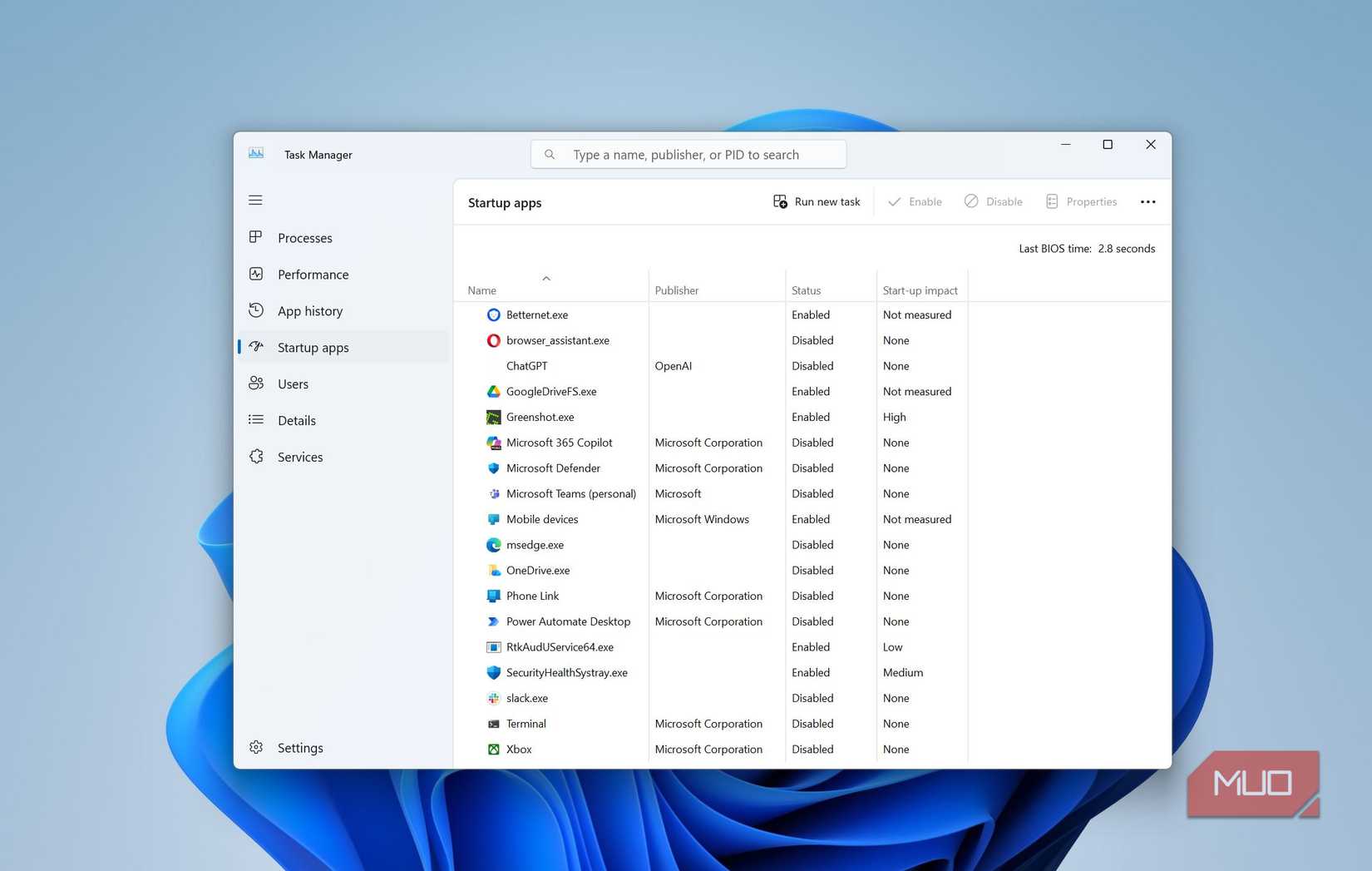
Every time you turn on your PC, Windows automatically launches a bunch of apps in the background. These are known as startup apps. And if left unchecked, that list can grow surprisingly long.
These apps not only affect your PC’s boot time but also eat into your RAM as they keep running in the background. Multiply that with a dozen apps and your PC ends up wasting RAM on apps you’re not even using. It’s not entirely Windows’ fault, though. Many apps tend to configure themselves to run on boot when you install them.
An easy way to fix this is by controlling which apps start with your PC. For that, head to Task Manager > Startup apps and review the list of apps that are configured at boot. From here, disable anything you don’t want running every time you start your day.
Stop apps from running in the background The silent memory drain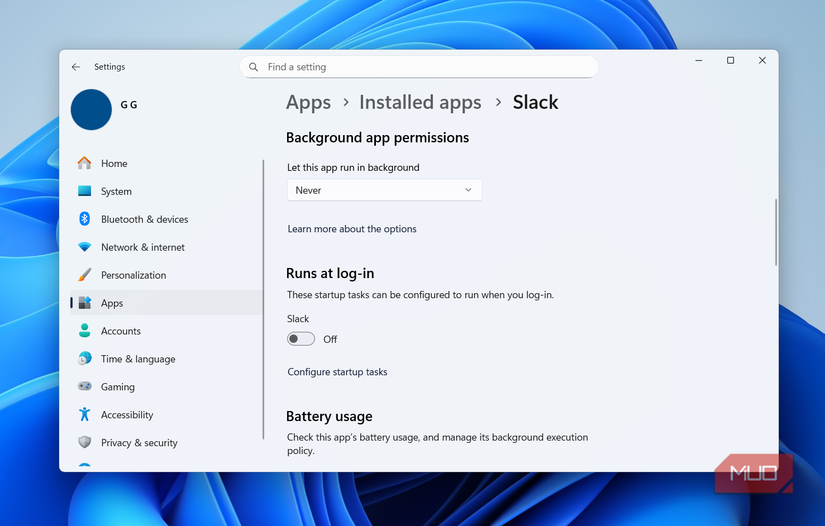 Screenshot by Pankil Shah -- No attribution required
When you close an app on your PC, it doesn't always stop running. Most of the time, you’re simply closing the window, while the app itself continues to use RAM, even if it’s lower than before.
To be fair, this is necessary for apps that need to check for updates, sync data, or send notifications. The problem is, there are plenty of apps that don’t really need to be running all the time.
The good thing is Windows lets you put a stop to this. Head to Settings > Apps > Installed apps, then click the three-dot menu next to an app you don’t want running in the background and select Advanced options. From there, set the Background apps permissions to Never. You’ll need to repeat this for any apps you don’t need to be constantly active, which might take some time, but it’s worth it.
Tame unnecessary services Not all of them are usefulIt’s not just apps that can eat up valuable RAM. Your Windows PC also runs a bunch of background services that handle everything from updates to device features. Sure, some of these are absolutely critical for the system, and you’re better off leaving them alone. But there are also others that don’t really offer much.
For instance, Windows 11 still includes legacy services like Fax. You’ll also find things like Windows Mobile Hotspot Service, Connected User Experiences and Telemetry, Windows Error Reporting, and Windows Update Delivery Optimization running in the background.
The good news is that Windows lets you disable them easily. Open the Services app, double-click the service you don’t want running, and set the Startup type to Disabled. That’s it. The service will no longer run. Of course, you shouldn't do this without reading the description of each service and understanding what it does. If you don't understand a service, it's best not to touch it.
Turn off visual fluff Looks nice, but costs RAMWindows 11 looks quite polished and much of it is due to all those animations, transparency effects, and little visual touches you see while opening menus and launching apps. But the thing is, they also consume RAM and other system resources. If you want to lower every bit of unnecessary memory usage, it’s worth dialing things back.
Search for Adjust the appearance and performance of Windows and select the first result. Select Adjust for best performance and hit Apply. This will strip down most visual effects, so Windows may look a bit barebones. If that doesn’t feel right, you can always re-enable a few options, like smoother fonts or basic animations.
Stop the browser from draining RAM Your browsing habits are costing performance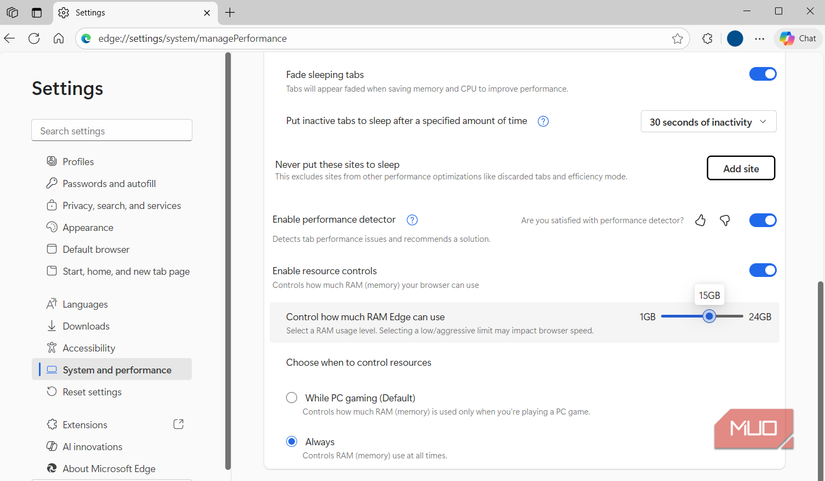 Screenshot by Pankil Shah -- No attribution required
If there’s one app that eats up more RAM than anything else, it’s your browser. And it doesn’t really matter which one you use because the issue isn’t the browser itself, but what you load inside it. Every image, video, ad, and script on a webpage adds to the memory load. Plus, your extensions and background processes pile on even more usage.
A good place to start is by cutting down on tabs. Simply closing tabs won’t help much, though. You need to target the ones using the most memory. For this, open your browser’s task manager to identify tabs using the most RAM and close the ones you don’t need.
Your browser extensions are also worth looking at. They may be useful, but each one adds its own overhead. And if one of them isn’t optimized well, it can cause RAM usage to spike unnecessarily. So, go through all your extensions and remove anything you don’t need.
Finally, most browsers also come with memory-saving features. For instance, Edge includes an option that automatically puts inactive tabs to sleep. Even better, you can set limits on how much RAM it’s allowed to use, which keeps things under control.
The above fixes may sound like a lot of work, but you only need to do them once. After that, your PC will more or less take care of itself. If you want a quick fix, though, you can also get Microsoft's PC Manager app. It can help clear temporary files and free up RAM with a single click.