
Remember me
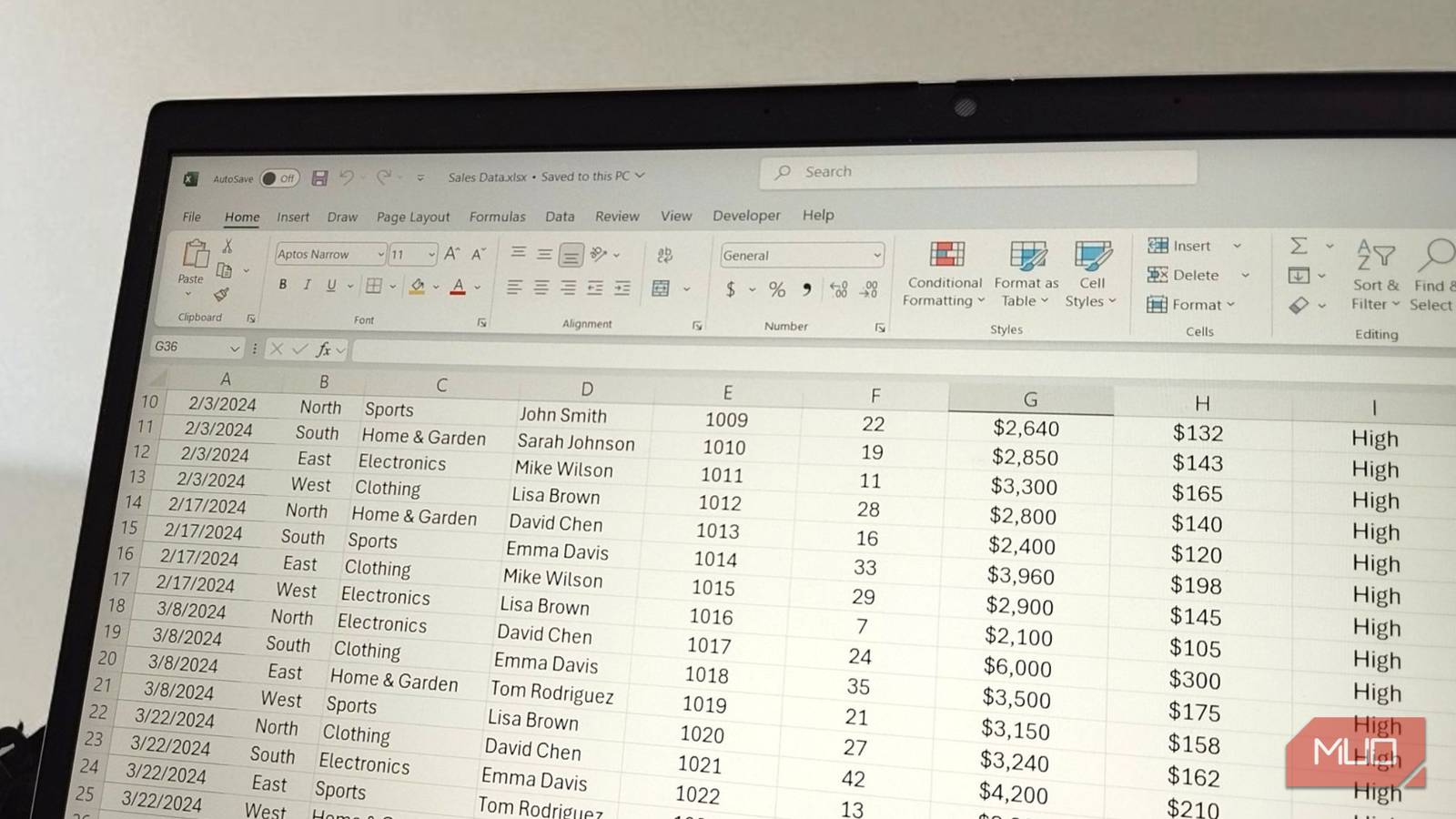
I’ve been using a dual-monitor setup at my desk for so long that a single screen feels restrictive now. My workflow is almost always split in two: work apps like Slack, Asana, and Google Chat live on one display, while my articles and an endless trail of research tabs occupy the other. It’s a rhythm I’ve grown completely used to.
That’s why a recent work trip threw me off more than I expected. I had packed a tablet almost as an afterthought, assuming it would just be a flight companion. But later that evening, at the hotel desk, I was back to working on a single laptop screen, and it felt immediately limiting. I found myself constantly hopping between tabs, zooming in and out, and losing track of what I was referencing. It broke the flow I’m so used to, and everything suddenly felt slower and much more tedious than it should have.
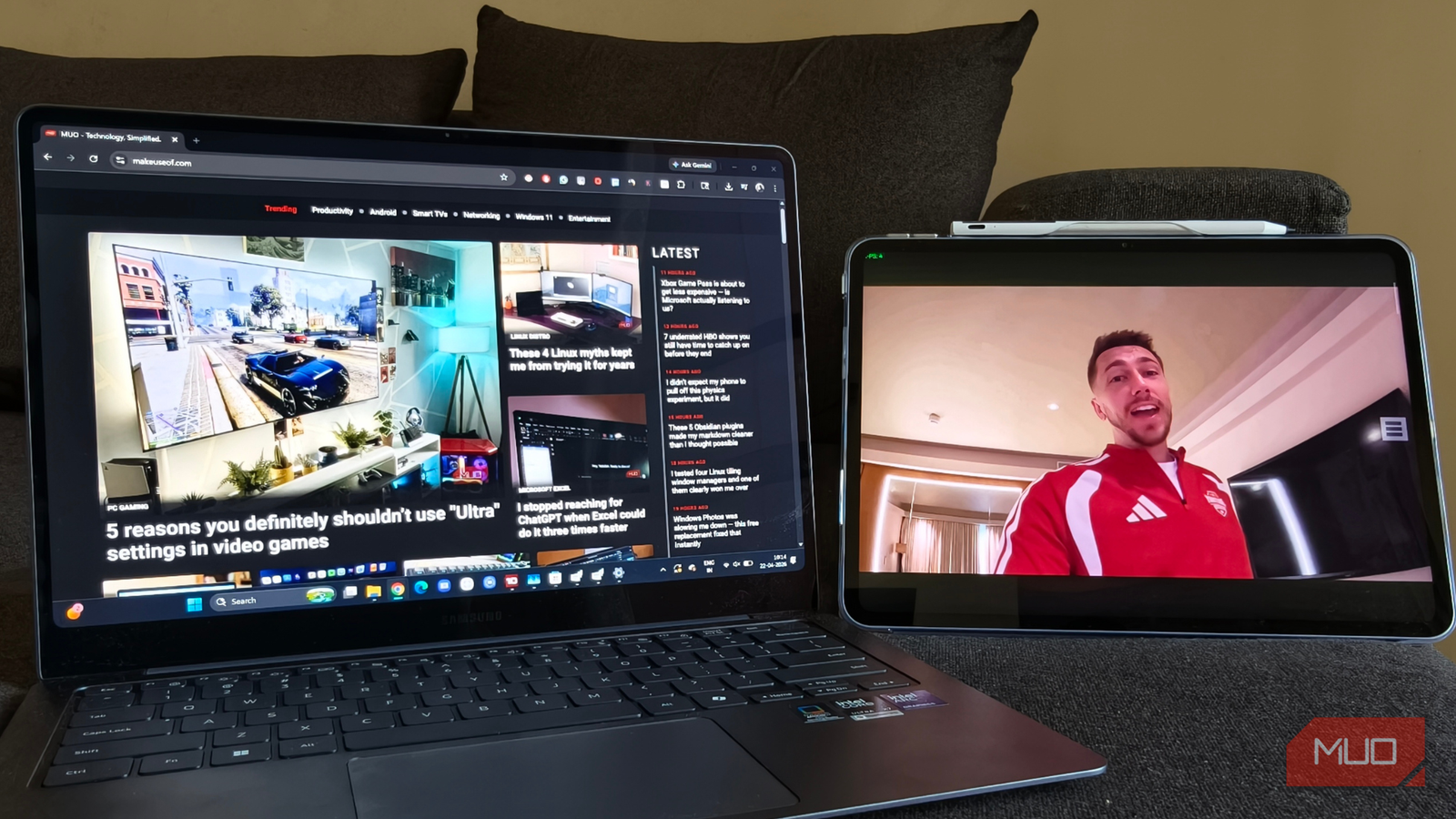
That’s when I remembered something I had saved and never bothered to try: spacedesk. Within 10 minutes, I had the tablet set up as a second screen for my laptop, and I couldn’t figure out why I had waited so long to try this.
 Related
I dug out my old Android tablet, and it replaced 3 expensive gadgets
Related
I dug out my old Android tablet, and it replaced 3 expensive gadgets
I dusted off an old Android tablet and it quietly replaced three gadgets I was ready to spend serious money on.
Turns out my tablet was one free app away from being more useful How a free app put my tablet back to work Credit: Robin John / MakeUseOf
spacedesk works by installing a small driver on your Windows machine that broadcasts a virtual display over your local Wi-Fi network. Your tablet runs the free spacedesk viewer app and receives that feed.
You don’t need an account, subscription, or complicated configuration to go through this.
The primary machine does all the heavy lifting; the tablet just displays what is sent. You won’t understand how great this is until you try it on your devices. Here is how I got it running on my laptop and my Android tablet:
Download the spacedesk Driver Console from spacedesk.net and install it on your Windows PC or laptop. Once it is done, you will see a spacedesk icon sitting in your system tray. Install the free spacedesk viewer app on your Android tablet from the Play Store. Open the app, and it will automatically scan your local network. Here, you’ll see your PC’s name and an IP address, tap it. On your Windows machine, open Display Settings, set the new display to Extend, and drag it left or right to match where your tablet is physically sitting. Credit: Robin John / MakeUseOf
The tablet screen went black for a second and came back showing my extended Windows desktop. I dragged a browser window across to it, and it felt like sitting at my dual-monitor desk setup, but just smaller.
One bonus that I wasn't expecting was that my tablet would work as a touch input device with Spacedesk. Tapping the tablet screen actually interacts with the Windows window currently open on it. It is not as precise as a mouse, but for scrolling a page or clicking a link, it works surprisingly well.
Good enough to forget it's not a real monitor Almost no lag until the network has other plans Credit: Robin John / MakeUseOf
For productivity, spacedesk proved genuinely reliable. I kept my research notes and browser tabs open on the tablet, while the laptop handled the actual writing, and it just fell into place. After a point, the lag was so minimal that I stopped paying attention to it altogether — it simply felt like a natural extension of my setup.
It’s only when I tried watching videos that the limitations became obvious. Streaming on the tablet isn’t the smoothest experience when connected via spacedesk. You do notice compression artifacts, and there are occasional stutters, especially if the connection isn’t stable. It works if you just want something playing in the background, but I wouldn’t rely on it for anything I actually want to enjoy.
And a lot of this really depends on your Wi-Fi. On my phone’s hotspot, things ran quite smoothly and felt consistent. But on a busy hotel network, the lag was much more noticeable. It’s the kind of setup that works really well when the connection is good, and quickly shows its flaws when it isn’t.
Spend five minutes in settings, and it actually looks good The curious case of the shrinking screen Credit: Robin John / MakeUseOf
The first thing you will notice after connecting is that everything on the tablet looks oddly small. That’s because Windows has no idea what kind of display it is broadcasting to, so it defaults to a scaling factor that makes text uncomfortably tiny.
The fix is straightforward: on your primary PC or laptop, go to Settings > System > Display, select the tablet display, scroll down to the Scale option, and increase it. I landed on 175%, and it felt right, but it is worth experimenting depending on your tablet's screen size. You can also change the orientation of the display — if you prefer the tablet in portrait mode for reading long documents or keeping a chat window open vertically, that option is available too.
On the tablet itself, you will notice a small hamburger menu floating near the edge of the screen. Tap it, and spacedesk’s own settings panel opens. The first thing to do here is set the resolution to the highest available option for your tablet, so the text and UI elements stay sharp rather than looking slightly soft.
 Credit: Robin John / MakeUseOf
There is also a performance tab where you can push image quality and frame rate higher, though how far you can take those settings depends entirely on how fast and, more importantly, stable your network connection is. On a solid connection, cranking both up makes the whole experience feel noticeably snappier.
One last thing: there is an option to route audio through the tablet as well. Enable it, and your tablet's speakers become the primary sound output instead of your laptop. This is more useful than it sounds. On my main PC setup, my monitors don't have built-in speakers, and my Bluetooth speaker recently gave up, so routing audio through the tablet was a genuinely handy workaround until I sort out a proper replacement.
 Related
You don't need multiple monitors — this is what you need
Related
You don't need multiple monitors — this is what you need
I use this instead of multiple monitors, and I'm much more productive.
The one thing that can spoil the fun Smooth sailing, with a few bumps along the way Credit: Robin John / MakeUseOf
There is one catch, though. spacedesk only works with a Windows PC as the source, so if you’re on a MacBook, this route simply isn’t an option. In that case, you’re better off looking at alternatives like Sidecar with an iPad or apps like Duet Display, which are built more natively for that ecosystem.
Over longer sessions, I did notice the tablet’s battery taking a steady hit. Since the screen stays on the entire time, it’s not exactly surprising. After the first hour or so, I gave up trying to stretch it and just kept the tablet plugged in. It’s not a dealbreaker, but definitely something to keep in mind if you’re planning to use it for extended work.
The tablet that finally started pulling its weightTo be honest, I wasn’t really using my tablet to its full potential. For the longest time, it was just a bigger screen for streaming during trips, nothing more. But that one evening at the hotel changed how I looked at it. Since then, it’s become my go-to second screen whenever I travel, and it's now earned its place in my bag.
If you already have a Windows laptop and a tablet that mostly sits idle, spacedesk feels like the most practical way to put both to good use. It takes barely ten minutes to set up, costs nothing, and for the kind of everyday work most of us do on a second screen, it does an excellent job.