
Remember me







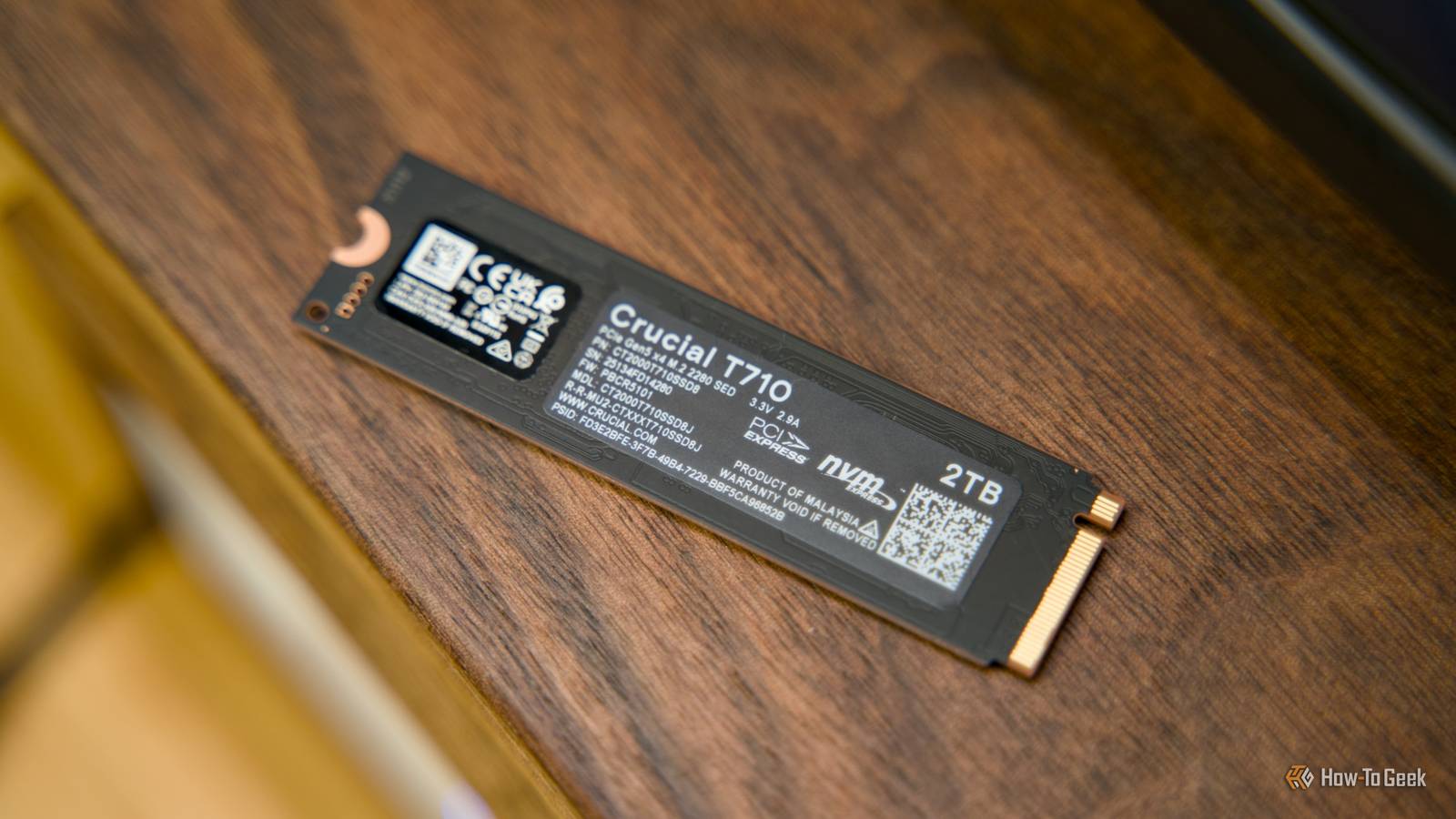
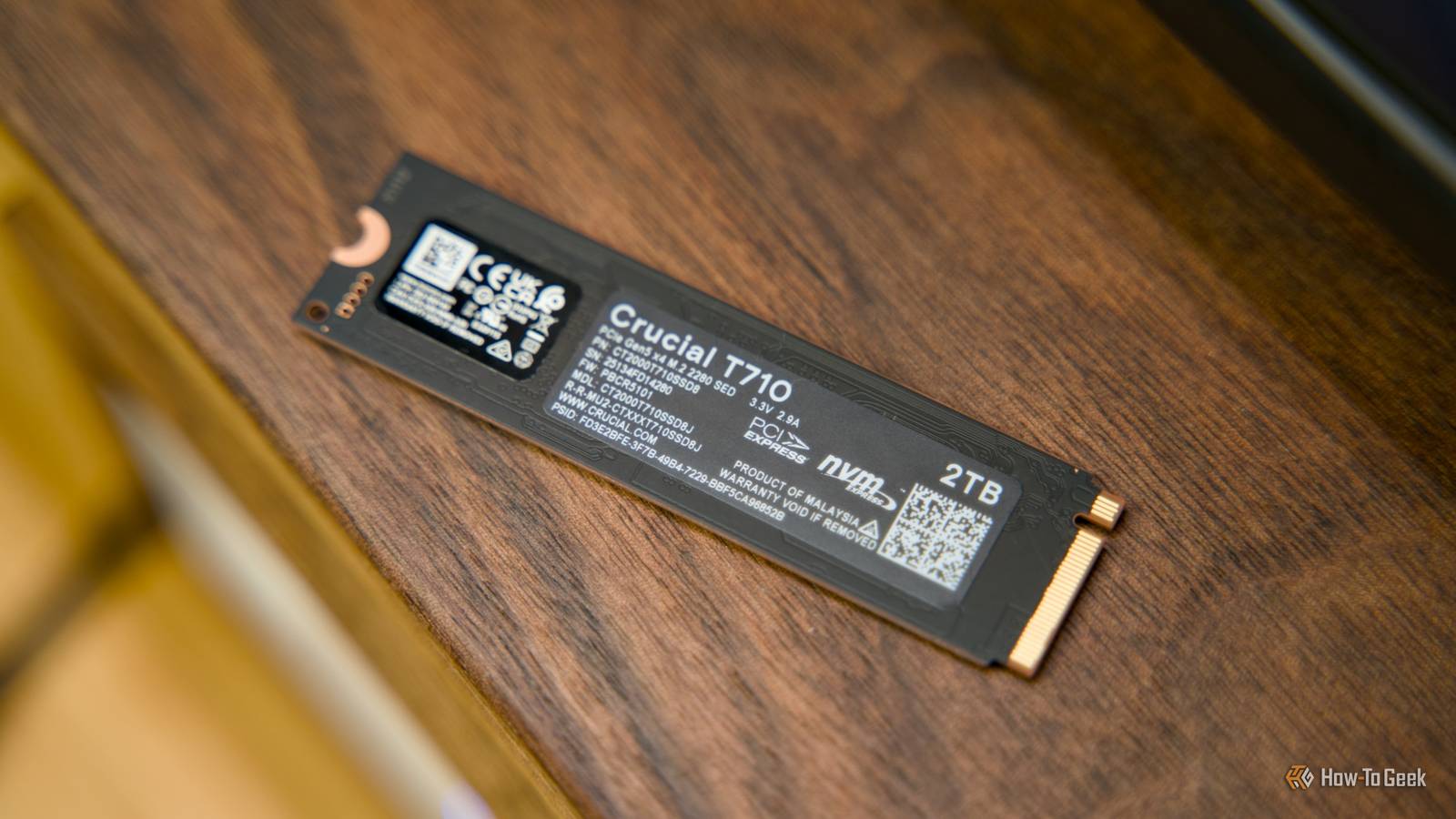
When SSDs first started entering the consumer market, there was a lot of fearmongering about SSD wear and failure. Hard drives with spinning platters were a mature and familiar technology. So it's natural people would choose to stay with what they knew until SSDs proved themselves.
In the years since, most of these fears have turned out to be nothing. In fact, most consumer SSDs last far longer than their rated lifespans. Still, SSDs can fail suddenly, without warning. I recently lost one to what was most likely inadequate cooling and of course they do wear down due to normal use. The good news is that you don't have to be taken by surprise. There are tools built into both Windows and macOS that will tell you if there are errors lurking in your SSD's logs.
Most people never check their SSD’s health until it’s too lateThe failure process for an SSD when things go to plan can actually be pretty orderly. On some SSDs once the drive's controller determines that the SSD is having too many errors and has reached the end of its life, it switches the drive into read-only mode. This allows you to save any data you need, and then destroy the drive thoroughly to ensure that no one else "recovers" it after you throw it away.
But, you can't rely on this always happening or that your drive has this feature, and so you still need to practice the 3-2-1 backup rule. Even then, you still want to have some idea how close your drives might be to failure, if for no other reason than avoiding the inconvenience of having a broken computer when you need it the most.
The two tools below are native to Windows and macOS, and they expose important data your drive keeps about its activities. Including SMART, which takes an educated guess at whether the drive is still healthy or not. Of course, you don't have to stick with these included methods. There are third-party tools that report drive health as well. A prime example for Windows is CrystalDiskInfo, which will show you everything you need to know about the current state your drives are in, and if any warnings or errors have been logged.
Individual SSD manufacturers sometimes offer their own utilities for drive health, and these might even report the basics for drives of any brand, but here's how to quickly check on your computer without downloading a thing.
If you open up Disk Management in Windows, you'll see the word "Healthy" in various places on the disk diagrams, but this doesn't refer to the physical health of your disks, but the intergrity of the data structures.

No, if you want information about the physical state of your SSD you'll have to get your hands dirty in Windows PowerShell.
After opening PowerShell with administrator privileges, type Get-WmiObject -namespace root\wmi -class MSStorageDriver_FailurePredictStatus | Select-Object InstanceName, PredictFailure, Reason and press Enter.

Here you can see that the drive (or drives) does not predict immanent failure, but if you want to see an actual breakdown of the data this verdict is based on type Get-PhysicalDisk and press Enter.

Here you'll see the list of physical disks attached to your computer. The important piece of information here is the "FriendlyName", because we'll use that to ID the drive when pulling its data. In this case, I want to check drive 0, which is my Samsung 980 Pro SSD system drive.
To do that type Get-PhysicalDisk -FriendlyName "NVMe Samsung SSD 980 PRO 1TB" | Get-StorageReliabilityCounter | Format-List and press Enter. Obviously you need to substitute the name of your own drive, but if you've done it right you should see this:

This looks like a lot to parse, but the various error counters are the most important. Here we don't see any errors recorded, but a drive where errors have accumulated is closer to the end. You also don't want to see a high write latency number in the triple digits, and the temperature should be well under 75C or whatever the throttling limit is for your specific drive. Either way, unless there's a bunch of errors and high numbers that there shouldn't be, then there's no reason to doubt the SMART prediction.
How macOS tells you when an SSD is wearing outAs you might expect, getting to your SMART verdict in macOS is pretty simple. All you have to do is open Disk Utility, and then select your physical drive.
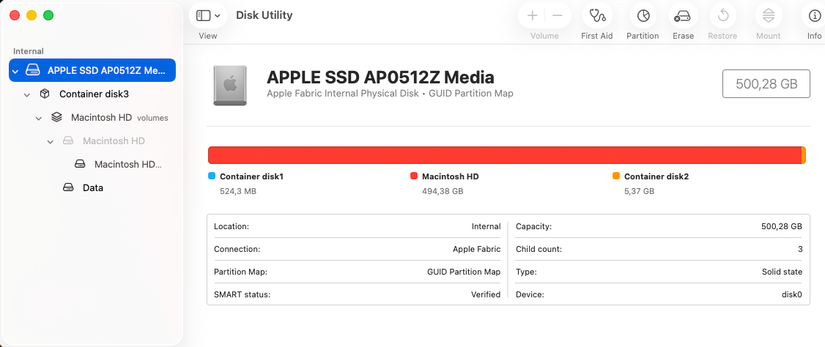
Next to SMART status you should see "Verified" if nothing is wrong, but there may be another error message warning you of potential drive failure.
If any SMART errors telling you the drive is sick show up, the best thing to do is back up anything important and replace the disk with a new one. That's easier said than done with a Mac, so hopefully yours is still under warranty!
Comments (0)