
Remember me


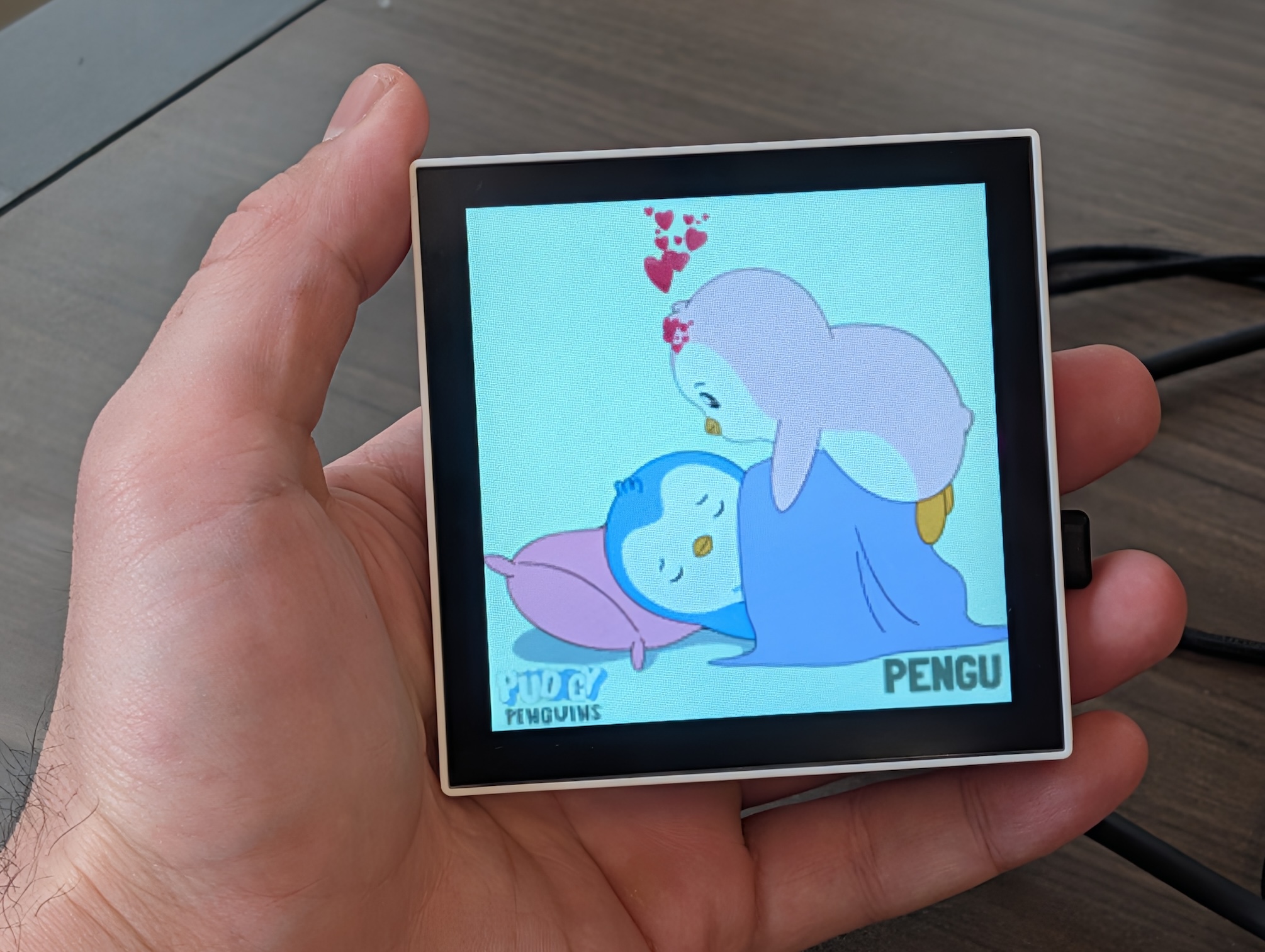
p3a is designed to be on 24 hours a day. When told to play something, it begins downloading artworks and keeps downloading until the channel cache is complete. When you tap to change animations, you cycle through the files it has already downloaded. In other words, be a little bit patient, and new artworks will come.
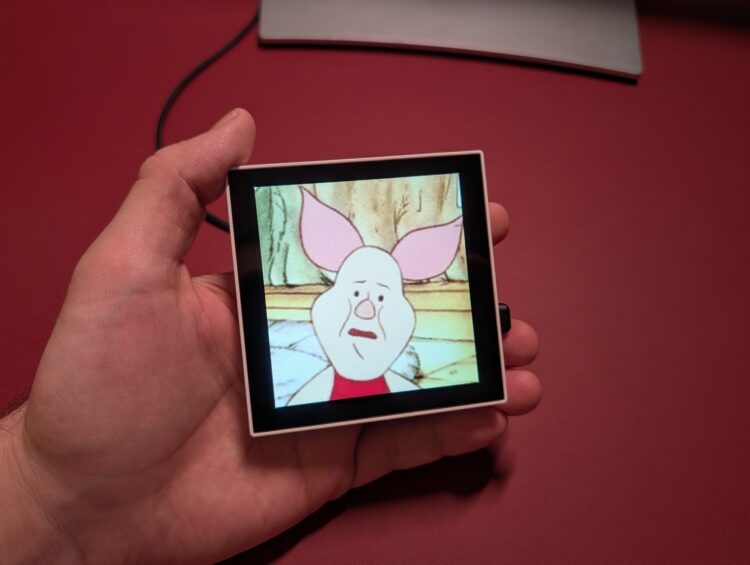
In http://p3a.local/, you can see what’s currently playing, and how many artworks there are in the cache:
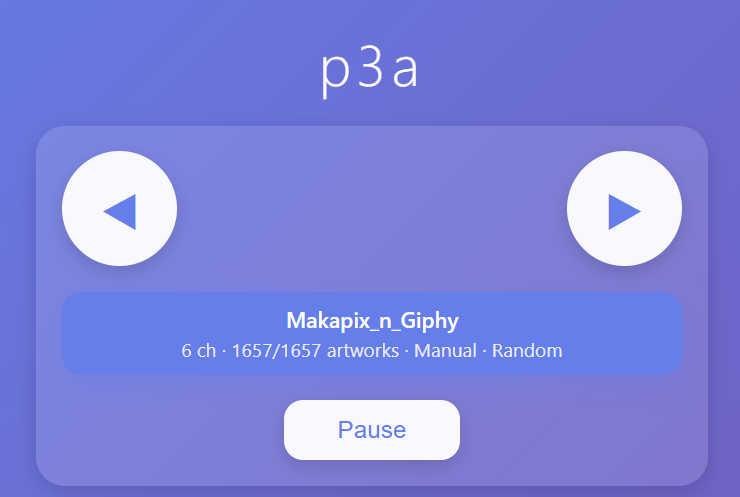
The “X/Y artworks” numbers mean:
X: How many files have already been downloaded. Y: How many files are in the list.Channels are how p3a abstracts the sources of artwork it has access to. Examples of channels include:
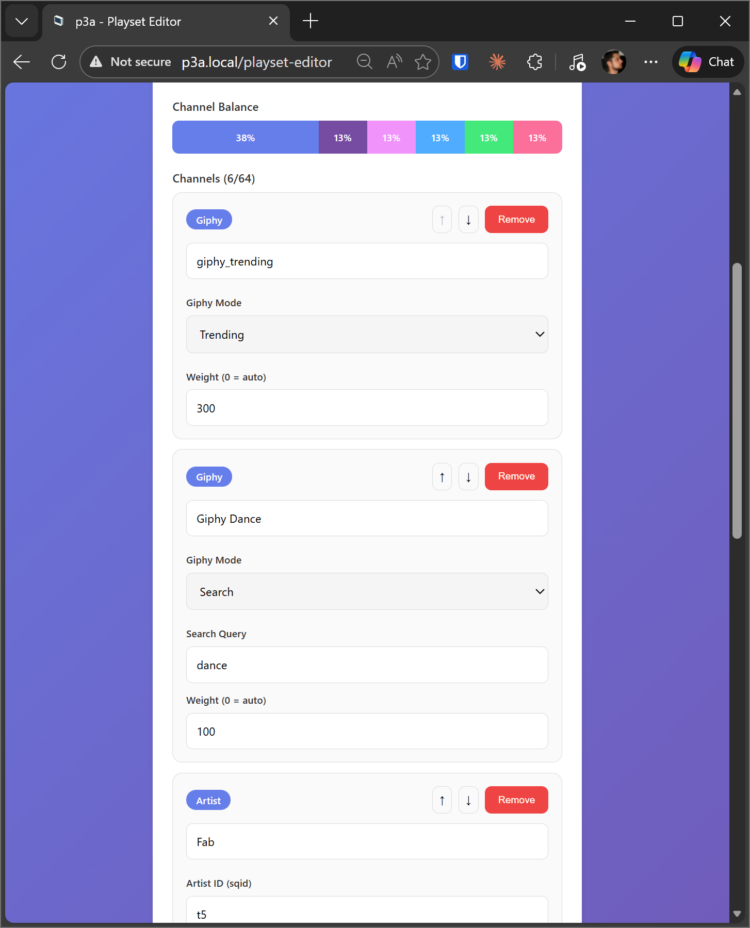
Recommended Artworks from Makapix Club Recent Artworks from Makapix Club Trending GIFs from Giphy The results of a search at Giphy The artworks containing a hashtag at Makapix ClubWithin each channel, p3a can play artworks in order, or randomly – that’s called the “pick mode”. You can also mix channels using the “exposure mode” settings. The “exposure mode” determines how channels are mixed. For example, you can define manual channel weights, giving the proportion of the time should be occupied by each channel. For example:
“70% recommended artworks from Makapix Club, 30% Trending GIFs from Giphy” “20% work GIFs, 40% office GIFs, 40% energy GIFs” …and so on.If you don’t want to set channel weights, you can set “exposure mode” to “equal”, and all channels will display the same number of artworks
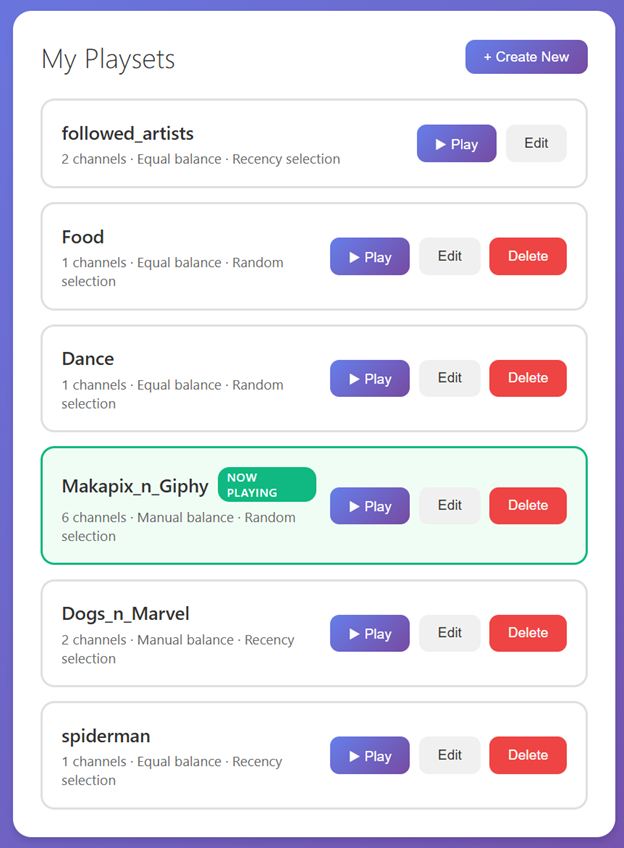
A set of configurations of what to play is called a “playset”. In p3a.local/playset-editor, you can create playsets, so you can easily switch between them. Each playset may have up to 64 channels.
After creating a playset, you can play it by pressing “Play”:
There are 4 ways to control p3a:
Using the browser at http://p3a.local/ Using the browser at makapix.club Using the touchscreen Using the REST API: all controls are available through the API…learn everything about them at github.com/fabkury/p3a ;)
Bonus feature: stream PICO-8 games to p3a
p3a also has a unique feature where it can act as a monitor to PICO-8 games. This is how it works:
With p3a connected to your wi-fi, open http://p3a.local/ on your laptop and click PICO-8 Load any .p8 or .p8.png cart (local file or from URL) The browser runs the game using fake-08 compiled to WebAssembly Frames stream over Wi-Fi to the device via WebSocketPerformance will depend on the wi-fi conditions. The device automatically adjusts the frame rate during gameplay.
Bonus tip: power p3a with your smartphone!
Not at home? No problem! p3a’s power consumption is low enough that it can be powered by anything, including your smartphone. Just connect the cable and show off.
Comments (0)