
Remember me





It is time for a new list of 10 useful apps for Windows 10 and 11 that can boost productivity, make the operating system more convenient, capable, or just plain fun. In our 2026 edition, we have cross-platform apps for file transfer, screen time utilities, powerful text expanders, notification tweakers, Task Manager replacements, and more.
Without any particular order, here are 10 cool apps for your Windows PC:
Free in the Microsoft Store.
Google managed to make Android compatible with AirDrop on iOS and Mac, but Windows, unfortunately, remains incompatible. However, if you have an iPhone, Mac, or any other device, including Android, you can try Blip, a cross-platform file transfer app. Blip works like AirDrop, allowing you to transfer files locally via Wi-Fi or even across the internet. It also lets you beam files to other people if you have their contacts.
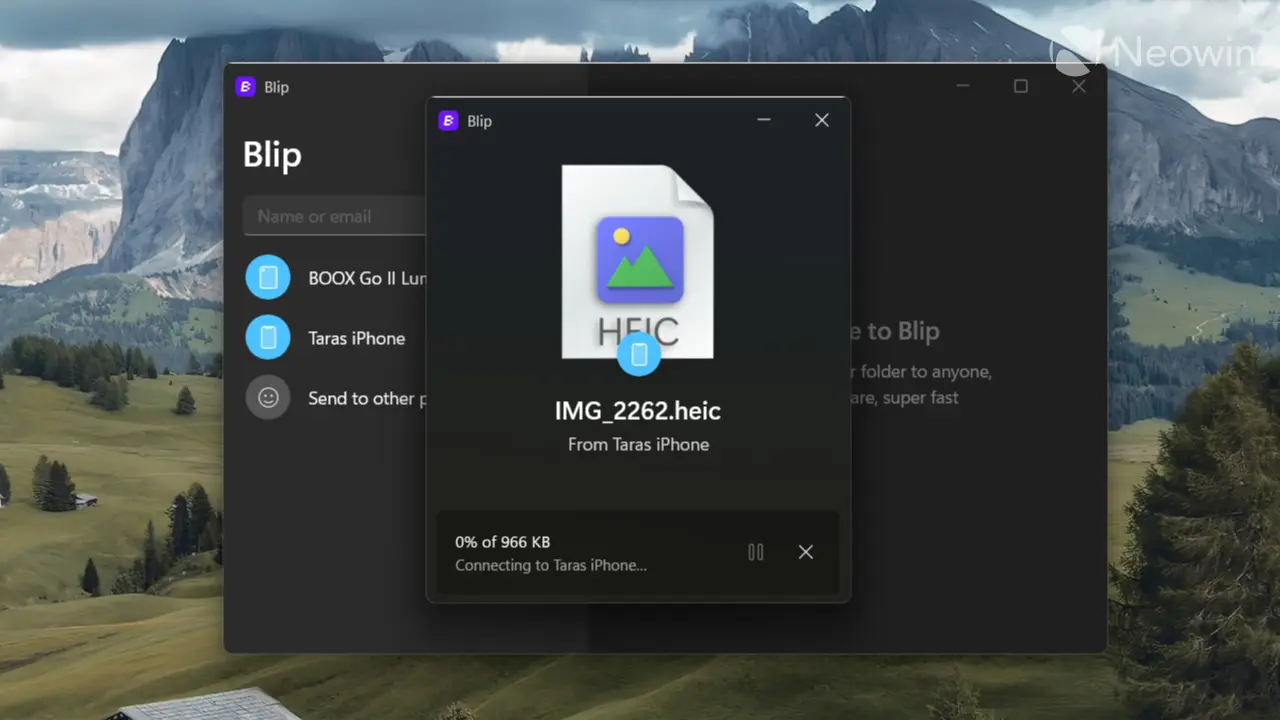
Blip is free, cross-platform, and it gets extra points for using Windows 11's native UI framework. In a few weeks of using it, Blip proved to be a reliable and fast way to transfer files.
$1.99 in the Microsoft Store
MagicPods makes Apple's earbuds and headphones more friendly to Windows PCs. With it, you can track your AirPods / Beats (it also supports certain Sony and Samsung models) battery, customize various features, such as what happens when you take off earbuds, set custom shortcuts, and even use dedicated Windows widgets.
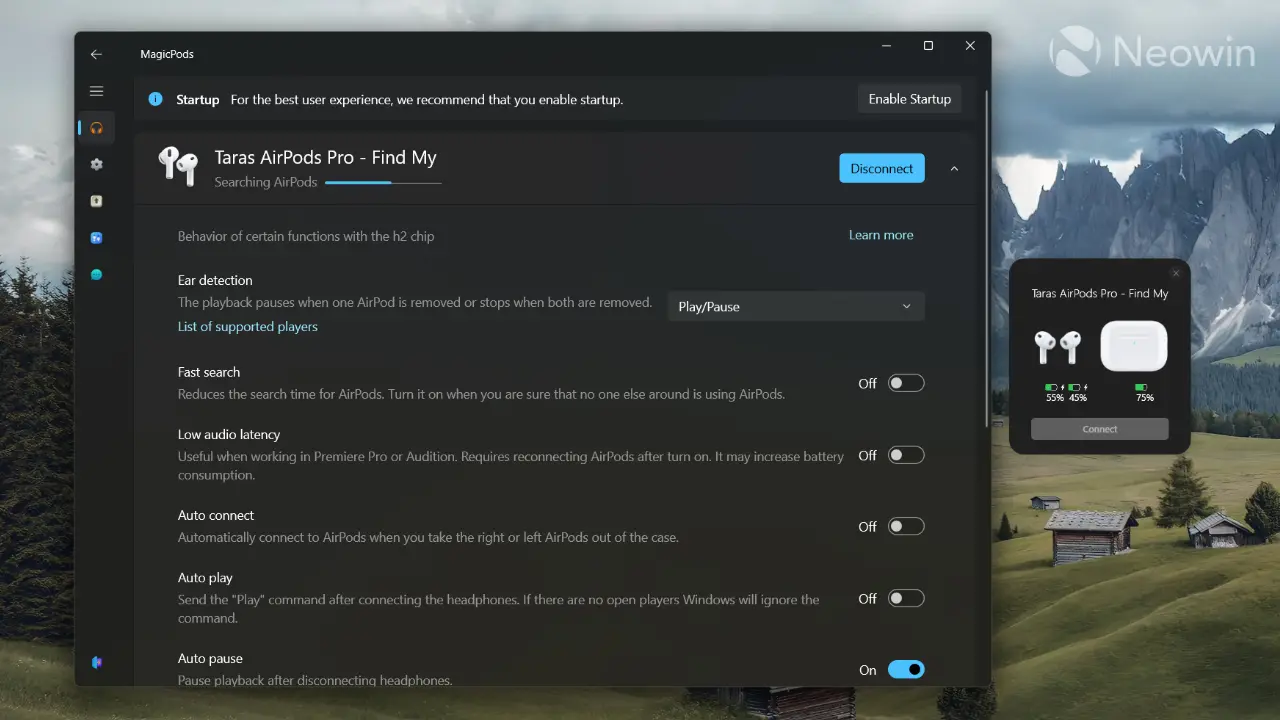
While MagicPods is not free, $1.99 is a very small price to pay for such a feature-rich program.
Free in the Microsoft Store with in-app purchases
WindowSill is a taskbar-like app with multiple modules to give you quick access to various widget-like apps and commands. It sits on top of your taskbar and offers stuff like media controls, AI writing tools, resource monitoring, image tools, meeting controls, URL tools, and more. It comes with plenty of extensions by default, but you can download more from the official website.

WindowSill works with various AI models, and you can connect your own API keys or subscribe to WindowSill+ to use built-in AI. You can set your own custom prompts and rules and pin them for quick access. My favorite extensions include the hardware monitor widget (CPU, RAM, and GPU usage), quick notifications, app launcher, and AI text tools. Soon, WindowSill will let you run scripts and commands without copying them to Windows Terminal.
Free on the official website
AppControl is an advanced Task Manager for Windows 10 and 11. Its primary trick is activity history, which lets you track app launches, resource load, and other vital data over the last three days. This helps you understand app behavior on your computer and troubleshoot issues if necessary. AppControl can also warn you when unknown processes spawn, check detailed descriptions for each process, monitor CPU/GPU temperature, and more.
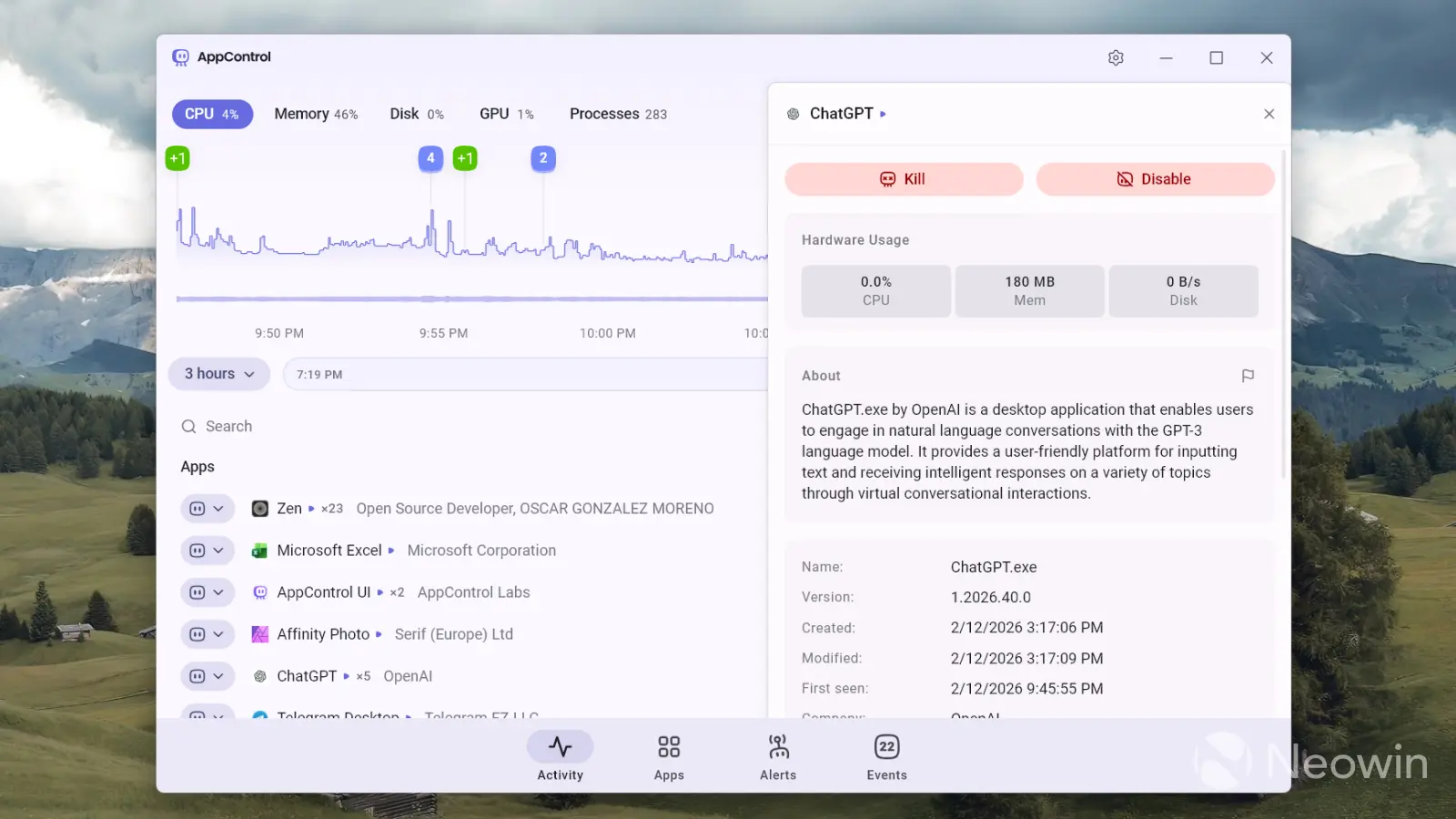
If the stock Task Manager is not enough for you, AppControl is a solid alternative to the stock experience.
Free on GitHub
I use this app to clean Windows 11's context menus and improve their performance. Apps clutter Windows 11's already slow menus, and as entries grow, performance gets absolutely miserable, not to mention having redundant or completely useless options like opening videos in Notepad. Windows 11 Context Menu Manager lets you remove all third-party apps from context menus with a couple of clicks, and it is a complete must-have for each Windows 11 user.
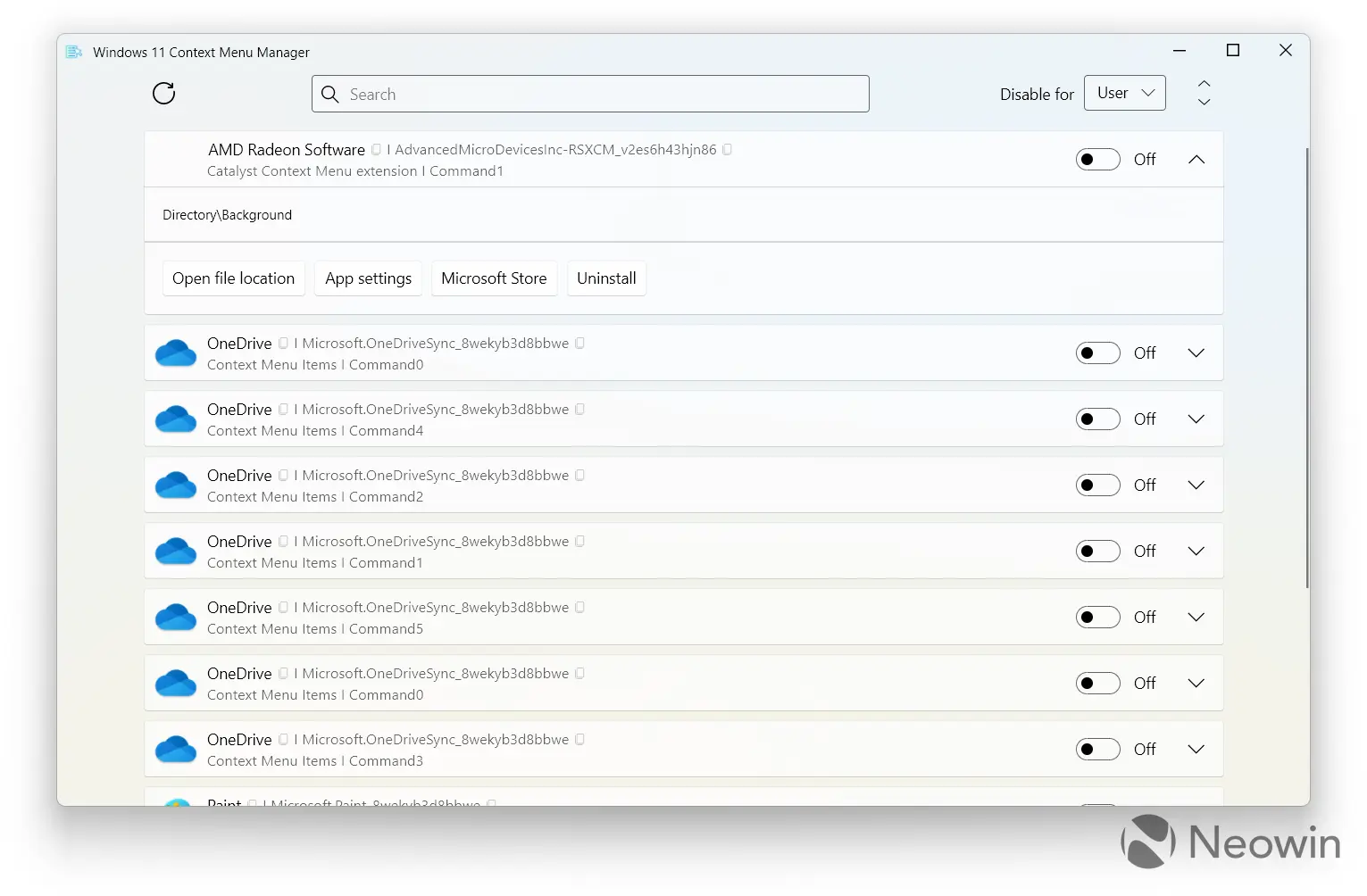
Free on GitHub
This small app was inspired by macOS Sonoma and its feature that minimizes all apps by simply clicking on the desktop. Click anywhere on the desktop, and all apps go away. Click again, and the open windows return to their positions. Of course, this app's target audience is users who keep stuff on their desktops, but it is also a solid substitute for Windows 11's stock bottom-right "Show desktop" button.
By the way, PeekDesktop was developed by a Microsoft engineer, Scott Hanselman.
Free in the Microsoft Store
Raycast is a powerful, feature-rich launcher that recently came from macOS to Windows. For now, it is available for free during the beta testing period. Once that is over, some of its features will be locked behind a subscription.
You can use Raycast to launch apps, execute commands, do calculations, ask AI, find files, and more. It is particularly good at finding apps on Windows, where the stock file search is infamous for being absolutely terrible at its job. You can also assign commands for quick system actions, use Raycast as a "Run" replacement, and more.
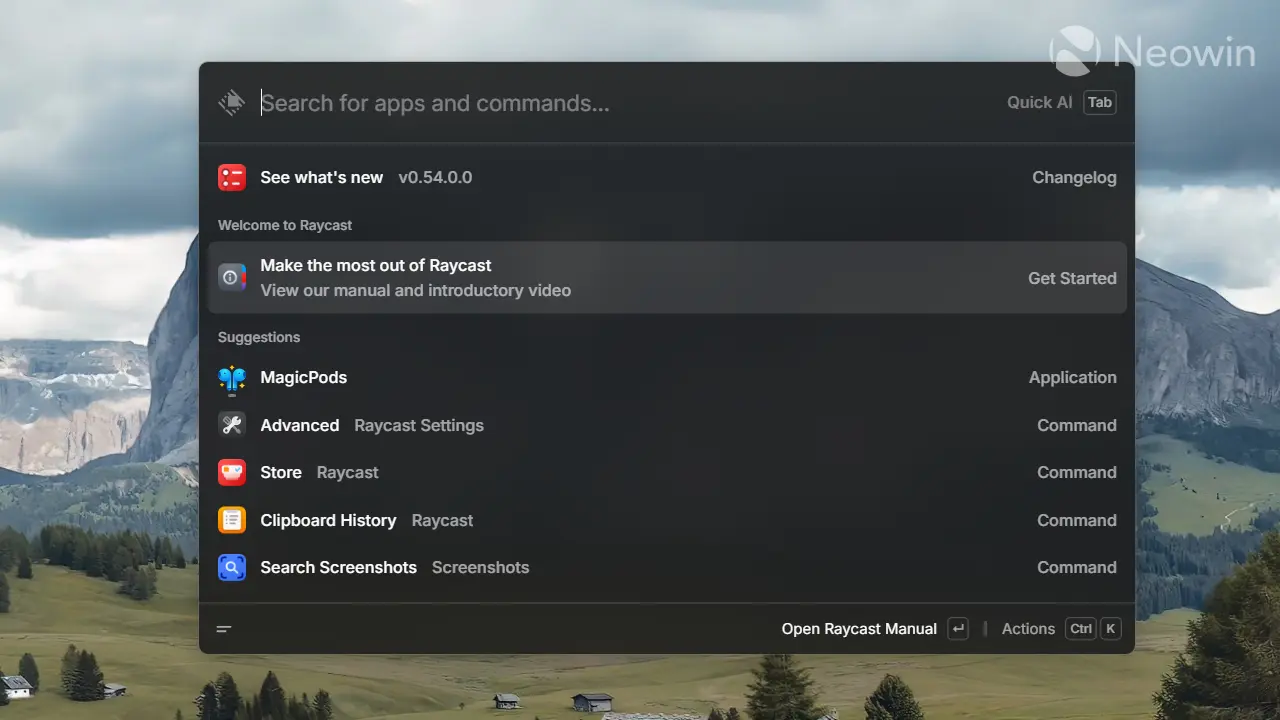
Like WindowSill, Raycast is highly modular and configurable, which makes it very flexible and adaptable to different setups and workflows. Raycast is also good at quick AI chats when you need to look up something without launching ChatGPT or Copilot. Just press Win + Spacebar, enter your question, and hit Tab.
Free in the Microsoft Store
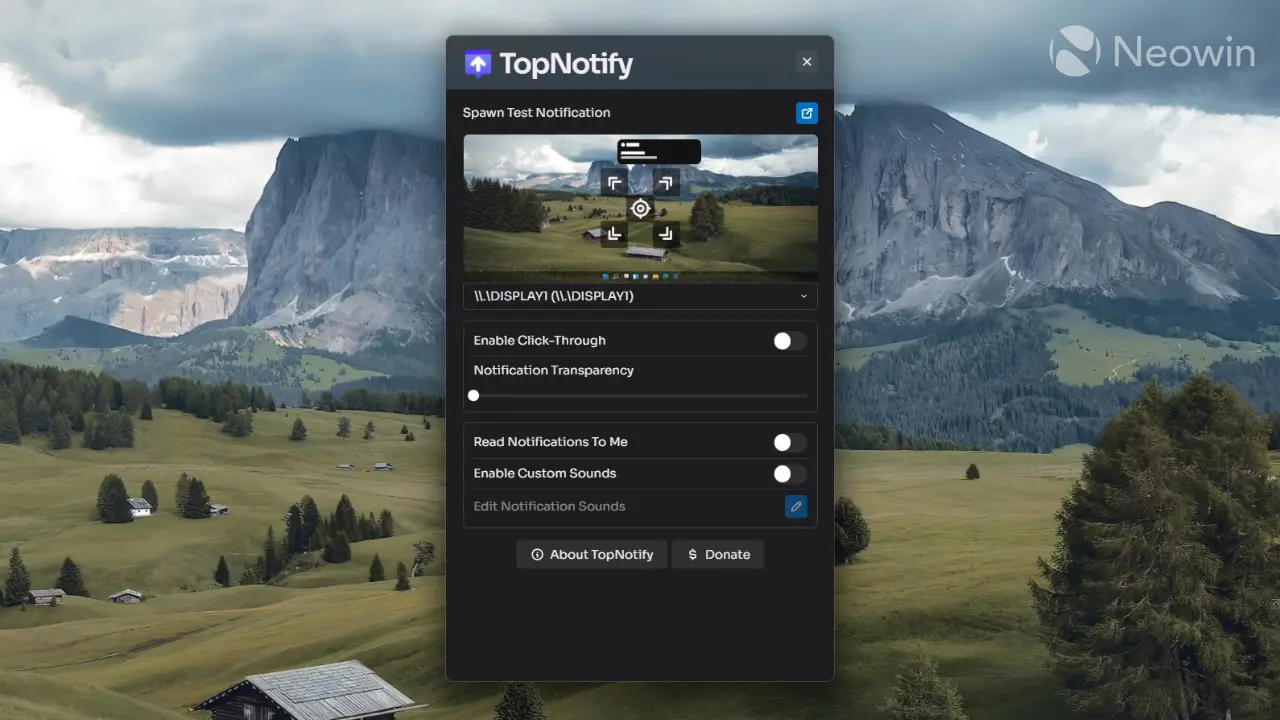
TopNotify is a more niche app in this list, and not everyone may find it useful. With this tool, you can change where Windows 11 notifications appear, a convenient feature on extra-large or white monitors. It also lets you make notifications transparent and enable click-through. Click-through is a useful feature when playing games, as it prevents accidental app switching when a notification appears. You can still read it, but clicking it no longer kicks you out of what you are currently playing.
Free on the official website
Espanso is a powerful text-expanding app that lets you automate various text inputs. For example, you can type ":date" and it will automatically paste today's date. You can create custom rules to paste emojis, special symbols, email templates, code snippets, or anything else you want to automate. All you need is a semicolon and a command (you can also click Alt + Space to see the list of all commands). There is also an extension hub where you can download custom-made packages from other users.
The main downside is that there is currently no dedicated GUI for configuring snippets, so you will have to learn the app's syntax and edit it in a text editor.
Free in the Microsoft Store
Windows 11 lacks built-in tools for tracking screen time, so this free app from the Microsoft Store fixes that. Like Apple's Screen Time or Google's Digital Wellbeing, Scolect tracks how much time you spend in each app and generates reports with the ability to export them to Excel. The app is free, and developers claim that it stays fully local, with no data being sent anywhere.
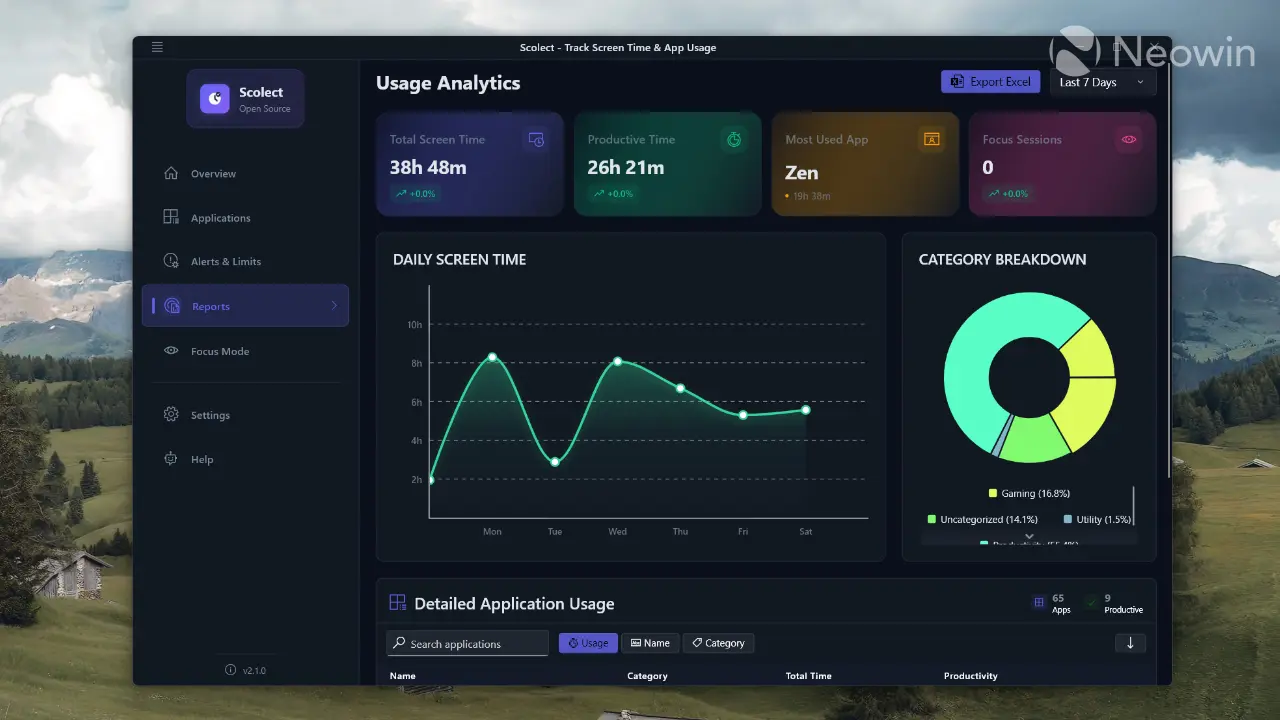
What I like about Scolect is that you can create custom categories and assign categories to each app. Also, it lets you flag apps as productive or unproductive to better understand your screen time quality. There are also alerts, time limits, trends, break reminders, and a dedicated focus mode with a pomodoro timer.
Overall, Scolect is a very helpful productivity tool for controlling screen time. I only wish it had a snappier, more Windows 11-like user interface, but despite being a bit sluggish, it gets its job done very well.
If you want more useful apps, you can check some of our previous articles here, here, and here.
If you know other great Windows 10 and 11 apps, share them in the comment section!
Comments (0)