
Remember me


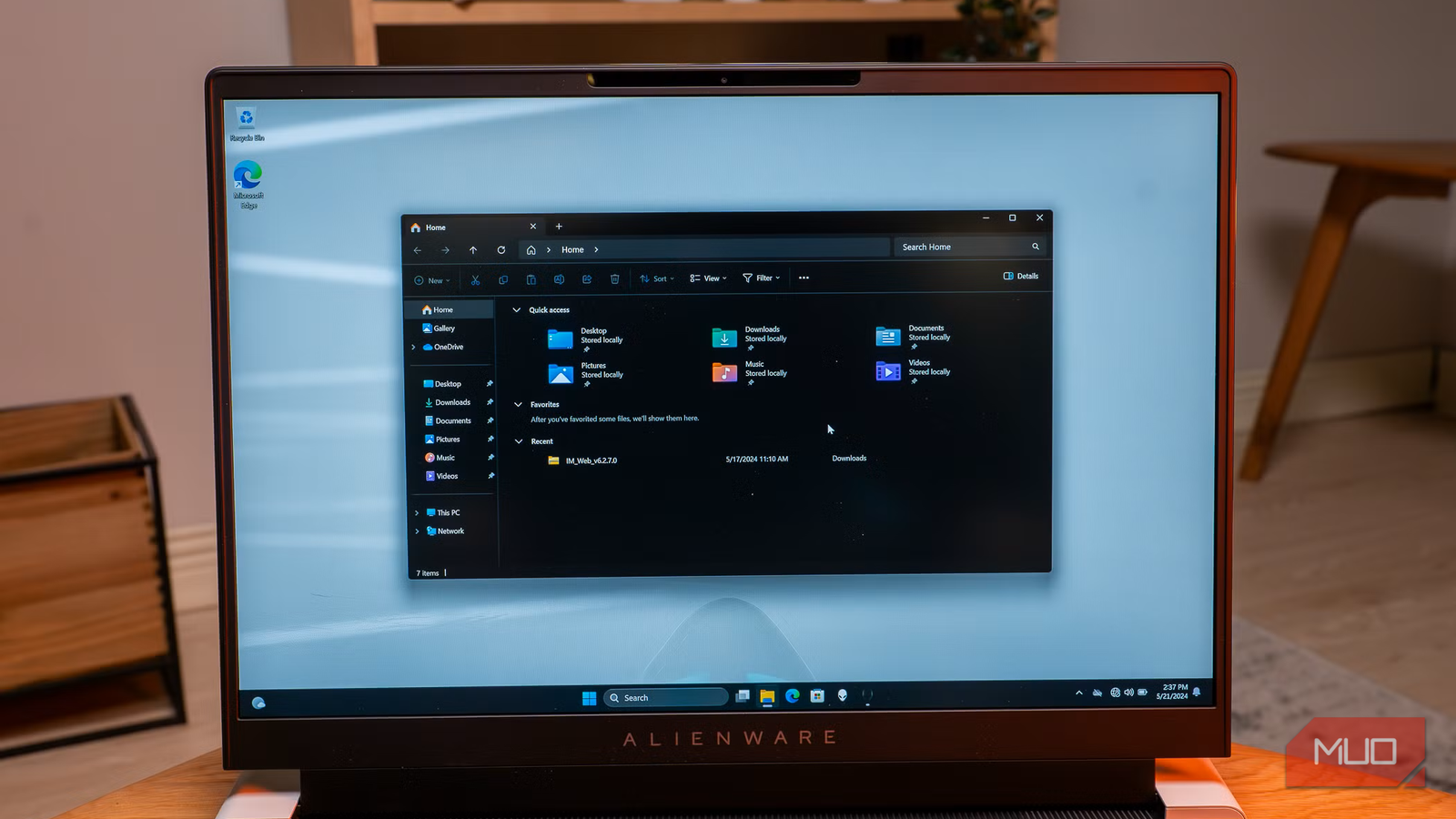


For a long time, File Explorer wasn’t a part of Windows I had a particular problem with. It did its job and was reliable enough. However, since moving to Windows 11 in 2022, I’ve become more frustrated with it.
I thus decided to try a File Explorer alternative with dual-pane support, and I’m wondering why I didn’t switch sooner. Not only does this add a super useful function to file browsing, but you get tons of handy touches that aren’t part of the default File Explorer.
My biggest issues with File ExplorerI have a few core issues with File Explorer. While some are fixable to an extent, a replacement app quickly became the better option.
First, as many have noted, the right-click context menu in Windows 11 isn’t great. It’s more visually appealing than the old-school menu, but hiding common options behind a Show more options click adds another click every single time you need them.
Thankfully, you can use apps to clean up the right-click menu or restore the old context menu in Windows 11. If you go for the latter, as I did, you’ll need to use tools like ShellMenuView to clean up the clutter that installed apps add.
 Ben Stegner/MakeUseOf
My next-biggest problem with File Explorer is how slow it is. Clicking around is usually fine, but right-clicking a file sometimes takes more than three seconds to load. This adds up every time you want to check a file’s properties, convert a file from the context menu, and similar.
File Explorer lacks polish and shortcuts that I’ve come to expect from modern apps. You can middle-click to open a folder in a new tab, but holding Ctrl and clicking (which opens links in a new tab in browsers) doesn’t work. Random freezes slow down your productivity. Searches don’t work half the time, and have ugly lines when they do work.
 Ben Stegner/MakeUseOf
And crucially, being limited to a single pane feels archaic. If you want to compare files in two directories, do a lot of copy/pasting, or keep two folders in view, you have to pull one tab away to create a new window. This is yet another step, plus it creates clutter in the Alt + Tab menu.
What I switched toWhen I decided to replace File Explorer, I checked out both Files and OneCommander. Both are great, but I settled on OneCommander for a few reasons.
Files is a slick File Explorer replacement, but it’s more akin to a “version 1.1” than a massive upgrade. It has solid features: tons of keyboard shortcuts, a tag system, faster sorting options, and dual-pane support. And I appreciate that it inherited my pinned File Explorer folders on the left sidebar.
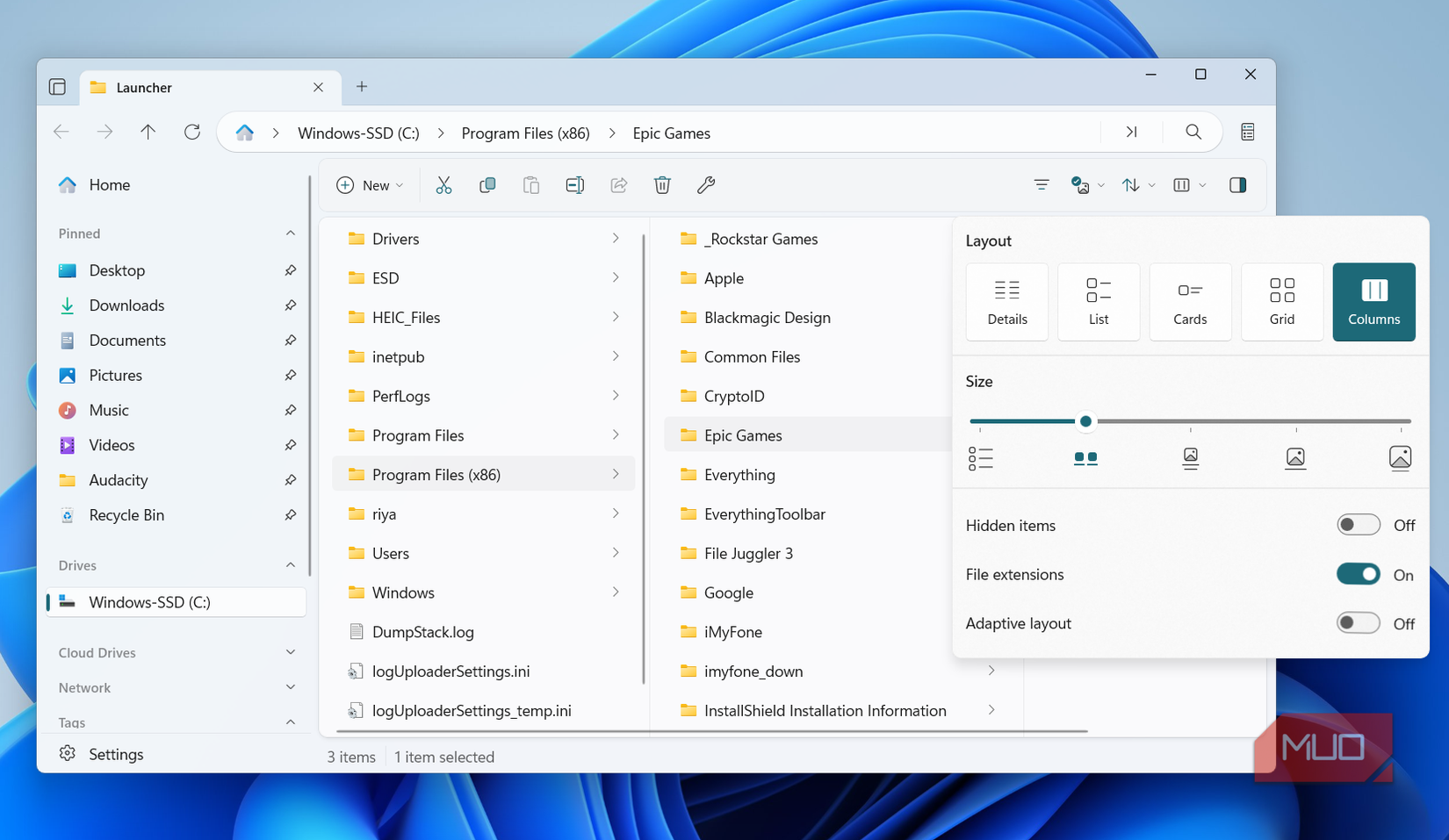 Screenshot by Pankil Shah -- No attribution required
But because it’s visually similar to File Explorer, it retains some of the native tool’s issues. I noticed delays when clicking and loading certain folders. Because of this, it didn’t strike me as the proper File Explorer replacement I was looking for.
OneCommander, on the other hand, was initially daunting but offers so much more. It provides a lot of immediate upgrades, plus options to make it even better as you learn more.
While this isn’t intended as a comparison of Files and OneCommander, I’ll make a few references where something stood out.
OneCommander instantly upgrades the File Explorer experience Ben Stegner/MakeUseOf
I immediately appreciated how concisely OneCommander displays information. In Files, the dual-pane view felt limited because the file details take up too much horizontal space. OneCommander displays the file type, last edited date, file size, and even details like PDF page count or image resolution, without feeling crowded.
Not having to open a file to check these details saves a ton of time. The color-coding and the relative last modified column let me easily spot folders I haven’t touched forever and should thus move or delete. This lets you manage your files faster compared to mentally processing a date stamp.
There are lots of little touches like this all over the out-of-the-box experience. Unique icons (prettier than the generic File Explorer ones) make it easy to spot, say, an audio file compared to a spreadsheet. Differently-colored icons also make differentiating file types of the same data format, like JPEG and PNG, instant.
I use shortcuts on the left sidebar all the time to get around File Explorer, which is another area where OneCommander makes improvements. Instead of a single list, you can create several groups and collapse them when they aren’t needed.
A History tab keeps track of where you’ve been. In dual-pane mode, the active side is brighter, so you don’t misread what you’re working on. When you create a new window, you can name it to recall it later. To search the current folder, just start typing—no shortcut needed.
 Ben Stegner/MakeUseOf
With these little tweaks alone, I’d be happy to replace File Explorer with OneCommander. But there’s so much more to dig into (and I haven’t even processed it all yet).
OneCommander is powerfulOpening OneCommander’s Settings panel shows how much more this tool is capable of. The General tab lets you mark recent files with their own color, change the file age coloring, apply color tags to items, and adjust how file sizes are displayed.
Under Theme, you can tweak the background and accent color, plus apply an icon pack if you don’t like the included one. View lets you control how scrolling works, how thumbnails load, and similar. Columns lets you get specific about how columns expand and the window pane sizes dynamically change.
 Ben Stegner/MakeUseOf
Under Window, you can set a hotkey to open OneCommander and adjust its behavior. This also lets you hide and adjust the groups on the left sidebar, in case you don’t use them all. The tool has built-in Preview features, adjustable in the options panel of the same name.
Finally, Other has more useful options. You can restore your last-used tabs on startup, letting you easily continue where you left off. There’s a rename suggestion pop-up to quickly add the current date or other relevant info to the filename. And if you’re daring, the Advanced menu has experimental options to dig into.
Customizing the options to your liking isn’t the end of OneCommander’s tricks. The File Automator option (robot icon at the bottom-left) lets you run file operations without a third-party app. There are presets to add the date and time to filenames, convert video to MP4, add a specific text string after the filename, and much more.
 Ben Stegner/MakeUseOf
The menu provides more flexibility than File Explorer without the complexity of deeper tools.
OneCommander has limited flawsWhile no app is perfect, I didn’t find much to complain about with OneCommander. My biggest qualm is that the right-click menu can still be slow; I presume this is because it inherits many items from File Explorer (on which I need to do another cleanup). You can trim items from the context menu with the Pro version of OneCommander, which is the only other potential hiccup.
OneCommander is free for personal use and contains everything the average person will need. Upgrading to the Pro version unlocks a few extras, like being able to change the font, default file view, and file size format. It also lets you open a PowerShell or Terminal window (rather than CMD) directly from a folder.
I might consider upgrading to support its development, but you aren't pressured to. These extras don’t hinder the core experience; they’re nice to have, but not essential.
Finally, the app doesn’t support Ctrl + Z for undoing actions. However, this is a Windows limitation, not one from OneCommander, so I can’t hold that against it. File Explorer is still there for anything you’re worried about messing up.
Aside from those, the minor learning curve is the only issue I can see with OneCommander. It’s quickly become a better way of looking at files, and I’m glad I finally switched to it. I’d recommend it for anyone who finds File Explorer too basic.