
Remember me



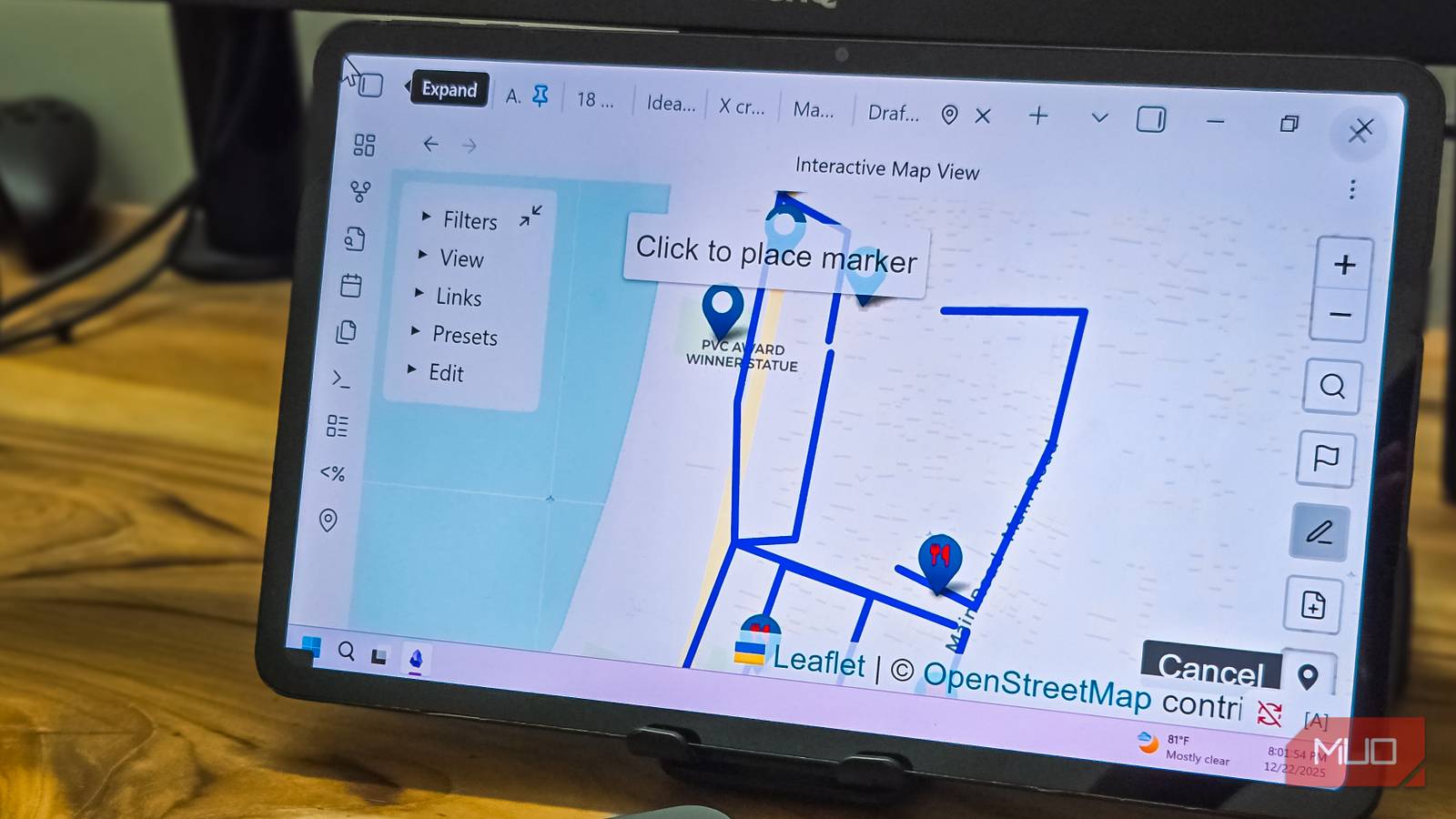



My Obsidian vault has always been text-heavy. Notes, links, folders, tags, the usual stuff. It works, and I've made a conscious decision to stick with Obsidian rather than hop between note-taking apps. But when I was planning a 600-mile road trip recently, I wanted a way to see all my saved stops, restaurants, hotel bookings, and places to visit on a map without having to jump between notes. Turns out, Obsidian had a readymade solution in the form of Map View.
Map View is a community plugin that converts geolocations in your notes into pins on an interactive map. Think of it as Google Maps, but for your personal notes. So every restaurant you've saved, place you've visited, or city you've lived in gets visualized on a single map inside Obsidian.
What Map View does Turn your notes into an interactive mapI had seen others use Map View for tracking travel journals and location-based projects, but I never thought I'd need it until my recent road trip. After using the plugin for a few days, though, I've found more use cases for it beyond trip planning.
The plugin works by scanning your notes for location data. You can add a geolocation to a note's front matter for places that represent a single location, like a restaurant review or travel log:
---For notes with multiple locations, you use inline links:
- [Panambur Beach](geo:12.9352,74.8092)You don't need to hunt for coordinates manually either. Type [](geo:) in any note, start typing a place name inside the brackets, and Map View suggests locations with auto-filled coordinates.
The first thing I did was plot my own history. Cities I've lived in, places I've worked, vacations I've taken over the years. Each got a note with a geolocation and a relevant tag, such as tag:lived, tag:worked, tag:vacation. I could zoom out and see all of it on one map—my hometown, the city I moved to for work, and my first solo trip from almost a decade ago.
For my road trip, I created a note with all the stops as inline links. Petrol bunks with tag:petrol, restaurants with tag:food, and viewpoints with tag:sightseeing. The route ran from my hometown up the coast through six districts. With Map View, I could see the entire 600-mile stretch at a glance and spot which cafes were near which stops. Planning the return journey was easier because I could identify places we'd missed on the way up.
Adding custom markers Use icons and colors to distinguish locations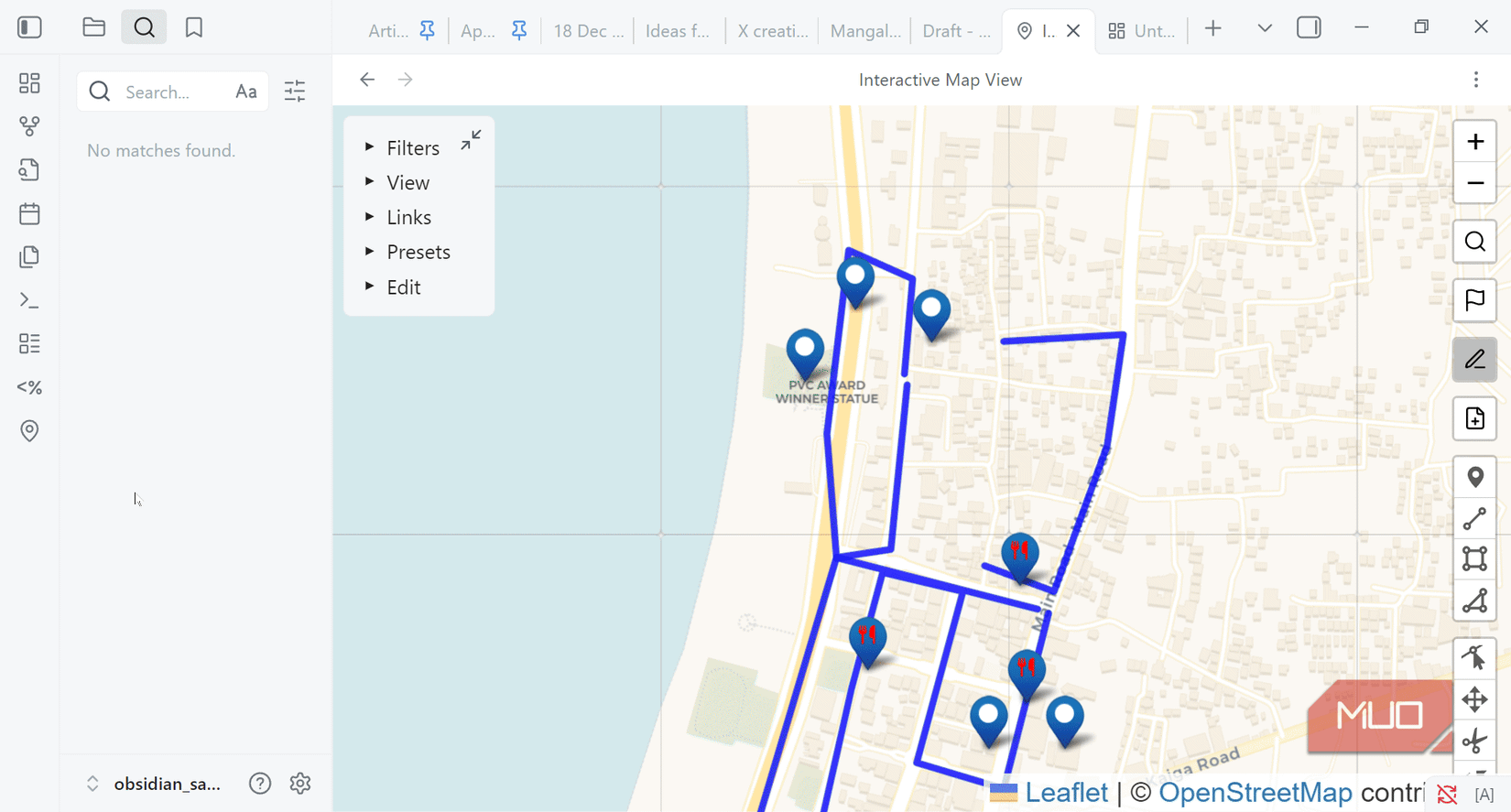 image credit - self captured (Tashreef Shareef) - No Attribution Required
Map View lets you customize marker icons based on tags. In the plugin settings, you can create display rules that control how pins appear on the map. I set tag:#food markers to red with a utensils icon, tag:#work to blue with a laptop icon, and tag:#hangout to green with a beach umbrella. The icons are based on Font Awesome, so there's a huge selection to choose from.
You can also use emojis as markers if you prefer. Paste an emoji instead of a Font Awesome name, and it shows up on the map. The visual distinction makes it easy to glance at a map and get an idea of what's what without reading every label.
Filter locations based on what you need image credit - self captured (Tashreef Shareef) - No Attribution Required
My partner is always hunting for new eateries: a cafe someone mentioned on Instagram, a restaurant a colleague recommended, a street food spot she read about. I'm not as enthusiastic about food expeditions, but I do end up tagging along. The problem was keeping track of what we'd actually visited versus what was still on the wishlist.
Map View solves this with color-coded markers and tags. I set up a simple system where places we've visited get tag:visited, and places on the list get tag:wishlist. Then, in the plugin settings, I configured visited markers as green and wishlist markers as red.
Now, when we decide to visit a new place, I filter for tag:#food AND tag:#wishlist, and we have our options laid out on a map. After visiting a place, I change tag:wishlist to tag:visited, and the red pin turns green.
More use cases beyond food and trip planning Contacts, shopping, and travel bucket lists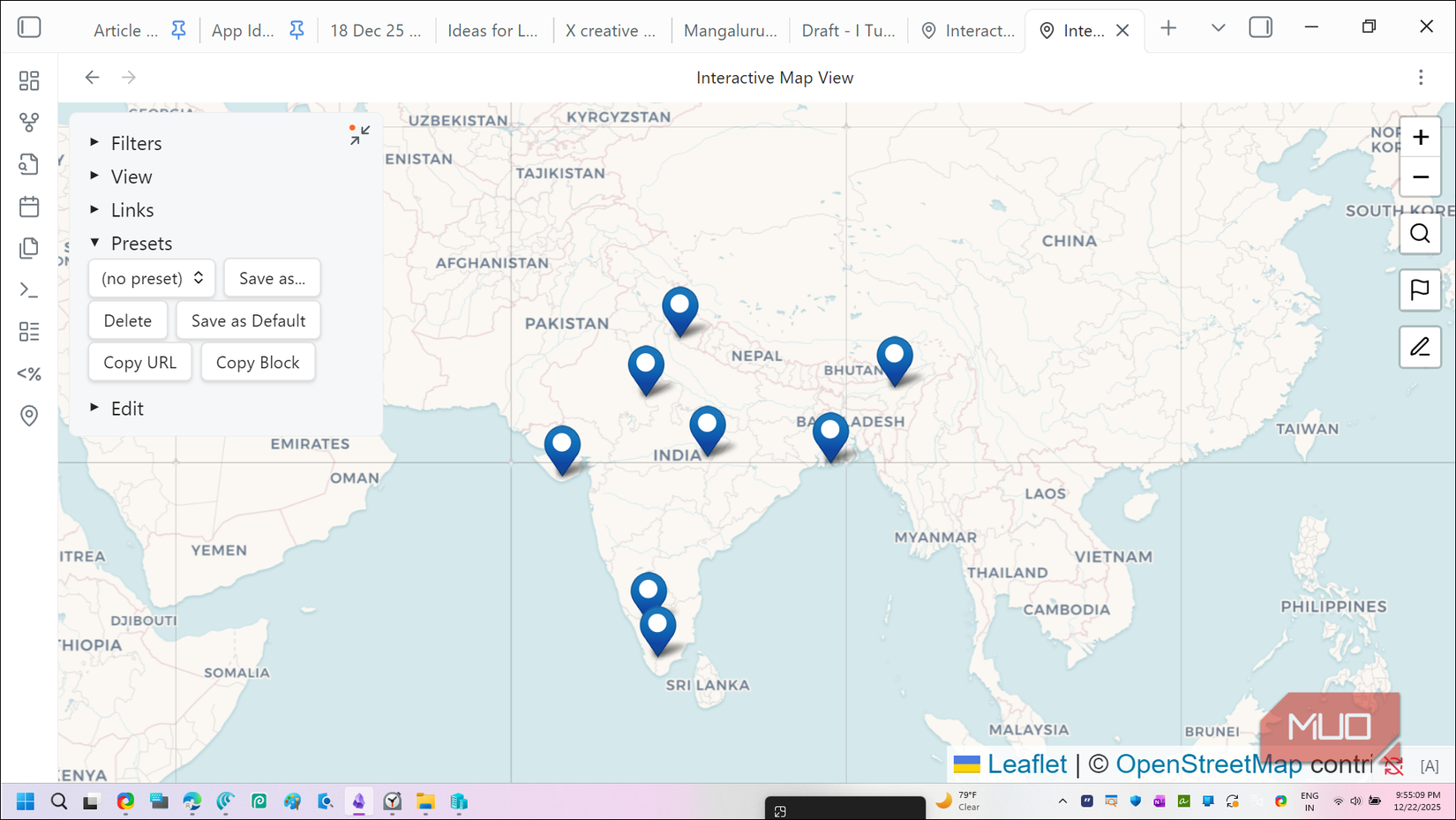 image credit - self captured (Tashreef Shareef) - No Attribution Required
Once the food map was working and the trip plan was a success, I started seeing uses everywhere. Contacts were an obvious one. I have notes for people such as friends, family, and professional connections. Adding their city to the note means I can pull up a map when traveling and instantly see who I know in that area.
Shopping works the same way. An electronics store with reasonable prices gets pinned, so does the marble carving workshop that took me a whole day to find because it's not on Google Maps. When I need something specific, it's easier to check the map instead of digging through notes or hunting for it on Google.
I've also used it for tracking national parks—tagging places I've visited and some that I still need to go to. The same logic works for any bucket list: cities you want to explore, hiking trails, beaches, historical sites, and anything you want to find at a glance rather than have scattered them around different apps.
Embedding maps in notes Add a live map inside any note image credit - self captured (Tashreef Shareef) - No Attribution Required
Another handy feature in Map View is the ability to embed a map directly inside any note. To do this, open Map View, set up your filters and zoom level, click the Presets dropdown, and click Copy Block. Then, paste it into a note, and Obsidian will show a live, interactive map right there.
My "City" note has a map showing all the local spots—restaurants, cafes, and drive-ins I frequent. Hovering over a pin shows the note preview. For trip planning notes, I embed a filtered map showing only that trip's locations.
If you use Obsidian across multiple devices, the maps sync seamlessly with your notes using whatever sync method you prefer. However, since the Obsidian Mobile app doesn't have location permission, you can't see your current location natively. As a workaround, you'll need to install an additional Geo Helper app to make it work on Android. For iOS devices, there's no native app, so you'll need to rely on the Geo Helper web app.
Who's Map View forIf you're someone who saves places like restaurants to try, travel destinations, spots friends recommend, contacts across cities, and stores with specific products, Map View can help turn your scattered text into something more navigable. Travelers, foodies, people tracking bucket lists, journalists covering a local beat, or anyone building a personal database of locations will find it genuinely useful.
I honestly didn't expect a map plugin to give me new ways to use Obsidian. By adding locations to the same vault, I'm not maintaining a separate system that I'll eventually forget about.
Comments (0)