
Remember me

We've all had moments when we're relaxing on the couch, and suddenly need to adjust something on our computers. It could be adjusting the music volume, playing or pausing the show that you're watching or anything else. Normally, that would require getting up, walking up to the desk, shuffling around with the mouse, and then trudging back.
But what if I told you there was a better way? You could ditch your mouse for a voice assistant, but that's nowhere close to the buttons this Android app gives you on your phone.
Why a mouse doesn’t always make sense Some PC interactions are clumsy, slow, or overkill with traditional input Yadullah Abidi / MakeUseOfCredit: Yadullah Abidi / MakeUseOf
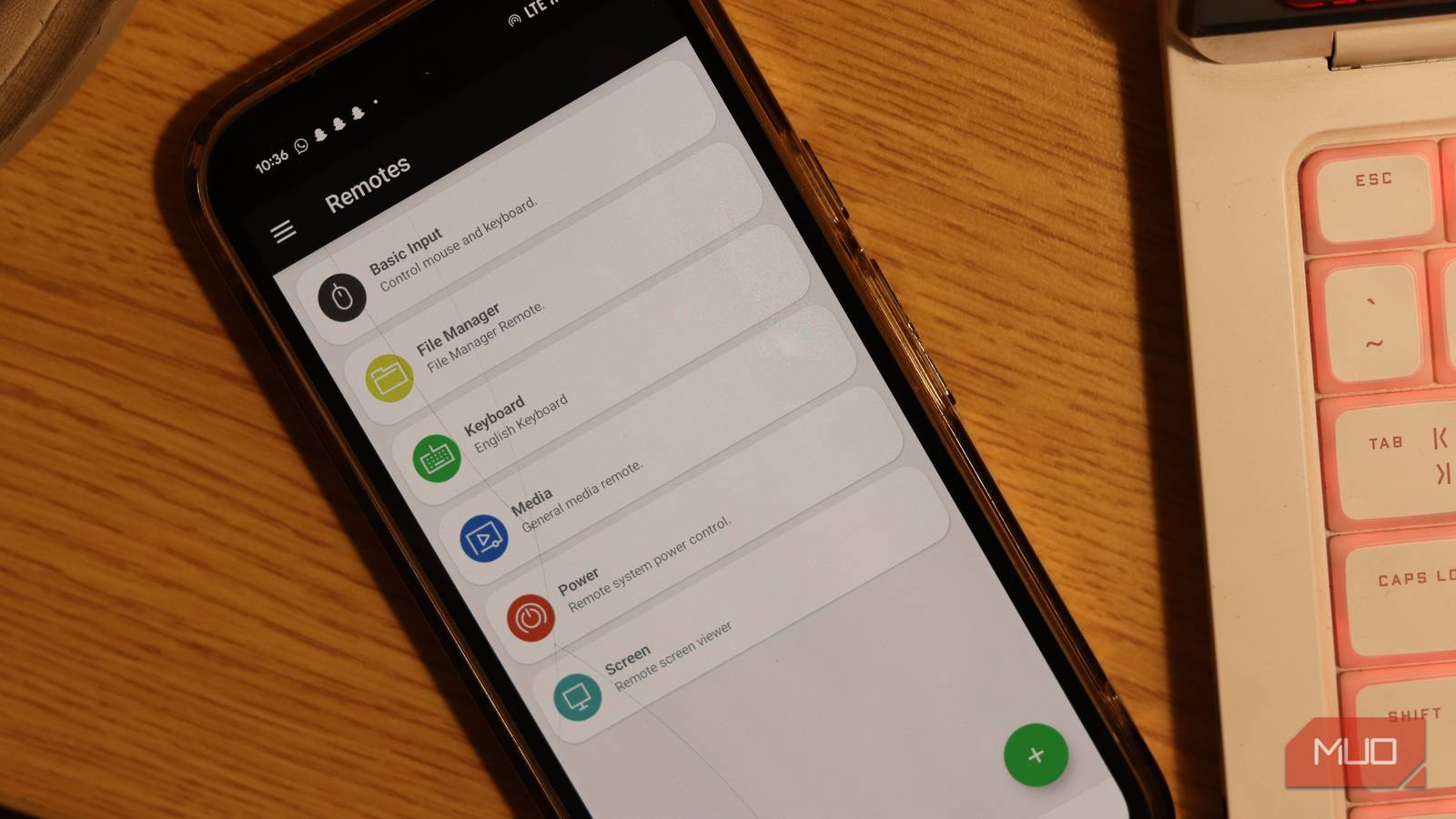
Enter Unified Remote—an Android app that turns your smartphone into multiple useful remotes that you can use for anything from controlling music, scrolling, typing, controlling streaming services, and more.
Setting up the app is easier than you think as well. First, you download the Unified Remote Server on your Windows PC. This is a lightweight background application that acts as a bridge between your phone and computer. Once installed, grab the Unified Remote app from the Google Play Store on your Android phone.
Once both the server and remote are installed and running, the app should automatically detect your PC as long as you're on the same Wi-Fi network. And that's all the setup you need to do. The entire process barely takes a couple of minutes and there's no technical wizardry required to get any other functionality to work.
Turning a phone into a surprisingly capable remote One device that handles media, slides, shortcuts, and quick controlUnified Remote, as the name suggests, divides its functionality into specific remotes. There's a remote for using your phone as a touchpad, another one for controlling media, another one for typing, and so on. The paid version gives you access to remotes for over 70 applications and even includes a remote screen viewer and a file manager.
The core feature is the Basic Input remote. It turns your phone's screen into a full-fledged touchpad with gesture support. Unlike most laptops where the touchpad can feel cramped and imprecise, your phone's screen offers a much larger, more natural control surface, making it an excellent trackpad.
There's little to no input latency, so you won't be waiting for your cursor to move, and the precision is also great. Whether you're selecting text, going through a spreadsheet, or clicking a tiny button on a website, the touchpad will easily do it all.
 Related
I tried a gaming mouse at work and now I’m hooked?
Related
I tried a gaming mouse at work and now I’m hooked?
Your gaming mouse will hunt enemies and spreadsheets alike.
Additionally, your phone understands gestures a mouse can't replicate. Pinching to zoom while browsing becomes second nature. Swiping becomes more fluid. Since you're working with a multitouch surface and not a pointing device, it makes certain tasks like playback control or browser navigation feel more direct and intuitive.
And then when you're done with your keyboard and mouse, the app doubles up as a remote control for apps like YouTube, Netflix, VLC, Spotify, system power commands, and more. You can put your PC to sleep, restart it, shut it down, or wake it up with Wake-on-LAN, all from your phone.
 Yadullah Abidi / MakeUseOfCredit: Yadullah Abidi / MakeUseOf
The file manager lets you browse and open files from your phone without ever touching your mouse. You can control Zoom calls with dedicated buttons for muting, video toggle, and raising your hands. For full control of your PC, the Screen Viewer remote streams your desktop on to your phone screen and supports multiple monitors as well.
My primary use for the app is as a media control remote. I only have one set of wired speakers, and they're plugged into my laptop so I use it daily to control music when I'm away from my desk. However, I've also used it to control presentations while engaging with an audience, browsing local media to check files or launch programs, and often as dedicated video and audio control buttons for any Zoom calls.
Convenient but not a productivity replacement Phone remotes are only great when you don't want to leave your couchAs much convenience as the Unified Remote app brings with its easy connection and multiple remotes, it's not a replacement for actual peripherals. I've used the app as a dedicated keyboard and mouse for my laptop on multiple occasions and while it would get the job done, you're still working with a touch screen.
There is of course, no tactile feedback on any of the buttons. If you're using your phone as a keyboard via the app, your hands will start getting crammed if you've got a bunch of text to type. More complex keyboard shortcuts can also be a hassle to type.
 Related
How I Turn Old Phones Into Remote Controls for Streaming
Related
How I Turn Old Phones Into Remote Controls for Streaming
Control your TV using your previous phone and forget using the remote control ever again.
I mapped shortcuts to every mouse button I had, including media controls, but now those buttons can be freed for more important or complex shortcuts while the Unified Remote app takes care of the rest.
You don't need your mouse for everything Sometimes the best input device is already in your pocketThe Unified Remote app occupies a unique space. It's not replacing your mouse, but it's eliminating the need for it in scenarios where only having a mouse is a hassle. The app works not because it replicates your keyboard and mouse, but because it gives you a more convenient way of carrying out the same actions when your peripherals are out of reach.
For anything using their PC across multiple rooms, connecting it to a TV, giving presentations, or simply wanting more convenient control, the app does a great job. You're unlocking latent potential in hardware you already own, and that's more than what most mice can do.
Comments (0)