
Remember me


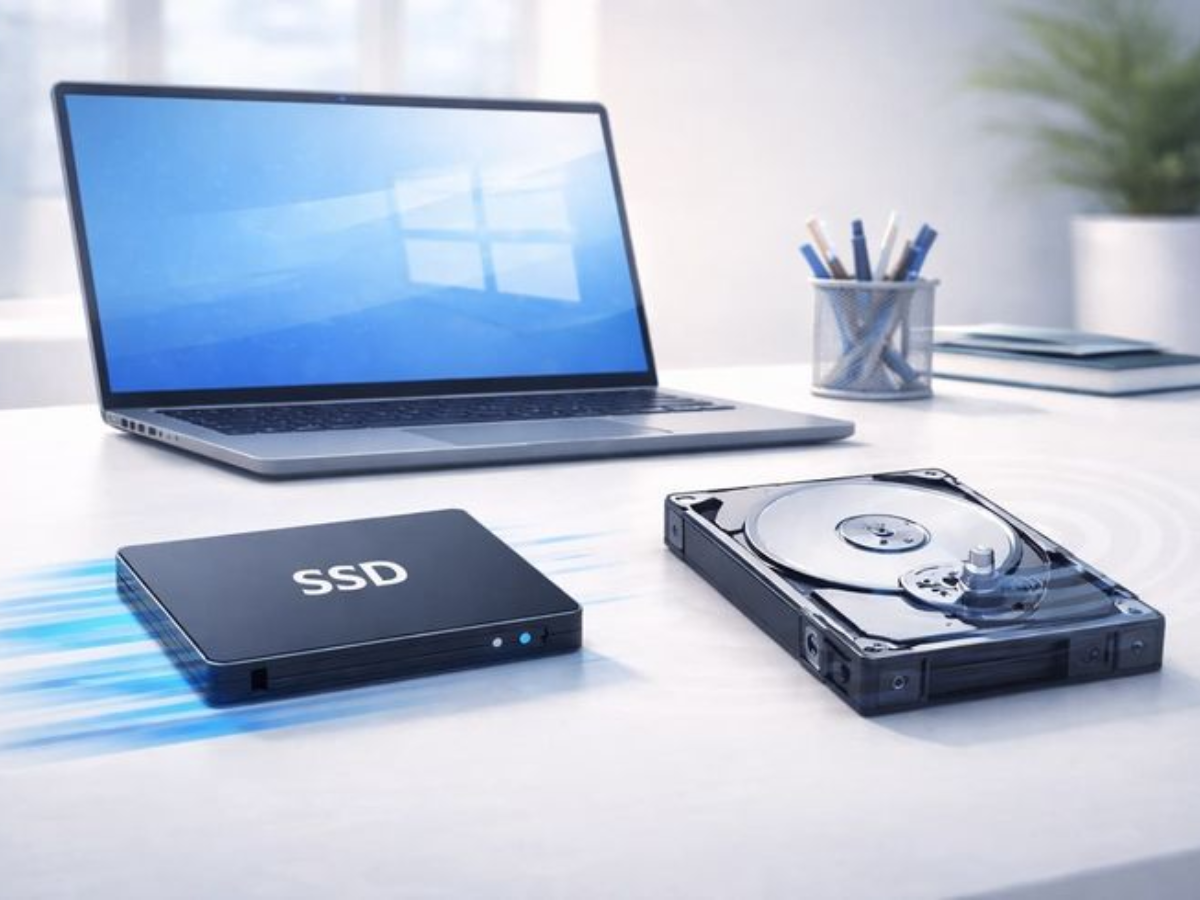





Solid-state drive (SSD) is already far faster than traditional hard drive (HDD), but that doesn’t mean they always run at peak performance. You can try many tweaks to improve your SSD speed, but if your Windows 11 feels slightly slower toward the end of the week or after lots of file deletions, one overlooked SSD setting could be part of the reason.
The setting in question is TRIM, and while it’s enabled by default, how often it runs can make a difference in certain situations.
What is SSD TRIM?SSD TRIM is a command used by operating systems to tell an SSD which data blocks are no longer needed. When you delete a file in Windows, the data isn’t erased immediately. Instead, the operating system simply marks the space as no longer in use.
Without TRIM, an SSD would have to scan itself to figure out which blocks contain valid data and which don’t, a slow and inefficient process. With TRIM enabled, Windows proactively informs the SSD which blocks are safe to clear.
The SSD then uses this information during a background process called garbage collection, where it erases unused blocks and prepares them for new data. This helps the drive write data faster, reduces unnecessary operations, and can even extend the SSD’s lifespan.
Why TRIM Timing Matters?Although TRIM is enabled automatically on most modern Windows systems, it usually runs on a weekly schedule. That means if you delete large files on Monday, the SSD may not actually reclaim that space until the scheduled optimization runs days later.
During that time, the drive still treats the space as occupied internally, even though Windows shows it as free. If your SSD is already close to full, this delay can affect write performance and responsiveness.
In practical terms, your SSD may perform better shortly after a TRIM cycle and slowly degrade until the next one runs.
When Changing the Windows SSD TRIM Schedule Helps?For many Windows users, the default weekly schedule is perfectly fine. If your SSD has plenty of free space and is used for everyday tasks like browsing, office work, or gaming, you’re unlikely to notice a difference.
However, adjusting the TRIM frequency can help in specific scenarios:
SSDs with very limited free space Systems that frequently write and delete large files Workloads like video editing, databases, or virtual machines Users who regularly clean up files to regain performanceIn these cases, running TRIM more often ensures freed space is actually reclaimed sooner, keeping the SSD closer to peak efficiency throughout the week.
How to Change the TRIM Schedule in Windows?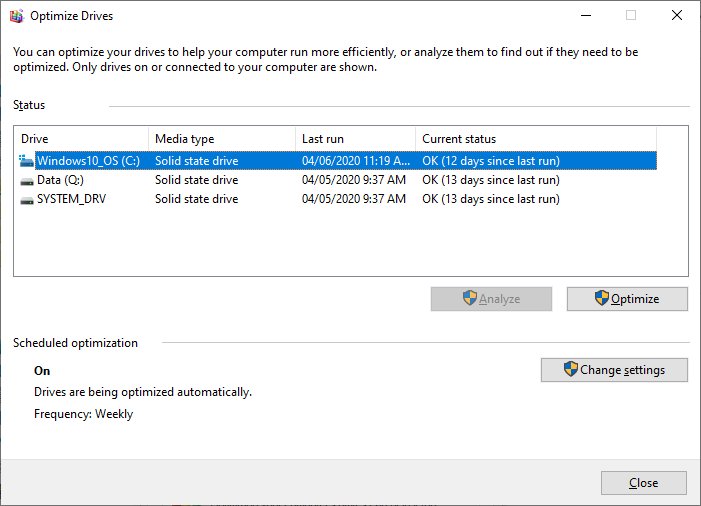
Adjusting the TRIM schedule is simple and doesn’t require third-party tools.
Open the Start menu and search for Optimize Drives Select Defragment and Optimize Drives Click Change settings under Scheduled optimization Choose a new frequency (daily, weekly, or monthly) Save your changesSetting optimization to daily won’t harm modern SSDs and can help keep performance more consistent if your workload benefits from frequent cleanup.
Windows 11 Slow SSD: Is TRIM Schedule Worth Doing?For most Windows 11 users, changing the TRIM schedule won’t produce dramatic SSD speed gains. Modern solid-state drives are already highly optimized, and Windows handles them well out of the box.
But if you’re the kind of user who likes squeezing every bit of performance out of your hardware, or if your SSD is constantly under heavy use, adjusting this one default setting can help keep things running smoothly.
It’s a small tweak, but in the right circumstances, it makes a measurable difference.

Comments (0)