
Remember me
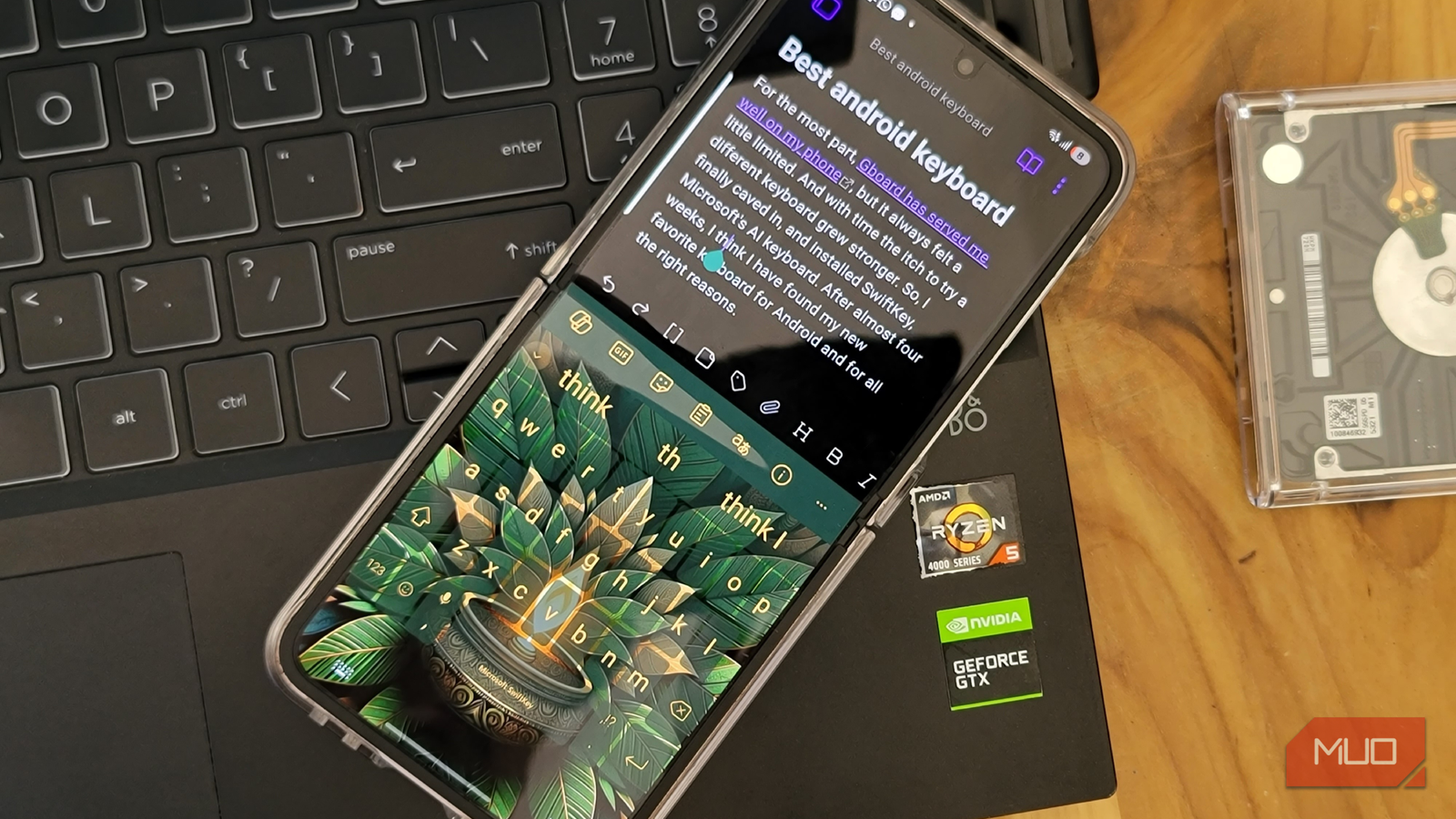
The keyboard is something that I have to use on almost every app, so it matters a lot. Even the smallest inconveniences can become frustrating, and the slightest improvements can make a big difference. Like most people, I didn’t realize this until I tried SwiftKey.
After years of using Gboard and experimenting with a few other alternatives along the way, I finally settled on SwiftKey. Having used it for a month now, it’s the closest thing I’ve found to a perfect keyboard app. It has everything I need, from custom keyboard layouts and themes to clipboard sync and AI integration for cleaning the text quickly.
Useful customization options and themes A keyboard that adapts to youLayout is perhaps the most important aspect of any keyboard app, and SwiftKey offers a lot of flexibility here. It offers plenty of options beyond the standard QWERTY, like AZERTY, QWERTZ, QZERTY, Colemak, and Dvorak. Then there are modes, which change how the keyboard fits the screen. You get the standard one-handed and floating modes, but my personal favorite is thumb mode. It splits the keyboard into two halves, so I can type faster with both thumbs.
SwiftKey also gives full control over the keyboard’s size and position. I find this particularly useful when switching between devices with different screen sizes. Instead of being locked into a fixed size, I can shrink or enlarge the keyboard as needed.
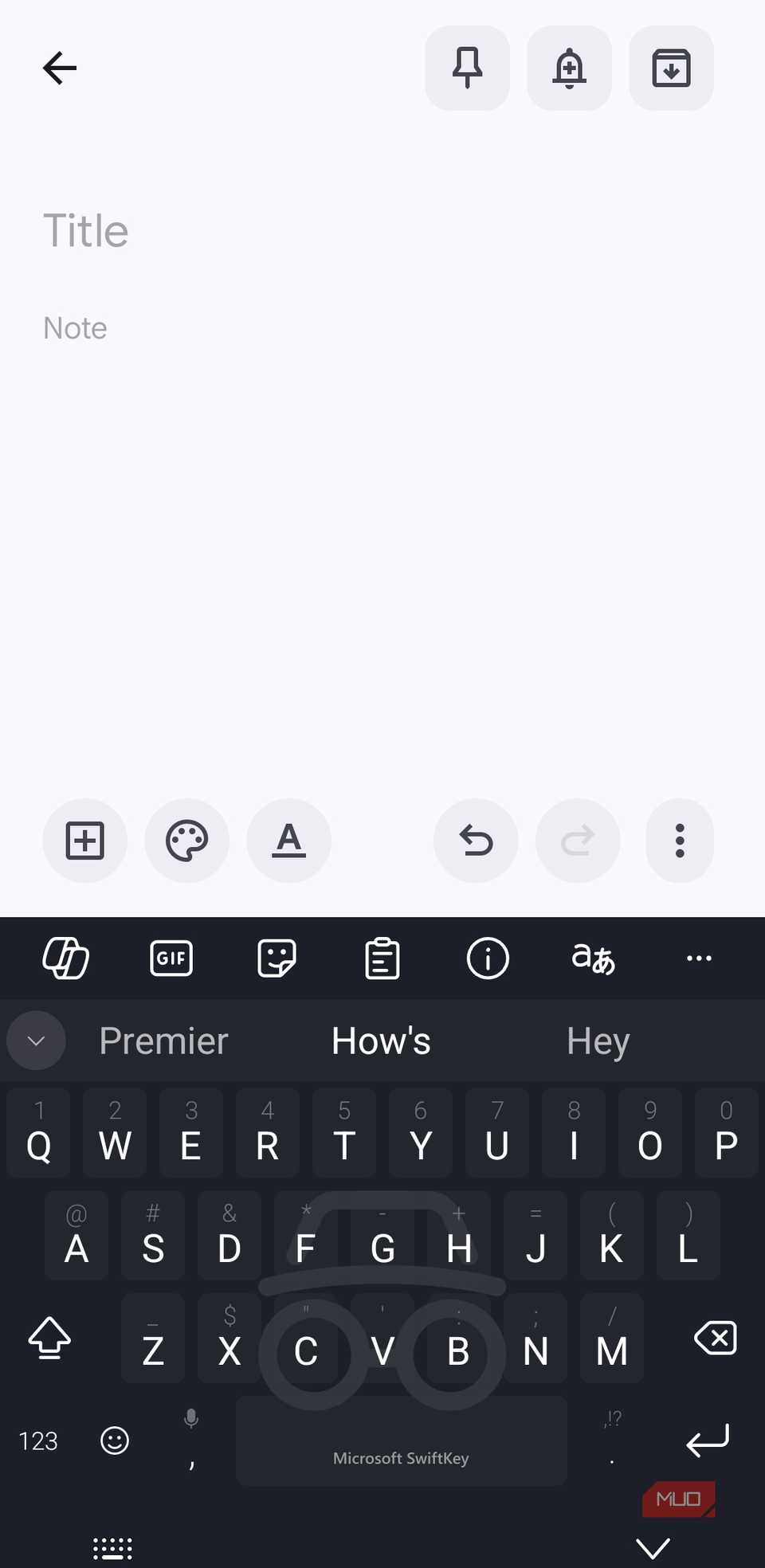
What really makes SwiftKey fun is the theme options. Unlike Gboard, it isn’t limited to those boring solid colors, basic gradients, and generic landscape options. SwiftKey offers an entire gallery of themes that not only change the background but also alter the key shapes and sizes.
Fine-tuning messages with Copilot Let AI fix your typing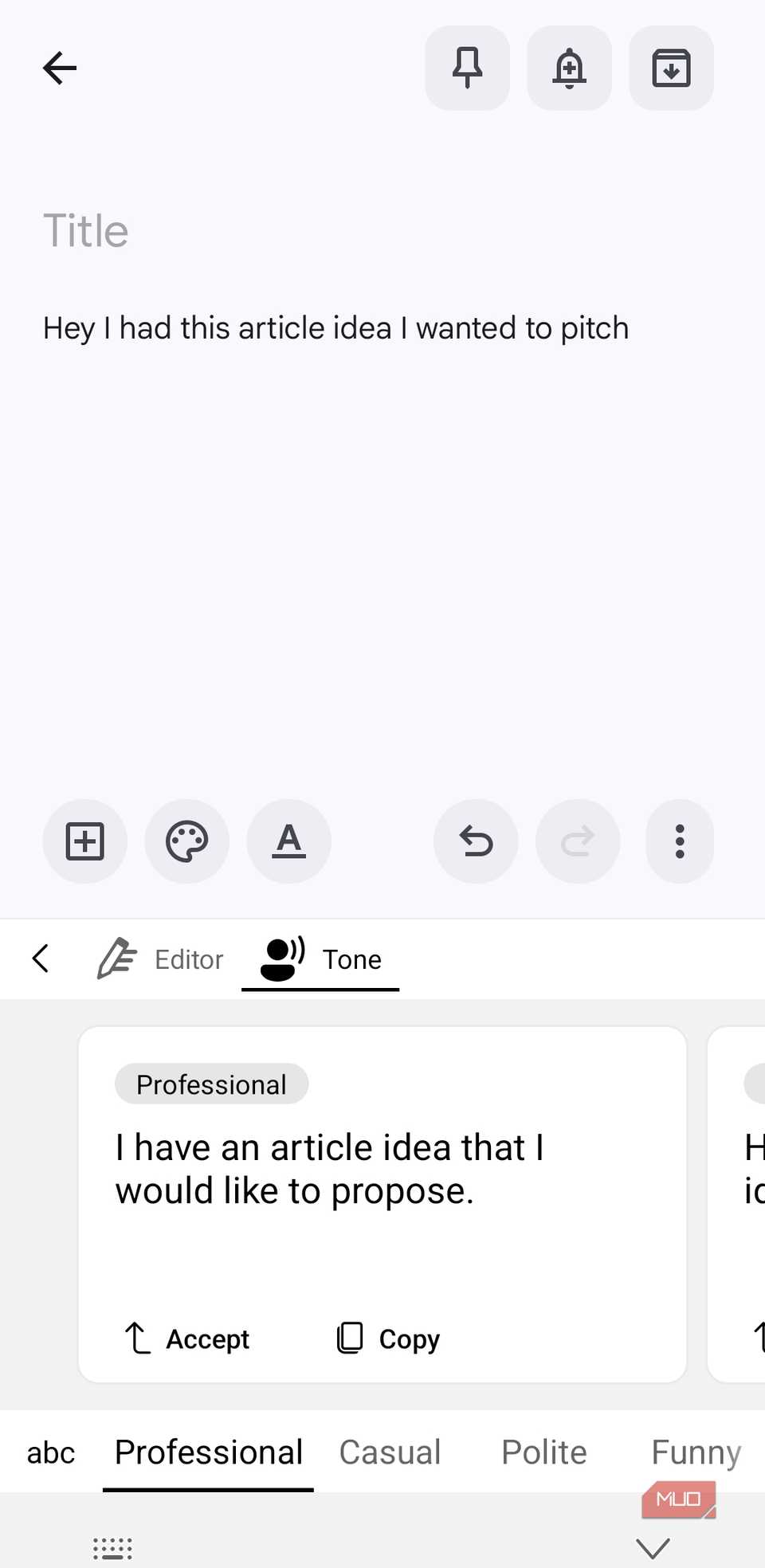 Screenshot by Pankil Shah -- No attribution required
 Screenshot by Pankil Shah -- No attribution required
 Screenshot by Pankil Shah -- No attribution required
As someone who types all day for a living, I often feel a bit lazy when it comes to typing on my phone. After hours of writing on my PC, the last thing I want to do is carefully tap out perfectly phrased texts on a tiny screen. Still, there are times when it’s necessary, like when I’m responding to work messages or emails.
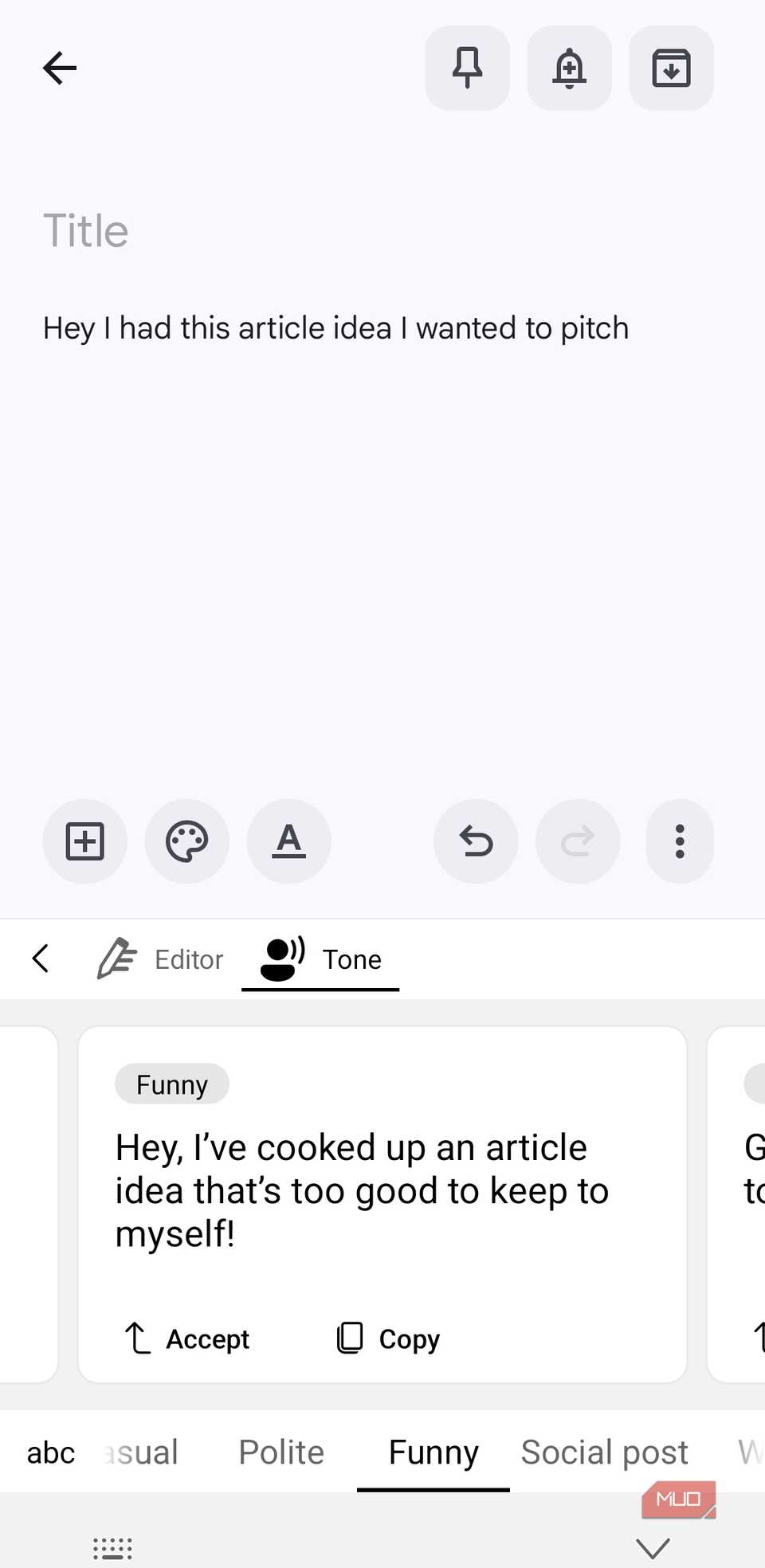
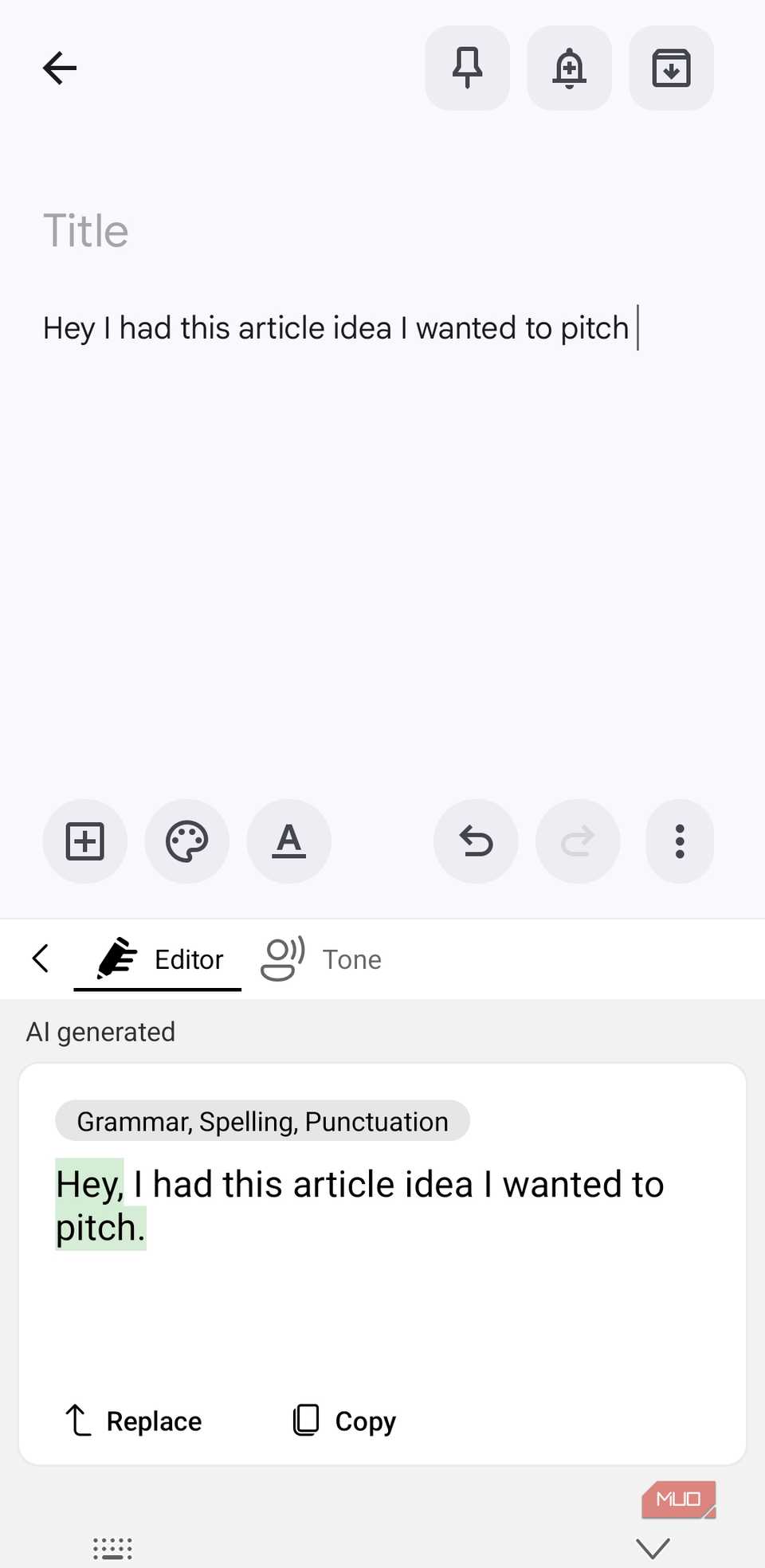
Copilot integration in SwiftKey makes this easy for me. Instead of rewriting the entire message, I can type something rough and let Copilot clean it up for me. I can adjust the tone to sound more professional, casual, funny, witty, or friendly.
If the message reads well as is, I can use Copilot to check grammar, spelling, and punctuation. This gives me confidence that I haven’t made any silly errors.
A handy clipboard sync Copy once, paste everywhere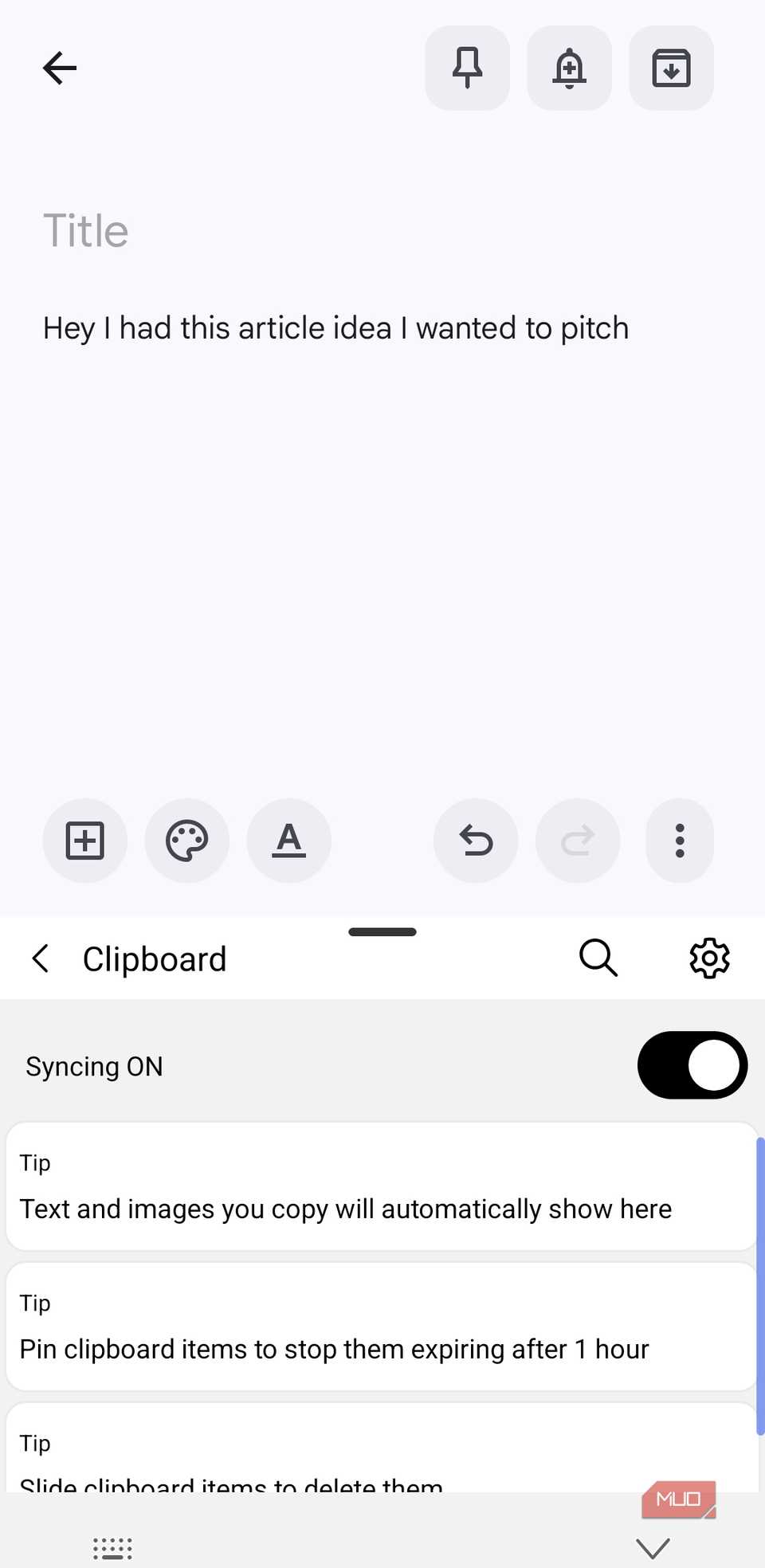 Screenshot by Pankil Shah -- No attribution required
 Screenshot by Pankil Shah -- No attribution required
 Screenshot by Pankil Shah -- No attribution required
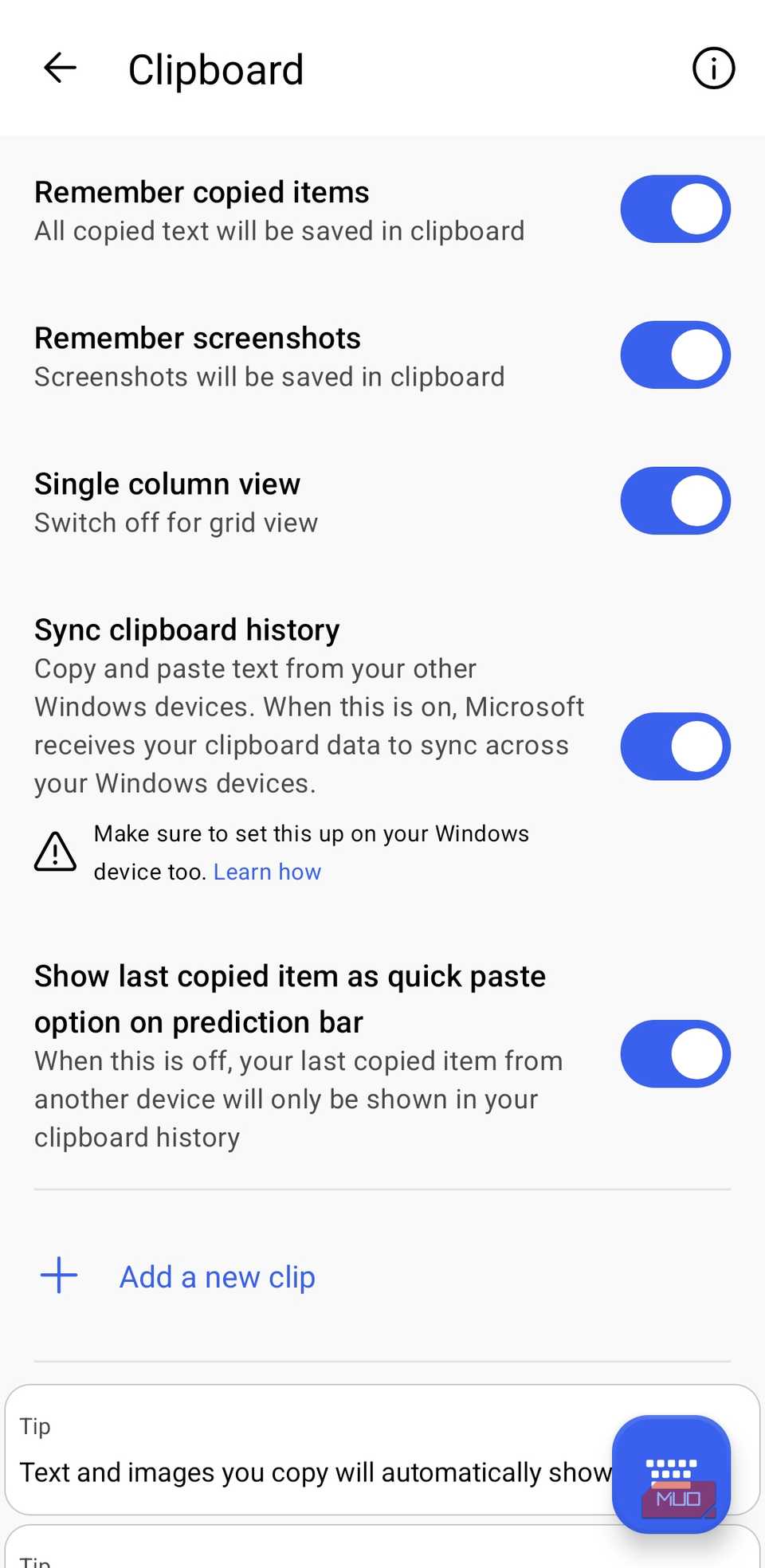
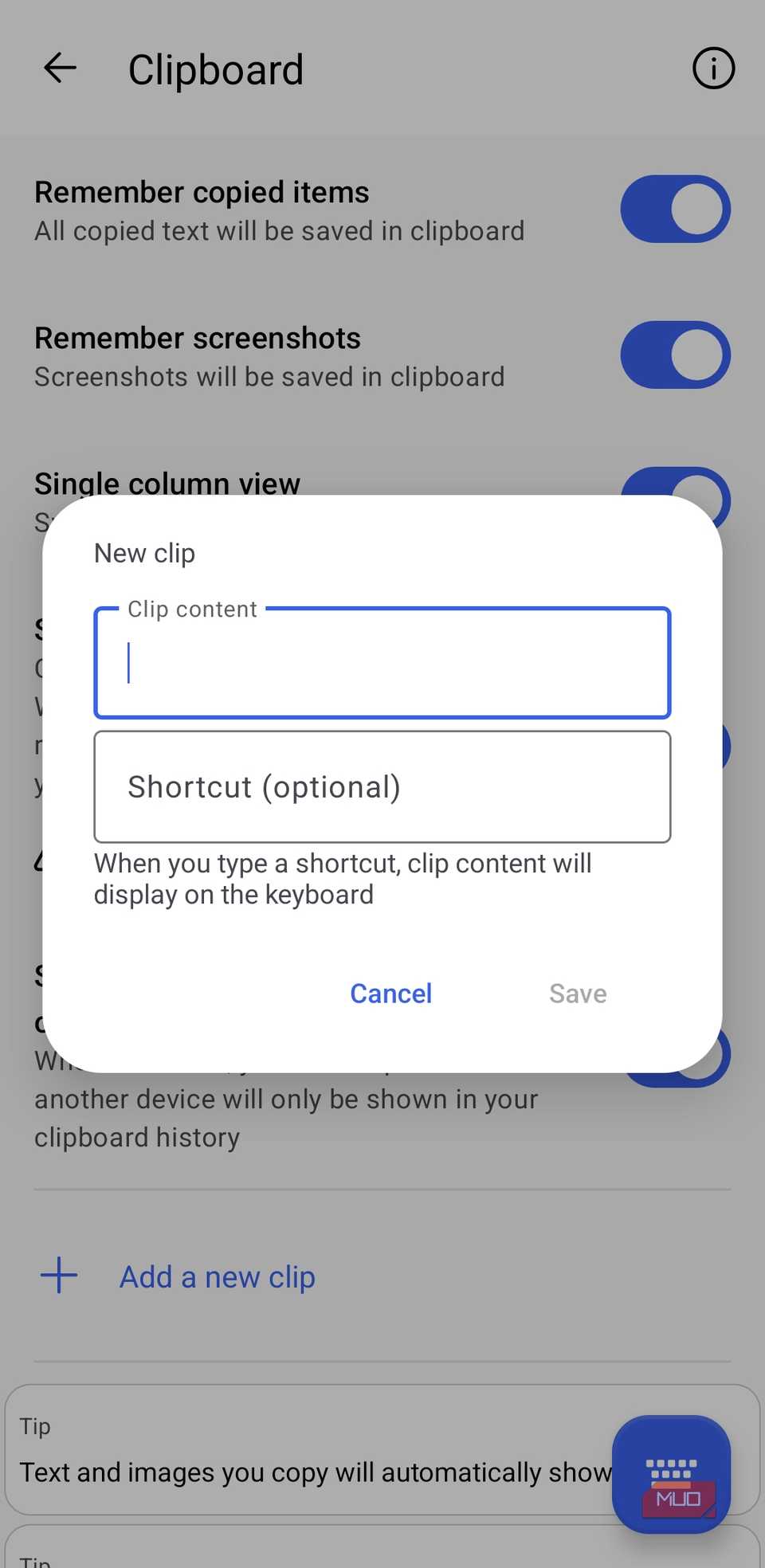
A standard clipboard is something that you’ll find on all keyboard apps, including Gboard. It gets the job done, but I prefer SwiftKey’s clipboard better for one simple reason: it syncs with my Windows clipboard.
All I have to do is use the same Microsoft account on my PC and SwiftKey, and it syncs copied text between devices. I can copy a paragraph, a link, or an email address on my PC, and it shows up on my phone. The reverse works just as smoothly.
This is a huge convenience for someone like me who works on a computer all day and needs to text around for several reasons.
 How to Connect a USB Keyboard to Your Android Phone
Ever wanted to use a real keyboard on your Android device? Here's how to set up and configure a USB keyboard on an Android phone.
Offline translation, incognito mode, and a better trackpad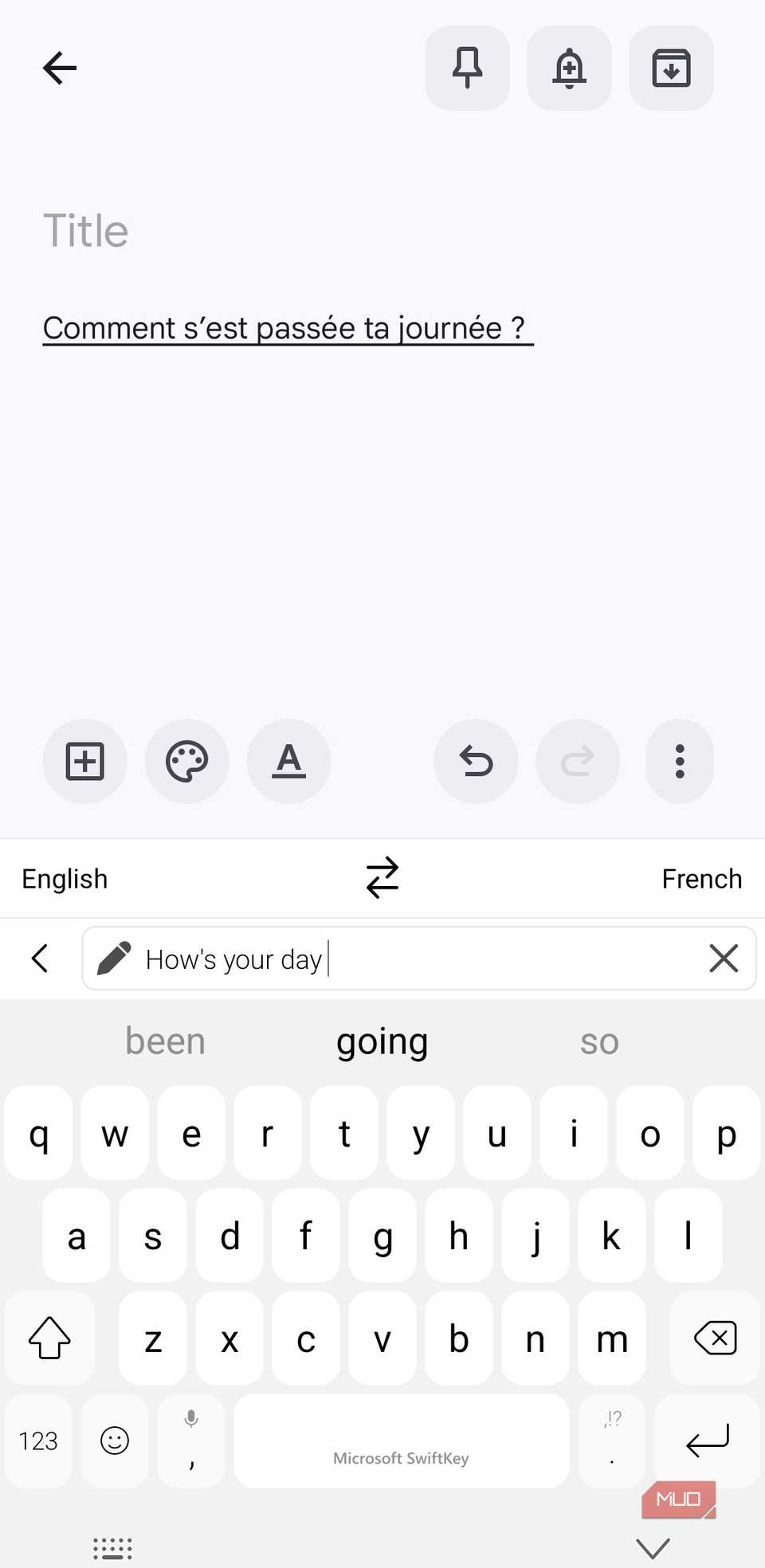 Screenshot by Pankil Shah -- No attribution required
 Screenshot by Pankil Shah -- No attribution required
 Screenshot by Pankil Shah -- No attribution required
Finally, it’s the little things that make me admire SwiftKey even more. For instance, I sometimes type in different languages. But instead of switching keyboard languages, I find it much more convenient to simply translate the text.
While translation is something that all keyboard apps offer, SwiftKey can also do it without the internet. The only inconvenience is that the feature requires downloading the Microsoft Translator app, but other than that, I love it.
Incognito mode is another feature I find useful. When enabled, SwiftKey stops learning from what I type and doesn't save typing history. This is perfect for temporary searches I want to make. It also kicks in automatically when I’m browsing in incognito mode, which is nice touch.
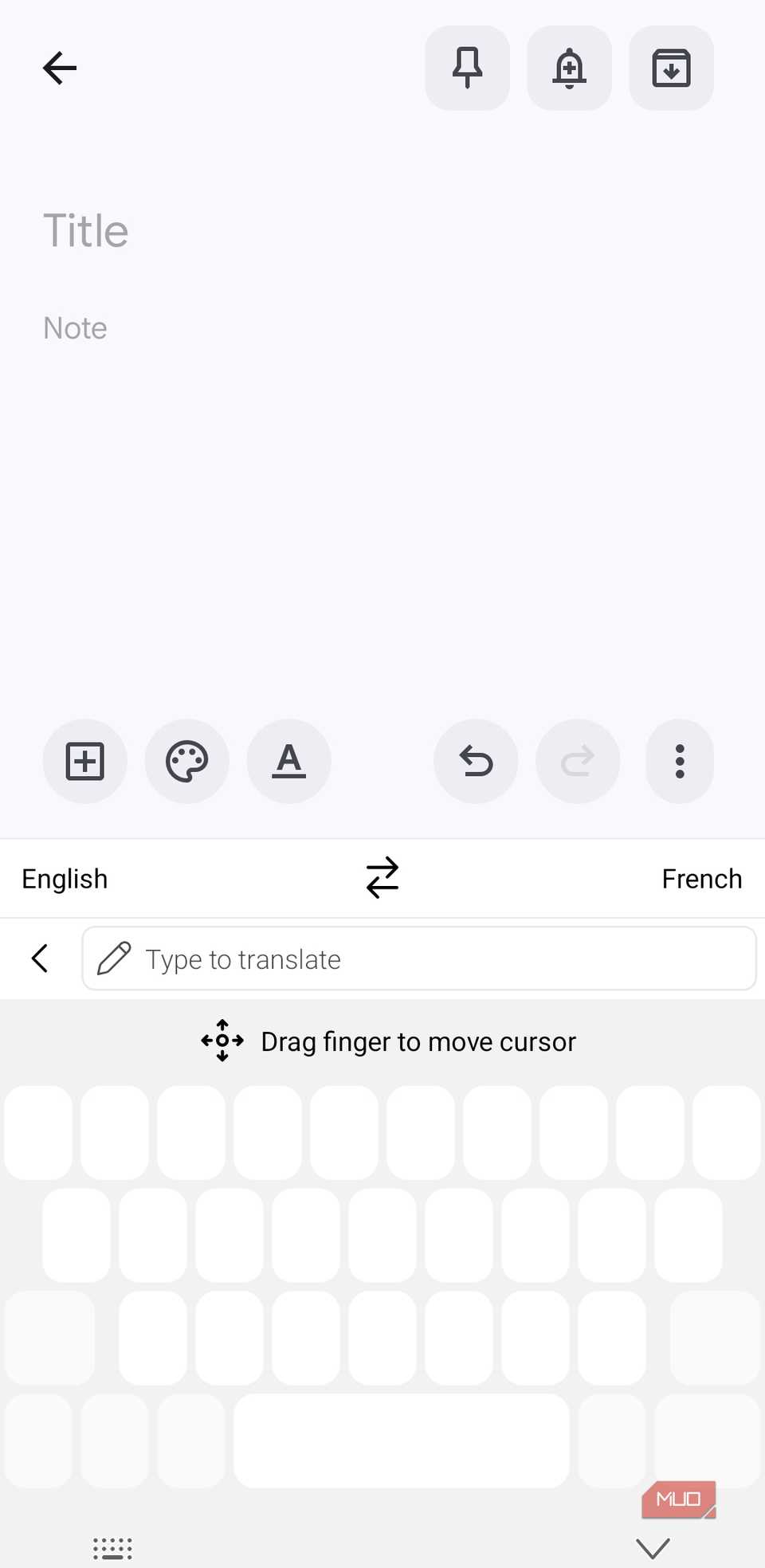
Finally, there’s the cursor control which activates when I long press on the spacebar. This is handy when I’m typing a long text or email and need to make changes. I can move using the cursor in any direction, which is something that I miss every time I switch to Gboard.
I never thought I’d have strong opinions about keyboard apps, but now that I’ve used SwiftKey, it’s almost impossible to go back to anything else. Most other keyboard apps have a similar set of features, but SwiftKey simply executes them better and offers more flexibility.
Comments (0)