
Remember me
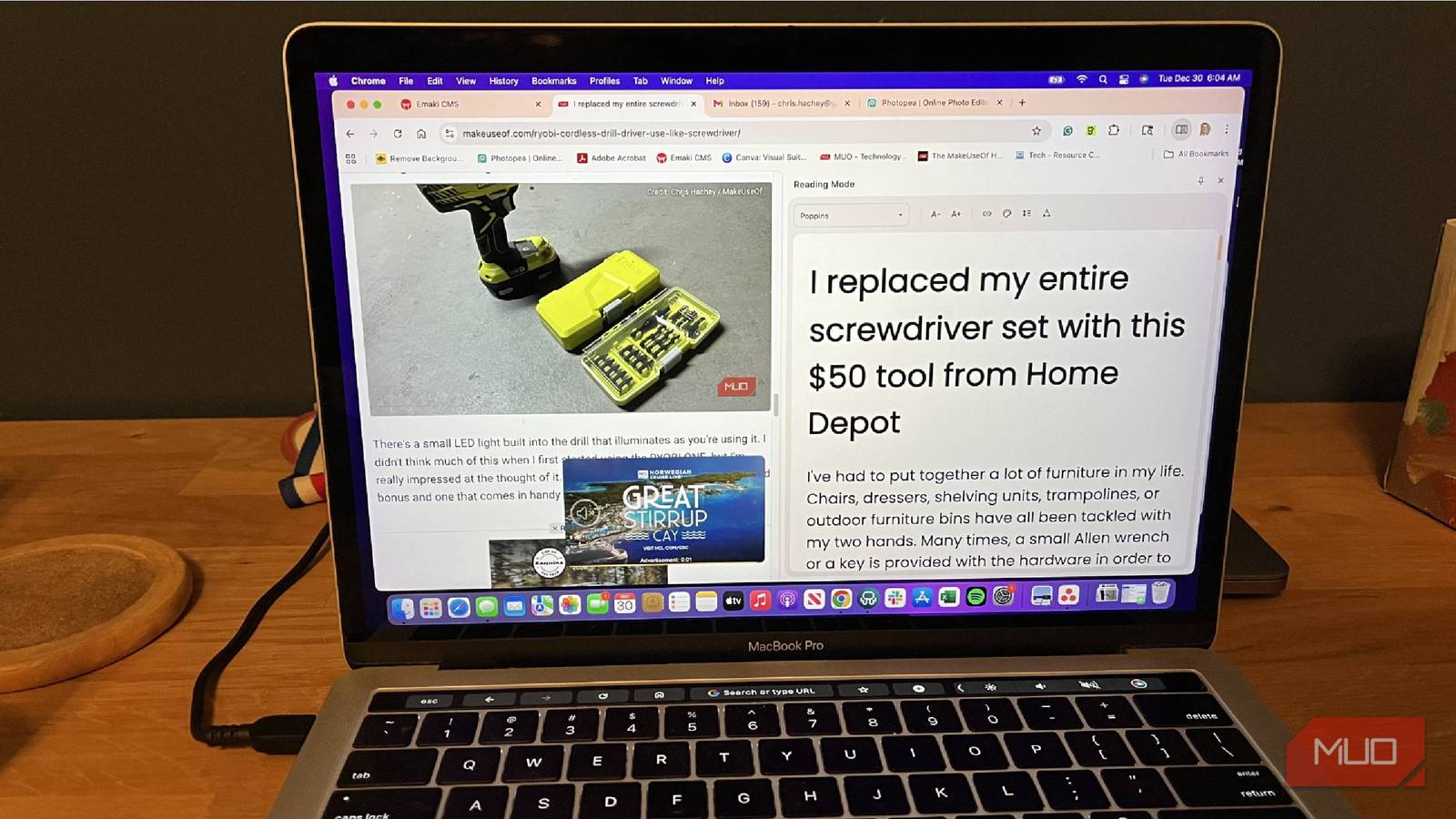
We've all been reading something on the internet before and been bombarded by ads. It can be frustrating to deal with when you're trying to read an article, and all of a sudden, a video pops up blocking what you want to read. Your speaker starts playing music or audio from somewhere on the page, and you have to scramble to scroll and find out where it's coming from to stop it.
Ads are practically inevitable when you're using the internet, as advertising dollars keep websites up and running. But as a consumer, sometimes you don't want to deal with ads. There are sites that allow you to upgrade to a paid version that gets rid of ads.
If you don't want to go that route, there's a way to strip out ads on Google Chrome to help you focus on what you want to read. Reading Mode is an underutilized feature that can save you the hassle of dealing with ads.
It helps you focus on the information at handUsing Reading Mode in Google Chrome strips away any ads, videos, and pictures in the article, leaving only the words. It keeps your eyes on the writing that you want to focus on, rather than any distracting ads or pop-ups. That's a godsend for anyone trying to study or read a story on a website.
I love doing this any time I want to enter deep work and recall what I'm reading. Unfortunately, I struggle to focus on my writing at times. I use the feature a lot in my work when I'm reading other sites or trying to understand more about a topic I'm not familiar with. I can skip all the superfluous videos and other distractions while trying to learn.
Reading Mode can be enabled by right-clicking on a webpage in Chrome and choosing Open in reading mode. You can also open this by clicking the three-dot menu at the top-right of your browser, then choosing More tools followed by Reading mode.
Ways to customize Reading mode There are plenty of methods to make it your own
When you first open Reading mode, it opens in Chrome's Split View layout, showing the original page on the left and Reading mode on the right. But you don't have to keep Reading mode the same as you find it: you can customize it to fit the way you like to read.
Beyond the basics of making the page text-only, you can change the way it looks. Your options for the font are:
Poppins Sans-serif Serif Comic Neue Lexend Deca EB Garamond STIX Two Text Andika Atkinson Hyperlegible NextBut the font isn't the only aspect you can change; the font size and color are adjustable. I like to change the color depending on the lighting and time of day. I also adjust the width of Reading mode so it takes up more of my screen than the default 50/50 split. I'd rather see the adjusted and customized text rather than the original one with ads and videos.
You can also disable links if you don't want to deal with them. This is particularly helpful if you're taking info from an article and putting it into a Notion page, Word doc, or similar to study for an exam. It's also nice for copying and pasting parts of an article into an email to share with someone.
Changing the line height also gives it a more personalized view; choose from Standard, Loose, or Very Loose. Looser views put more spacing between the text, making it easier or more difficult to read.
Make it easy to use Reading Mode Add it to your taskbar
If you don't want to use the right-click method or the three-dot menu every time, you can quickly enter Reading mode. This is possible by pinning it to Chrome's top-right toolbar.
When you have Reading mode open, you'll see a pin at the top-right of its window (next to the X that closes the mode). Clicking the pin puts Reading mode as a permanent item to the right of extensions on your toolbar.
Now, you can open a website and click the Reading mode icon, and its pane will open. I appreciate this because it's now a reflex to click and bring it up.
Have Reading mode read to you Text-to-speech makes everything simple Screenshot by Ben Stegner; no attribution required
While you have Reading mode open, you can also have the feature read to you using text-to-speech. Inside Reading mode, you may see a Play button among the features at the top (as I did using Chrome on my Windows laptop). You can highlight text on the left side of the split-screen to have it read to you on the right, or you can click the Play button to have the computer start reading to you.
If you don't see that option, as was the case on my MacBook, right-click the text on the right side of Reading mode and hover over Speech in the menu that pops up. Click Start Speaking, and it will start doing so. This is a great feature for anyone who wants to multitask while comprehending what they're reading.
You can adjust the reading output by using the Up and Down arrows on the keyboard, as well as change the languages and voice of the speaker. Play around and see which options you like best.
 Related
5 Chrome extensions I always keep installed
Related
5 Chrome extensions I always keep installed
If you are using Google Chrome, these are the extensions you should install permanently.
Reading mode can take away the noiseUsing Reading mode in Google Chrome is a great feature because it leaves you with the core content of a page. You don't have to deal with ads when you're reading a story. And Reading mode lets you customize how it presents text.
You can get to Reading Mode a few different ways and keep it ready by pinning it to your taskbar. Add Speech and have it read the webpage to you as well. It's a quick hidden tool in Google Chrome that can streamline your comprehension of an article.
Comments (0)