
Remember me






When friends and family consult me about upgrading their PC or troubleshooting hardware issues, the first question I ask is what specs they're running. More often than not, they have no idea what's inside their machine beyond what the faded sticker on the case says. You could use one of the free diagnostic apps like HWiNFO, but when someone just needs to know what RAM or motherboard they're running, Speccy is all they need.
This lightweight utility from the makers of CCleaner gives you a complete breakdown of your PC's hardware, including CPU, RAM, motherboard, storage, graphics, and temperatures. It knows more about your PC than you do and makes it easy to share everything about your system with its Snapshot feature.
What Speccy tells you about your PC Makes it easy to understand your system hardwareSpeccy tells you the same things that other hardware diagnostic apps like HWiNFO tell, but in a more digestible way. It's also not too detailed to the point where it starts feeling overwhelming. Which means, instead of seeing hundreds of sensors and technical readings, Speccy sticks to what most people would need, which is to know what hardware is installed and whether it's running hot.
You can download Speccy directly from Piriform's website and run the installer. If you prefer not to install anything, you can also grab a portable version from third-party sites like PortableApps.com. I prefer to keep a copy on my USB drive for when I'm helping someone troubleshoot their PC remotely or in person.
When you launch Speccy, you land on the Summary page, which shows almost everything important at a glance: your operating system edition, CPU model and temperature, RAM size, motherboard model, GPU, connected monitors, storage devices with their temperatures, and audio hardware.
 Tashreef Shareef / MakeUseOfCredit: Tashreef Shareef / MakeUseOf
Click any category on the left panel to dig deeper. For example, click Operating Systems, and you can see when it was installed, the serial number (not product key, more on this later), whether the firewall is enabled or not, active power schemes, scheduled tasks, and tons of information about system files and device tree.
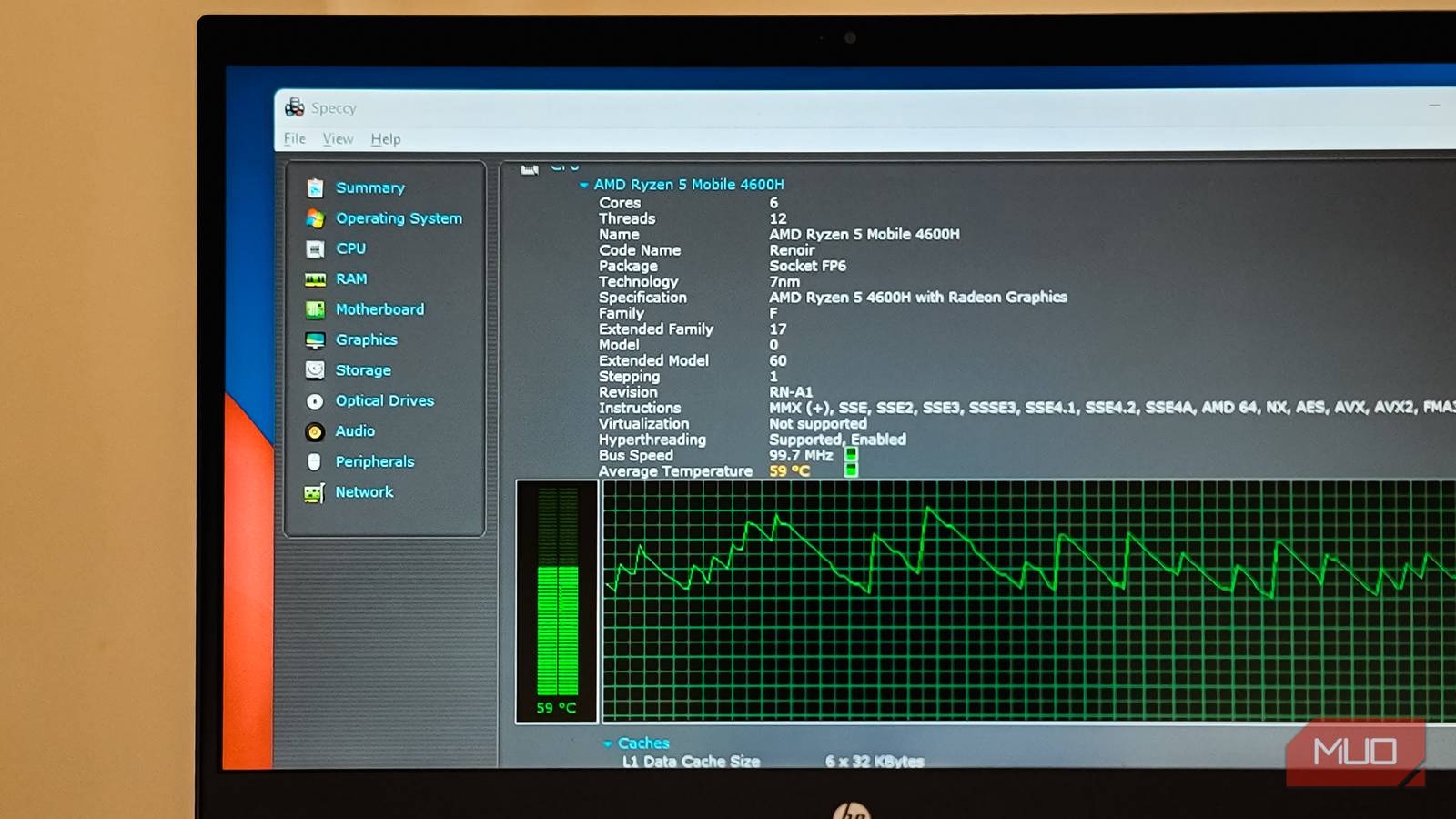
The CPU tab shows fan speed, bus speed, and per-core activity. Similarly, the RAM tab breaks down how much memory you have installed versus how much is available, which is helpful when you're planning an upgrade and need to know how many slots are occupied. The Motherboard section displays your BIOS version and PCIe slot availability, which I find useful when checking if an update is available from the manufacturer.
For components that report temperatures, such as your CPU and GPU, Speccy can graph readings over time. Click the small graph icon next to a temperature reading to monitor it live. Again, useful if you're trying to correlate temperature spikes with specific workloads or troubleshoot overheating issues.
Speccy Snapshots An easy way to share your complete PC specs Tashreef Shareef / MakeUseOfCredit: Tashreef Shareef / MakeUseOf
The reason I prefer Speccy to any other diagnostic tool is its Snapshot feature. When dealing with whitebox computers, it was often hard to tell the exact specifications of a PC, so I would simply use Speccy to create and save a snapshot, which consists of a copy of your PC's full information that you can share. It's also useful when doing remote troubleshooting or consulting.
To create a snapshot, click File > Save Snapshot. Speccy saves all your hardware and software details into a proprietary file that you can reload later with Load Snapshot. If you need something more universal, use the Publish Snapshot feature, which lets you upload your snapshot to the Speccy server and then access it with a unique URL.
You can also export the data as a text file for easy reading or XML for structured data. Or print directly to PDF if you have a PDF printer driver installed. If I'm helping someone remotely, I ask them to install Speccy, publish a snapshot, and send me the URL. It saves a lot of back-and-forth questions about what components they're running.
What Speccy can't do A few quirks worth knowing about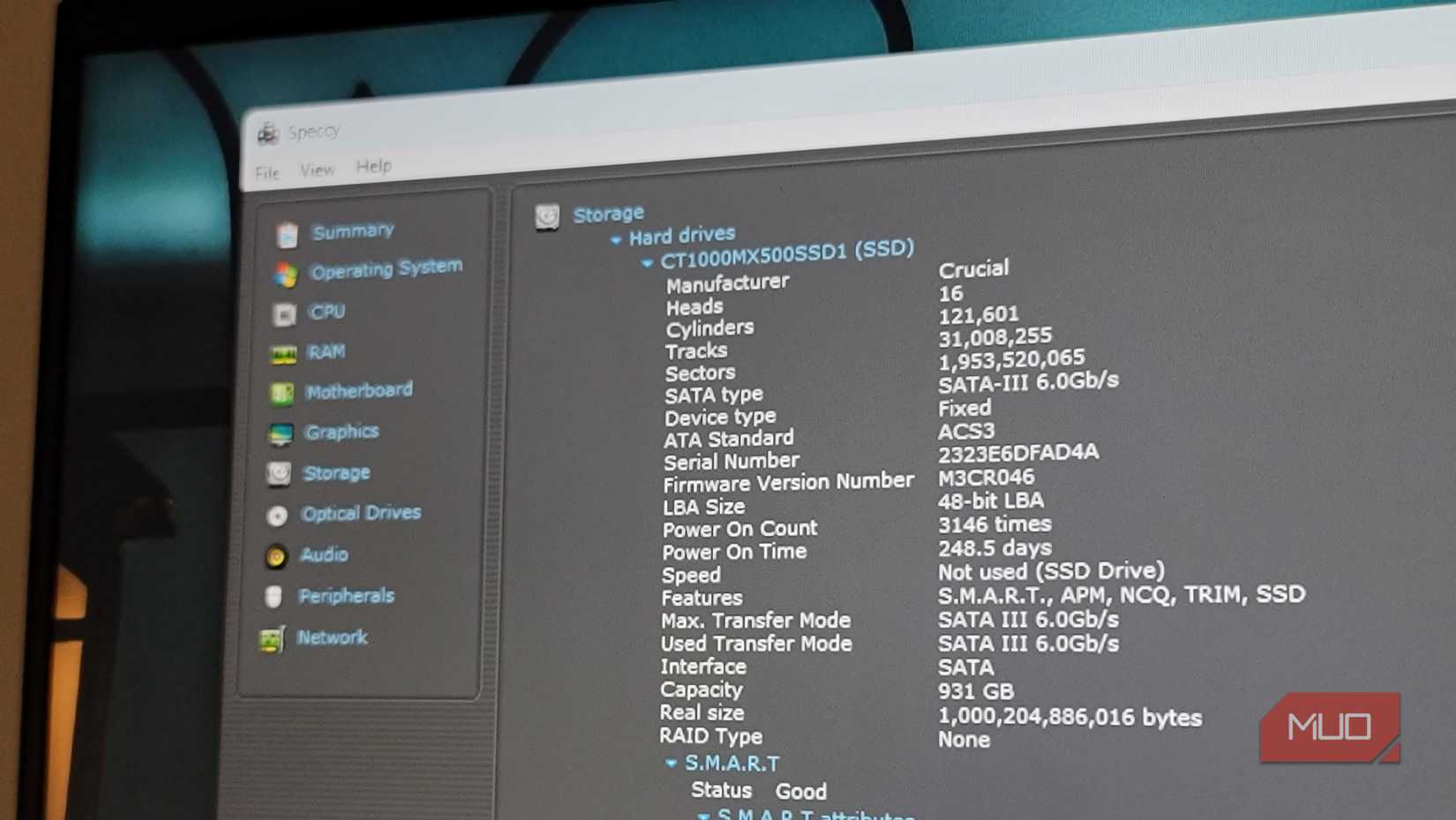 Tashreef Shareef / MakeUseOfCredit: Tashreef Shareef / MakeUseOf
It's hard to find software without some quirks, and Speccy is no different. For instance, it doesn't show the operating temperature for my Samsung NVMe or the Crucial SATA SSD, which means I have to rely on Samsung Magician software to check my storage temperature. If monitoring your NVMe temps is important, you'll need a second tool.
Another quirk is in the Operating System section. Speccy displays a Windows serial number, not your actual product key. It's easy to mistake one for the other. If you need to find your Windows 11 product key, you'll need to use a different method.
The app also hasn't seen a major update since July 2024. Piriform still maintains it, and it works fine on Windows 10 and 11, but don't expect new features or frequent improvements. For what it does, which is quickly showing you hardware specs and temperatures, the current version handles the job.
Speccy is a useful little PC diagnostic toolSpeccy tells you what's inside your PC without you needing to decode the output. It's simple enough that even an average user can make sense of it. The Summary page gives you the quick overview most people need, and the Snapshot feature makes sharing that information painless. Yes, more advanced tools exist with deeper technical readings, but they're overkill when you just need to quickly check your specs.
If you're upgrading your RAM, checking compatibility before buying a new component, or just curious about what's actually running inside your machine, Speccy makes it all visible in no time, all without spending a dime.
Comments (0)