
Remember me
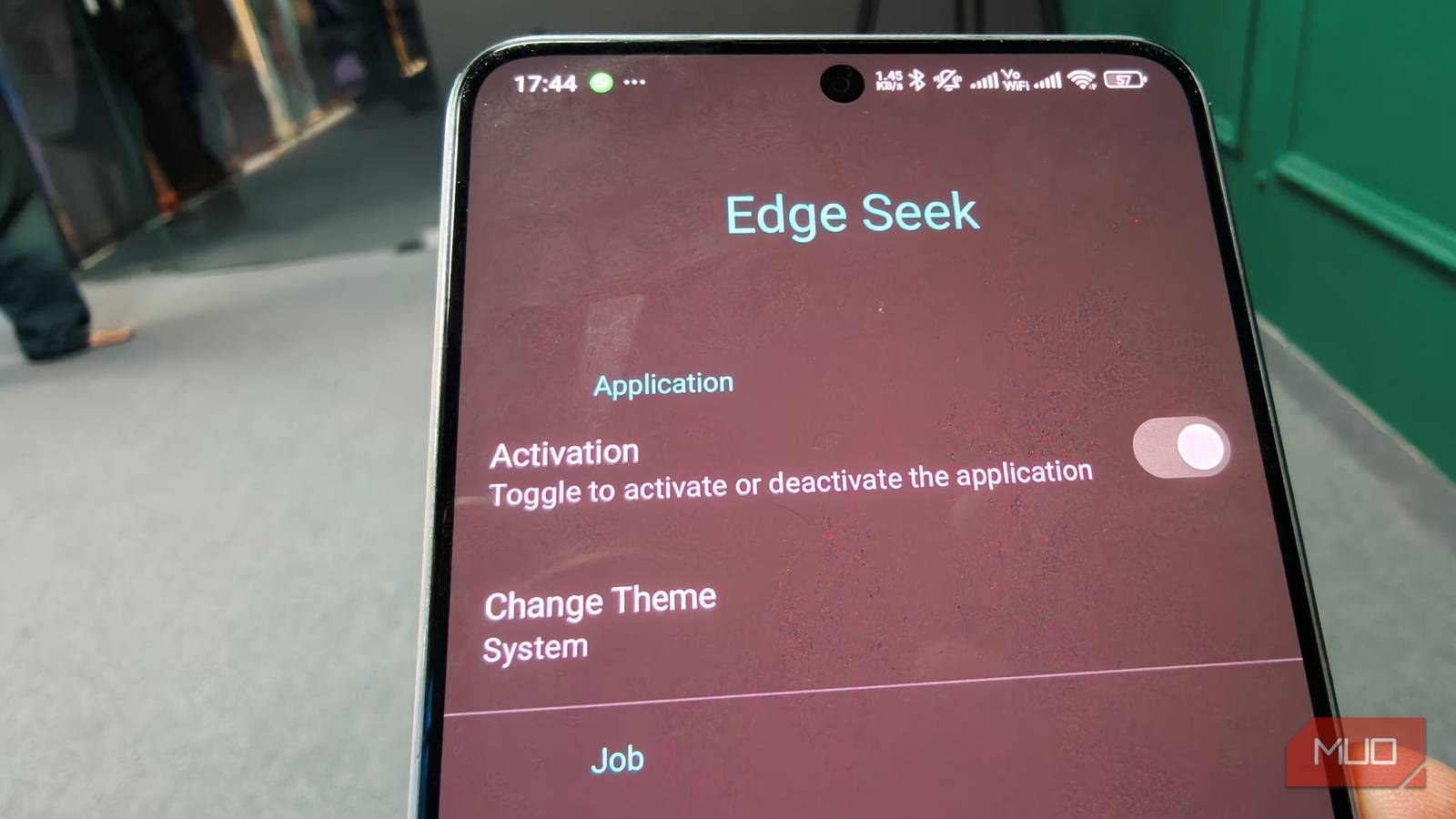
I have always been a big fan of shortcuts on smartphones. The double-tap to wake/lock screen is the first thing I enable when I set up any of my phones. So, when I stumbled upon this open-source application called Edge Seek, which lets you set up an action center right on your screen. I was curious. Will this work, or be another one of those mid-performing apps?
Even with my doubts, I installed it. The installation process was smooth, but once I set it up, the level of control surprised me. But the best part? There are no ads. After using it for a week, I no longer visit my control center for trivial changes like brightness or audio.
Setting it the right way Customizing edge controlsIn the initial setup, the app does not require much. Some basic permissions are required. The concern for me was when it asked me for unrestricted battery usage. Again, I wanted to test it out, so I tapped on Allow. Once I was done with the permission, the main part began, which is customizing the edges.
Within the app settings, there are preset tasks, though I chose my own and would recommend the same to you. Each edge of the screen can be programmed to control either the volume, brightness, or even UI interaction. The app does not have much to offer, but what it offers is well optimized. The edges on either side can be split into three equal sections and programmed to perform individual tasks. Once enabled, you have to assign which task you want that part of your screen to perform, and it will do so.
The setup process & permissions Swipe gestures to control volume and brightness
Swiping is key here; there are other options to execute tasks like long-press and double-tap. However, for me, swiping is the best. Whenever I am doom scrolling through a loud video, swipe down, and the volume goes down. Too bright at night? Swipe down on the other side, and your eyes are now thanking you.
In the initial stage, I did face some issues locating the actual edges. If you are using a screen protector, you might be off by a couple of centimeters. To prevent this from happening again, I simply extended the thickness of these edges and made sure I could easily swipe on them. Instead of going through the traditional control center for brightness or sound-related actions, I use Edge Seek.
Simply reduces friction Fewer trips to the control center
After using this app for a while, I spent less time jumping into the control center to change basic settings. This also reduced my distraction issues. Incoming notifications are no longer a distraction, and I cannot sneak a peek until I bring the notification tray down — so yes, a WIN situation here.
Another thing that took me by surprise was the extensive customization options available. I can play around a lot and make this work for me. I can control the width, color, and even the sensitivity of the edges and tune it according to my needs. This app also has a feature that makes these edges visible. This helps a lot when you are starting out, so that you develop muscle memory and locate the edges instantly.
Battery drainage after using Edge Seek Better than most apps
After installing Edge Seek and using it so far, I can say it doesn't drain your battery as much as you might think. I was sure that the overall drain would surely cross the 15% mark, but no. On a single charge, only 3.4% of the total battery was used by Edge Seek. Considering other productivity and utility apps, this number is still on the lower side. Also, there was not much background activity.
 Related
I forgot that I installed it
Blends smoothly in daily use
Related
I forgot that I installed it
Blends smoothly in daily use

After using it for a bit longer, I kind of forgot that this is not how a typical screen works. That is how seamless this app is. There are no unnecessary notifications or alerts. I sometimes start swiping on my secondary phone, hoping it will bring the brightness down.
During continuous use, there were no app crashes or sudden glitches. It performs well. The app works great at removing the friction you experience when performing trivial tasks.
Edge seek is not for everyone, and that's okay!The application is not flawed, though not all users like gestures or shortcuts. They prefer traditional methods. I talked about this app with my brother, and he installed it. After setting it up, he did not like it and said, “Not for me.” His big hands led to some mistakes.
Then there is the subtle fear of giving an application unchecked battery usage and the permission to display over other apps. People who still prefer buttons for navigating through their phone will not consider using this. The application is intended for power users and can be an acquired taste, as it can grow on you once you start using it.
Comments (0)