
Remember me
I’ve got a bit of a gripe with the smartphones we use these days. The screens keep getting bigger and better, but the software treats them as if they are tiny.
We are walking around with 6.8-inch displays that have higher resolutions than most laptops did ten years ago, yet Android insists on displaying the same amount of information as it did on a Nexus 5. You get five emails in your inbox view. Two tweets, maybe three if you’re lucky. It's like reading a novel through a keyhole.
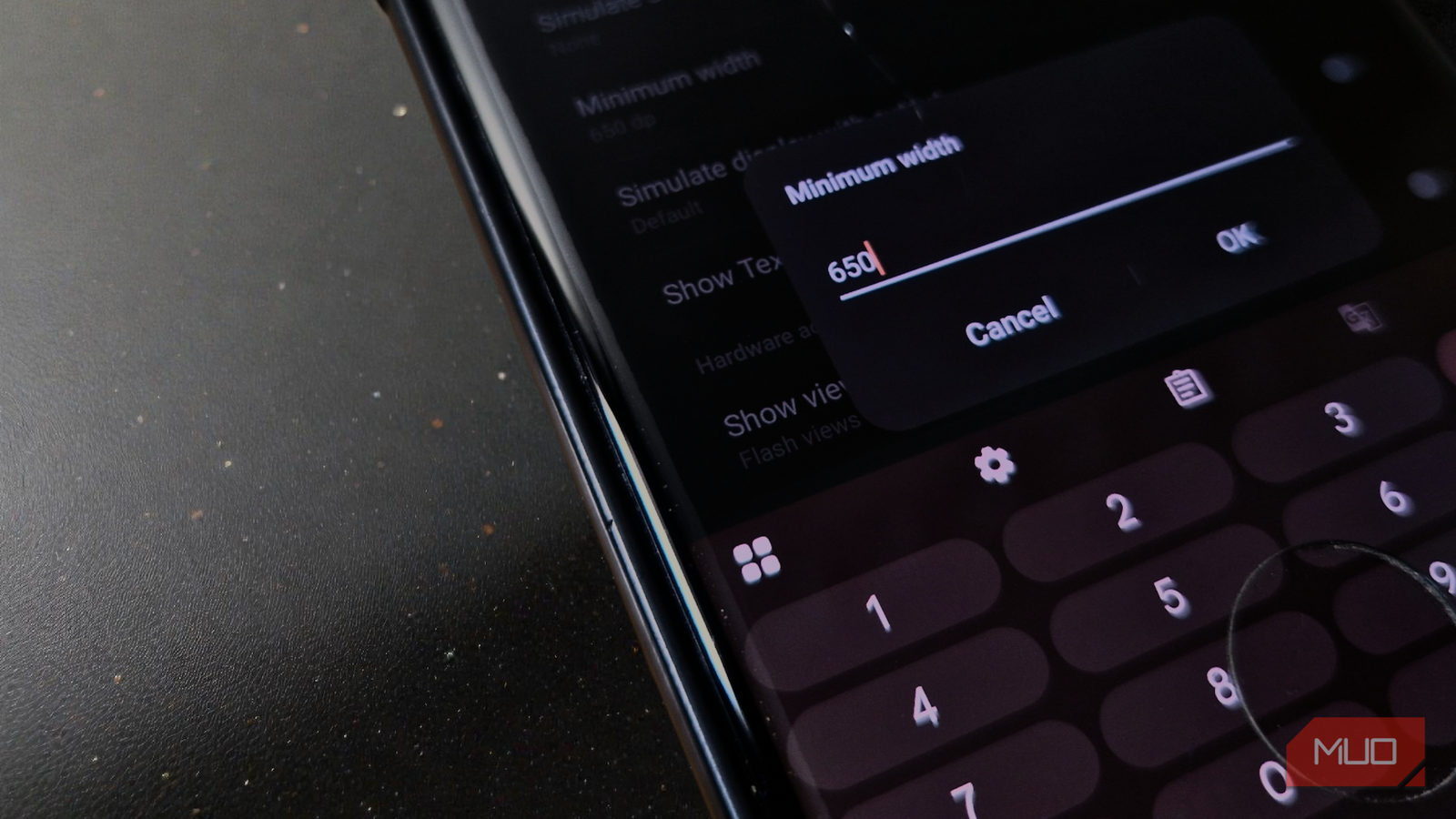
I recently tweaked one of the many settings buried deep in the Developer Options called "Smallest width" (or “Minimum width,” depending on your phone), and I love how it changed how I use my phone.
What Android's Minimum Width setting actually does You wouldn't want to tweak a setting without understanding what it is, right?
Under the hood, Android doesn’t think in inches or pixels. It uses density-independent pixels (dp), which is basically its way of keeping buttons and text looking sane across wildly different screens. The Minimum Width setting lets you mess with that baseline directly, and doing so changes how Android perceives the size of your display.
When you bump the dp value up — say, from 411 to 502 — you're essentially telling Android your screen is "wider" than it physically is. The operating system responds by shrinking interface elements proportionally, allowing substantially more content to fit on the screen at once. On the other hand, decreasing the dp value enlarges UI elements, which can improve readability and accessibility if that is your priority.
This is very different from the usual Android accessibility features like Screen Zoom or Display Size sliders we’ve had for years. Those work in chunky, pre-baked steps, and they’re often maddening. One setting feels cartoonishly large; the next is eye-strain territory, and there’s nothing in between. Minimum Width ignores those guardrails and gives you a proper fine-tuning dial.
 Related
7 Display Settings on Your Android Phone That Are Worth Changing
Related
7 Display Settings on Your Android Phone That Are Worth Changing
From making colors more vibrant to fitting more information on the screen, Android has a lot of display settings to change how your phone looks.
Most Android phones ship with pretty conservative defaults, typically somewhere between 360 and 426 dp, depending on the manufacturer. A Pixel 9 Pro sits at 426 dp, while Samsung devices usually land between 360 and 411 dp. That bias toward accessibility makes sense for the average person, but it can feel oddly restrictive if you bought a big, high-resolution display and actually want to use all of it.
So what's now the mathematics of screen real estate? Jumping from 411 dp to, say, 540 dp doesn’t just make everything about 30 percent smaller. In practice, it often means roughly 30 percent more stuff on screen, sometimes more, depending on how individual apps respond to the scaling. Your inbox shows extra emails, spreadsheets gain more rows, social feeds scroll less, and websites render with desktop-like information density.
How to change your Android's minimum width You want more screen real estate, right?First, you need to unlock Developer Options, Android's hidden menu of advanced settings. This requires a peculiarly playful ritual. Open your Settings app and navigate to About Phone (or Software Information on some devices). Locate the Build Number line and tap it seven consecutive times. A notification will confirm that you've now enabled Developer Options.
With that door open, go back to the main Settings screen and scroll until you see Developer options, usually lurking near the bottom. Tap in, head to the Drawing section, and look for Smallest width or Minimum width, again, depending on your phone. Tap the number you see there and prepare to tinker. It is one of the fun features hiding in your Android's developer menu.
Now, here's where experimentation becomes essential. If you want a denser layout and more stuff on screen, enter a higher dp value than what’s already there. Start conservatively — try increasing by 20-40 dp increments and evaluate the results. Changes take effect immediately, which makes it easy to nudge the number up or down until you hit that perfect, Goldilocks-approved balance between "wow, look at all this space" and "okay, this is getting a bit cramped."
There’s no single magic number here. The sweet spot depends on your eyesight, your screen size, and your tolerance for tiny UI elements. A couple of guardrails are worth keeping in mind, though. Setting values below 320 dp isn't recommended, as it can make interfaces oversized and difficult to navigate. On the upper end, extremely high values (around 600-720 dp) may trigger Android's tablet interface mode, which redesigns system UI and apps to accommodate the perceived larger display. This can be desirable or disorienting depending on your preferences.
Say goodbye to the claustrophobia of default settingsTweaking the minimum width is one of those rare, old-school power-user moves that actually pays off right away. It snaps you out of that Fisher-Price world of oversized buttons and wasted space and turns your phone into something sharper, denser, and frankly more capable.
Ease into it. Nudge the value up, keep the defaults in mind, and let your eyes adjust. Before long, you’ll realize you’re seeing more of everything without constantly flicking your thumb. Once it clicks, it’s hard to go back.
Comments (0)