
Remember me

Google Maps is simply better than Apple Maps, at least in India. For me, it's not just a navigation app; it's a daily companion. I don't think I'd get around as smoothly without it. Whether I'm driving, walking to a new place, or completely lost and trying to find my way back home, Google Maps has rarely let me down. It's fast, reliable, and fairly accurate in most situations.
But Google Maps isn't just about turn-by-turn directions. Over time, I've realized it can do a lot more than people give it credit for, especially in everyday use. With a few simple tweaks and features enabled, the experience becomes smarter and more convenient. These small changes have completely transformed how I use Google Maps on a daily basis, and if you rely on it just as much as I do, they're worth knowing too.
When walking directions make your head spin A smarter way to walk without getting lost Credit: Shimul Sood / MakeUseOf
Most people I know, especially my parents and even a few friends, struggle with understanding how to follow walking directions on a phone. Left, right, slight turn, U-turn, it gets confusing very quickly. I've been there myself. I've walked extra kilometers or ended up completely lost just because I misread the on-screen arrows.
This is where Google Maps quietly becomes a lifesaver. To make walking directions easier, Google lets you view navigation directly on your smartwatch, whether you're using an Apple Watch or a Galaxy Watch. The map and turn-by-turn prompts show up on your wrist, and the watch gently buzzes when it's time to turn. You don't have to keep pulling out your phone or stare at the screen constantly. It's safer, convenient, and especially useful when you're in another country and don't want your phone stolen on the street.
If you want something even more intuitive, Google Maps also offers Live View for walking navigation. Live View overlays directions onto the real world using your phone's camera. You can simply scan nearby buildings, signs, or landmarks, and Google figures out exactly where you are and which way you're facing. Arrows then appear on your screen, pointing you in the right direction in real time. This feature is especially for parents or anyone who finds traditional maps overwhelming.
You can switch between the normal map view and live view at any time. Tilting your phone up and down makes the experience even more natural.
Just remember to stay aware of your surroundings while using it; staring at arrows for too long can still lead to bumping into people or objects, speaking from experience.
A consistently familiar experience The comfort of knowing exactly where you're going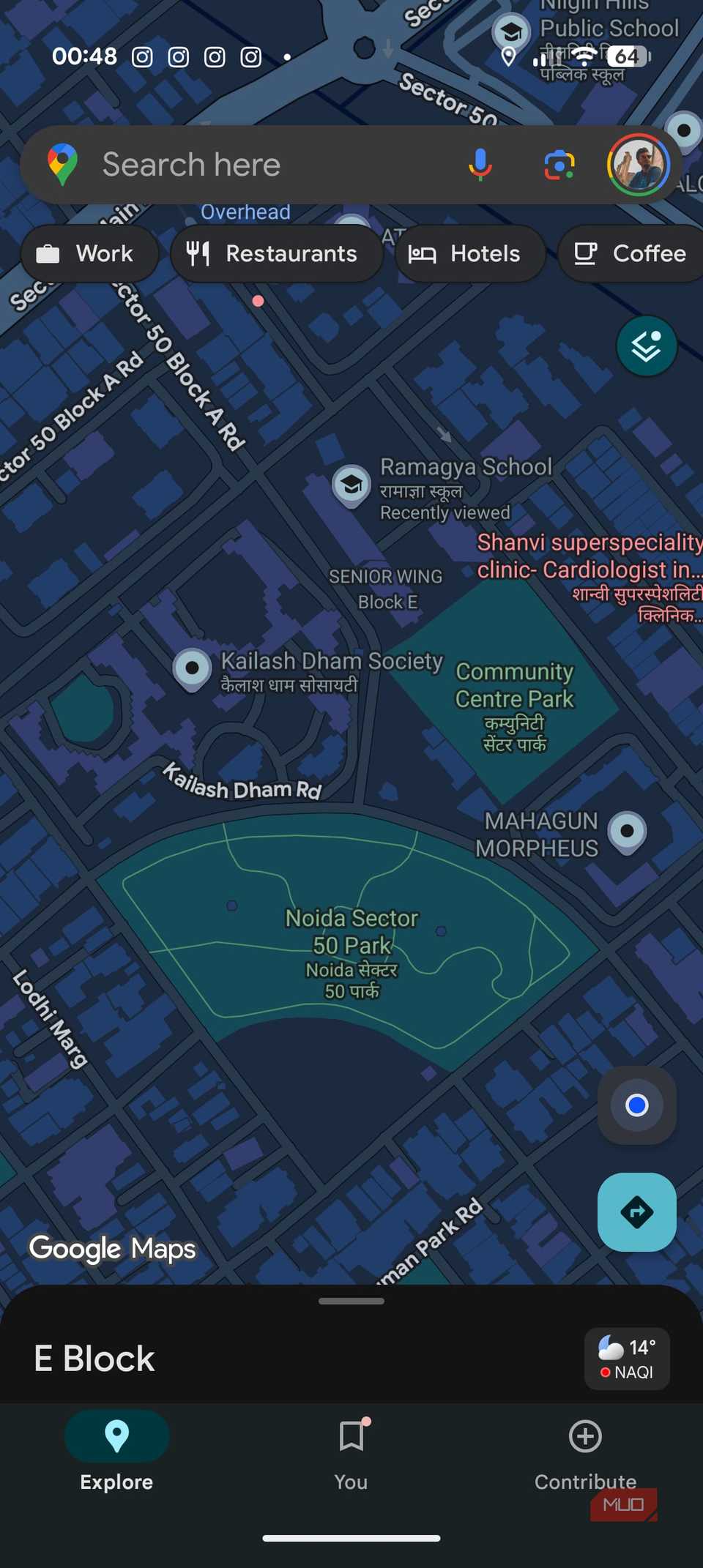

I genuinely enjoy going back to the same places again and again because it brings a sense of comfort and confidence. Revisiting familiar spots means I already know what to expect and how long it takes to get there. The predictability is exactly why Google Maps feels so dependable, consistently offering a familiar experience.
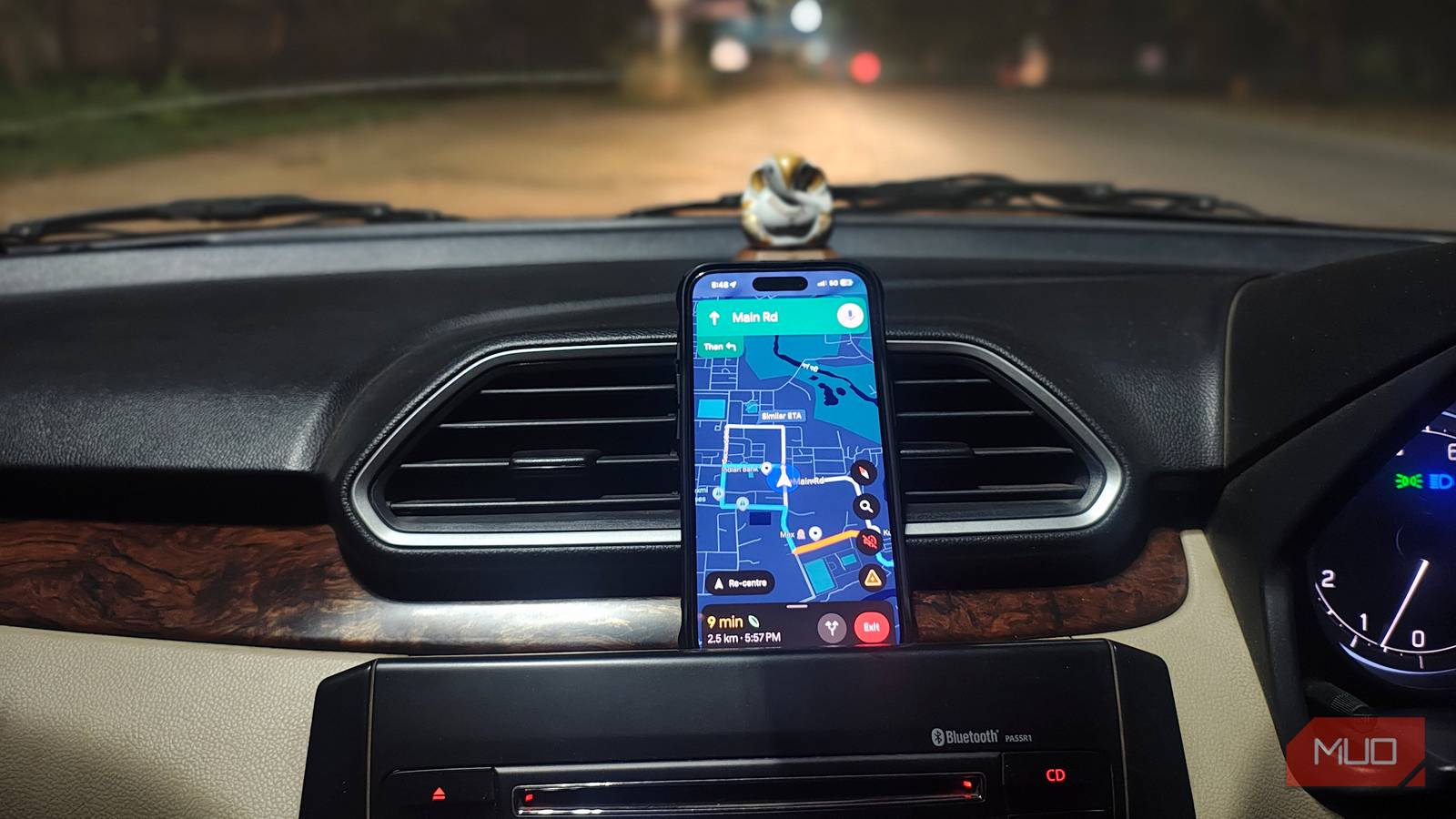
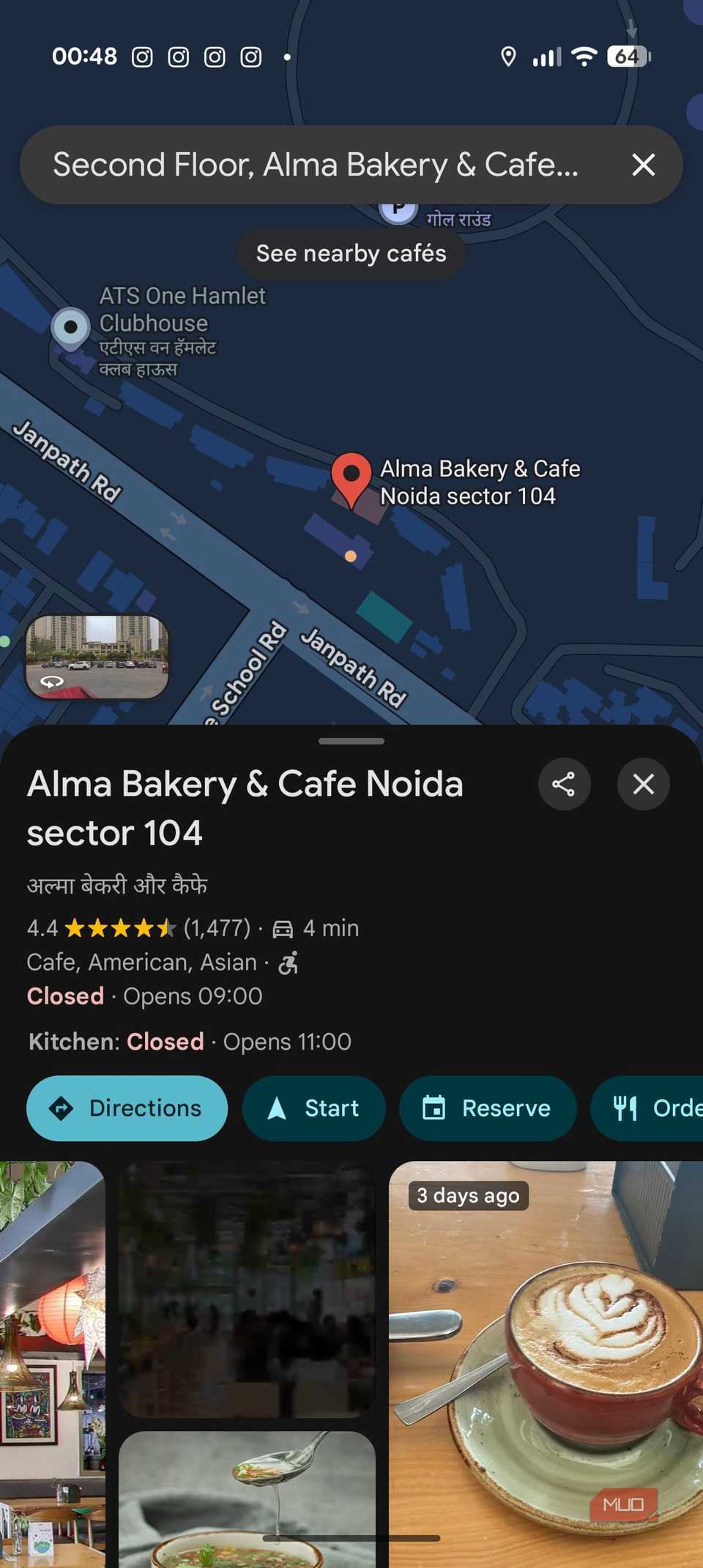
For instance, every year, I order my birthday and anniversary cakes from the same bakery. It's a place I trust, and picking up cake is now part of the tradition. I know my route by heart, but I still use Google Maps via Android Auto. As soon as I tell my Google Assistant, it pulls up the saved location. I tap Start on the infotainment screen, and I'm on my way. Google Maps' traffic predictions often save me from congestion, especially when time is tight.
Saving places on Google Maps solves everything for me. Open the app, search for the location, and tap the Save icon. It's like bookmarking to a place you'll definitely return to. Later, you can ask your smart assistant to navigate to that saved spot. I do the same when traveling abroad: I save cafés, landmarks, hotels, and must-visit spots in advance, so everything stays organized and easy to access. This small habit removes friction and ensures I never forget my destination.
Making outings easier for everyone Checking the details before heading outMy grandma can't walk long distances anymore because of her age, so whenever we step out as a family, a wheelchair or proper seating becomes non-negotiable. Earlier, this meant a lot of uncertainty. We'd reach a place only to realize there were stairs everywhere, no ramps, and nowhere comfortable to sit. That completely changed when I discovered this accessibility-focused setting in Google Maps. It has saved us from choosing places that simply aren't elderly-friendly.
With accessibility details enabled, Google Maps shows far more than just directions. You can check whether the place has wheelchair-accessible entrances, seating, accessible washrooms, and suitable parking. When you're planning an outing with elderly family members, these small details make a huge difference. It takes away the stress of guessing and helps you plan with confidence. If you've ever been in a situation where you had to turn back or improvise at the last minute, this feature feels like a relief.
To check these details before you leave home, follow this:
Open the Google Maps app. Tap your profile icon in the top-right corner. Now, head to Settings. From there, go to App and display. Turn on Emphasize accessibility info.Once enabled, Google Maps starts highlighting accessibility details for places you search for. Google Maps does mention that:
The accessibility information may sometimes differ from real-world conditions.
In my experience, though, the two places I've relied on this feature for turned out just fine. Even so, knowing the possibilities in advance helps set the right expectations. Preparing for both the good and the not-so-good keeps you patient, calm, and far better equipped when you're out with loved ones who need a little extra care.
 Related
I've Dropped Google Maps in Favor of This Open-Source Alternative
Related
I've Dropped Google Maps in Favor of This Open-Source Alternative
You don't have to let Google scoop up all of your location data.
The difference is in the detailsGoogle Maps is already easy to rely on when you just want to get somewhere without overthinking it. Yes, there's an open-source alternative, if privacy is your top priority. But for everyday use, Google Maps still feels the most complete and practical. There are some more useful features you should know about. I'm sure you've never touched them. These settings don't change how your app looks at first, but they change how you move through places. Turning them on right away means you'll actually be able to use them when needed.