
Remember me

We've all done it: thrown a laptop in a bag, hopped on planes, bounced between hotels and coffee shops, and basically forgotten it existed beyond a tool that helps you get your job done when on the move. I've spent years writing about proper PC maintenance—clean your fans, update your drivers, manage your disk space. I've even got an annual ritual that keeps my Windows laptop running like new.
But what happens when you start ignoring every rule of good PC hygiene for weeks of travel? No driver updates, no cleaning the fans, no emptying the downloads folder, no worrying about Windows updates? Well, I abused my Windows PC for a month, and the results weren't as expected.
I pushed my PC into a thermal death spiral Dust, throttling, and fans screaming for mercy Yadullah Abidi / MakeUseOfCredit: Yadullah Abidi / MakeUseOf
I generally clean out my fans every six months. When I left my house for nearly a month of travel, my laptop's thermal system was in relatively good condition. However, within a couple of weeks of traveling through dusty environments—airport terminals, hotel rooms, a few outdoor shooting sessions, and a bike trip across multiple states in India—the cooling system started staging a rebellion.
My laptop wasn't overheating yet, but it did get noticeably warmer to the touch, and the fans started spooling up just to keep my browser tabs running. Editing photos or playing games meant the laptop's temperature skyrocketed to its thermal limit.
The culprit was dust. And I mean serious dust. Even a small layer of dust on your laptop's internal cooling fans and vents reduces cooling efficiency. As that dust builds up and blocks your vents, the laptop can't get rid of internal heat very well. Eventually, you'll start feeling the effects of thermal throttling, and performance will slow down.
 Related
However, while performance did slow down, and my laptop got hotter as I used it, it never slowed to the point where I couldn't get my work done. The browser might take a few more seconds to load, and occasional Lightroom crashes cost me editing time, but I was still able to power through with most of my tasks.
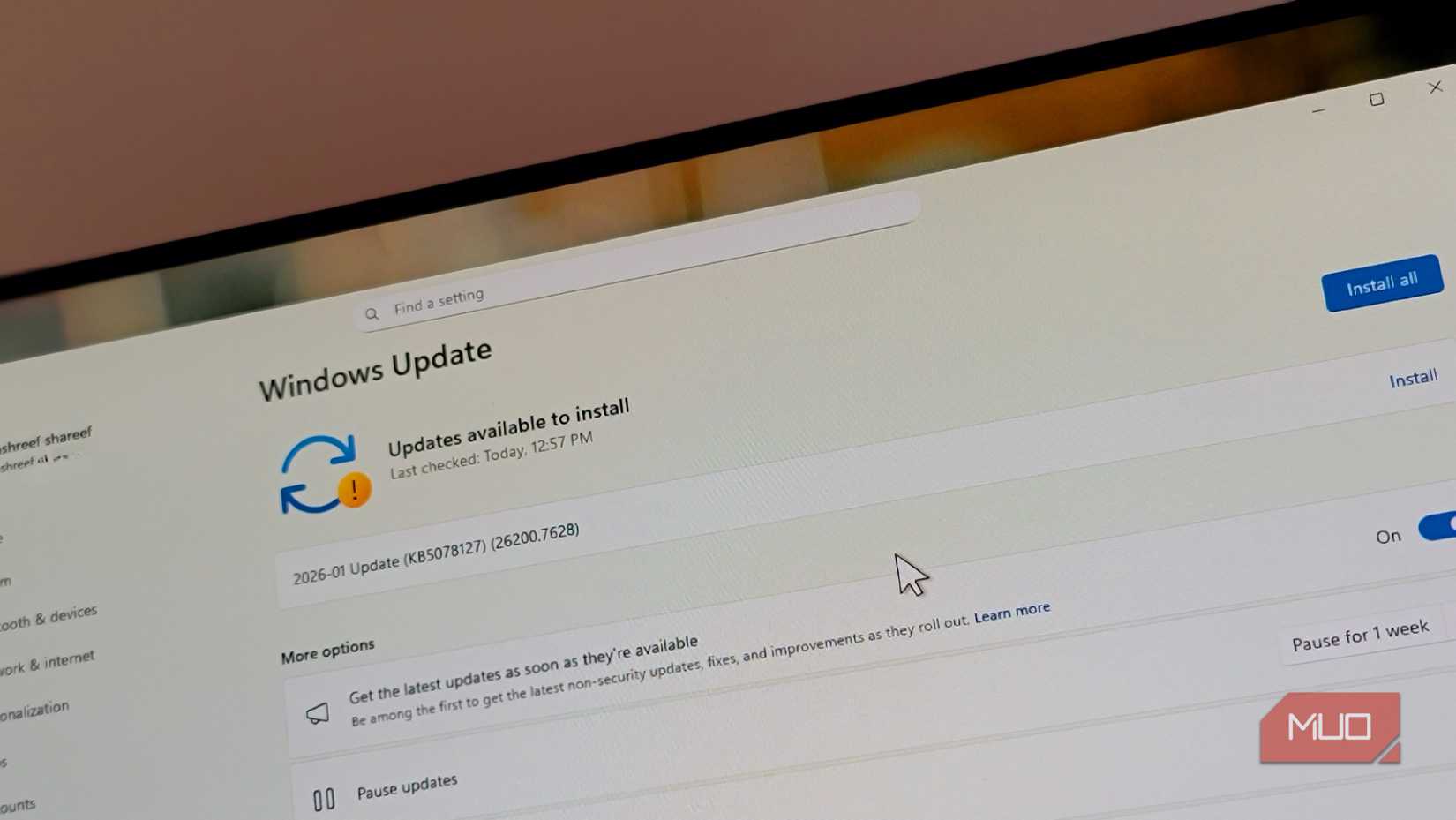
Driver rot, broken apps, and creeping instabilityAs I continued using my laptop on the go, I was only using it to get work done. And by the second week, multiple drivers were begging to be updated. My Wi-Fi chipset, GPU, chipset controller, and more had driver updates that needed to be installed. Since I didn't have any issues with the current drivers, I ignored the updates and moved on.
Outdated drivers don't always cause catastrophic failure. In fact, if the current version of the drivers you're using is stable, you can continue using them for a while before updating is mandatory. That said, using outdated drivers does cause slow-motion collapse. Performance tanks, applications crash randomly, hardware conflicts emerge, and your system becomes a mess before you know it.
Windows will also keep nagging you for security and feature updates. These are arguably more important as your system is vulnerable, especially when you're traveling and might be using public Wi-Fi. Windows also has an annoying habit of surprising you with auto-installing updates out of the blue unless you specifically disable them.
 Tashreef Shareef / MakeUseOfCredit: Tashreef Shareef / MakeUseOf
I always use my phone's personal hotspot when traveling, so public Wi-Fi wasn't a risk. However, having tons of pending driver and software updates becomes more of an annoyance than an actual issue. You'll see pop-ups asking you to update every single time you boot your PC or start an application. They generally only take a few clicks to get rid of, but they get annoying really quickly.
This also opens up the door for malware or virus infections. While traveling, I ended up plugging in an unidentified USB drive and, as you'd expect, ended up with a malware infection. Getting rid of the malware was the only maintenance I did on the laptop for the whole month.
Running out of disk space breaks everything When Windows can’t breathe, it panics Digvijay Kumar / MakeUseOfCredit: Digvijay Kumar / MakeUseOf
By week three, my laptop was slowing down in ways unrelated to dust or drivers. Opening File Explorer felt sluggish, applications often froze, and before I knew it, my C: drive was 90% full.
This is the main problem you'll face if you're not maintaining your PC regularly. Yes, dust buildup will slow your PC's performance, but it won't result in catastrophic failure for a very long time. Driver update pop-ups can be annoying, but they can be gotten rid of in a few clicks. Digital junk accumulating on your disk? That's not going anywhere until you either set up an automatic process to deal with it or clean it up yourself.
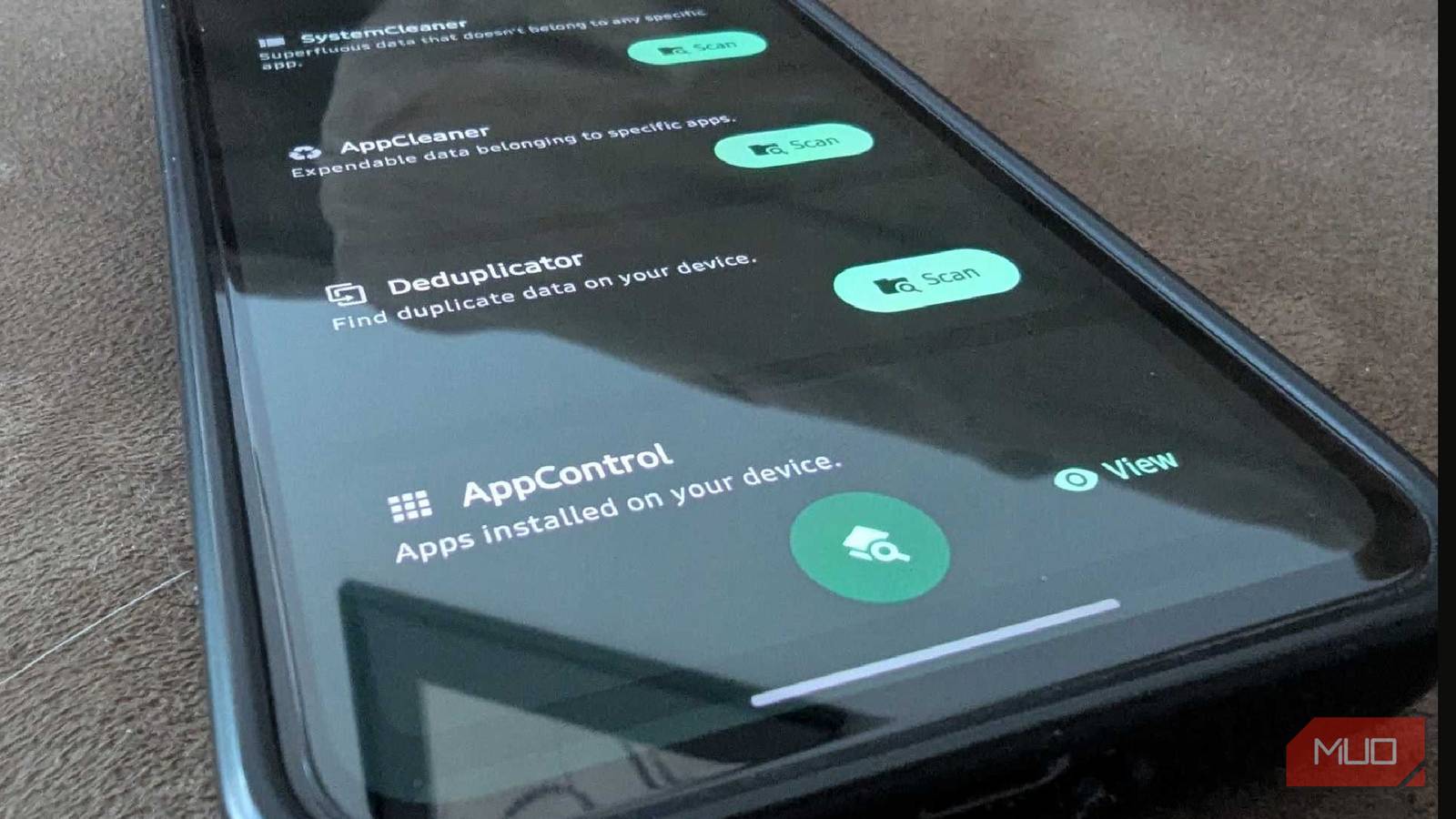
I've got some slick automations on my Windows PC that save me a lot of time and effort, and some of them involve automatically clearing up storage. But for this experiment, I had disabled them all.
You might not realize it, but Windows accumulates digital junk more quickly than you'd think. This is fine if you haven't partitioned your disk and have one giant C: drive. But if you like partitioning your drives and have a 500 GB C: drive for Windows, as I do, you're going to start running out of space.
 Yadullah Abid / MakeUseOfCredit: Yadullah Abid / MakeUseOf
Thankfully, Windows has all the tools you'd need to clear out this clutter, and it's relatively easy to clear out years of Windows clutter without installing a single app.
Travel photos, downloaded files, browser cache, temporary files, accumulated downloads, and everything else had snowballed into a serious storage issue. And when free disk space drops too low on your Windows partition, the OS loses the temporary workspace it needs to operate. The pagefile—virtual memory Windows uses when RAM fills up—can't allocate properly. Every operation becomes a negotiation with a full drive.
Neglect kills faster than you think Small problems snowball into system-wide failureMy laptop never catastrophically failed. Nothing technically broke. It just became progressively worse at functioning. Performance degraded quietly, enough to be noticeable, but not enough to make a difference.
 Related
5 signs that mean your PC parts are failing
Related
5 signs that mean your PC parts are failing
Your PC doesn’t fail suddenly. It glitches, screams, and eats your files first.
The good news is that everything was reversible. Compressed air cleaned the fans, a couple of hours of driver updates fixed compatibility issues, and one aggressive disk cleanup reclaimed space. Fifteen minutes of Windows updates completed the job. My machine went from feeling decrepit back to normal. Deep cleaning your Windows PC really is easier than you think.
I did get lucky with the malware infection and was able to remove it rather easily. If not, no amount of cleaning would have helped. That's the real risk—the security exposure traveling on unpatched software creates.
Take care of your laptop while traveling. The maintenance takes minutes; the consequences of neglect last far longer.