
Remember me

Every Android phone ships with a few Google apps. Some of them are must-haves, others you probably never open. But that is not the end of the story. There are several Google apps that don’t come preinstalled and some of them are genuinely great. And if there’s one app I wish Google would include by default, it’s Snapseed.
Snapseed has been around for more than a decade now. It’s a full-featured photo editor that’s easy to use, packs advanced tools, and is free from unnecessary AI gimmicks. Best of all, it’s completely free to use with zero ads, which makes it one of the best mobile photo editors you can have.
What makes Snapseed so good More control than your phone’s default editorMost Android phones already come with a decent photo editor. Apps like Google Photos and Samsung Gallery can do basic edits, add filters, and even erase unwanted objects with AI. But Snapseed still feels like the editor your phone should have.
For me, Snapseed’s selective tool alone is reason enough to have it. It lets you apply edits to specific parts of an image instead of the whole thing. This means you can tap on a shadow, a face, or the sky and adjust only that area. This is quite handy when you want to brighten up the background without overexposing the subject.
Snapseed also remembers all the edits you make. If you have spent a few minutes perfecting a photo, you can open a new one and apply those same settings with the Last edits option. It gets better. There’s even an option to save the edits you’ve applied as a custom preset. This can save a lot of time for anyone who wants to maintain a consistent look for their Instagram or photo collection.
Snapseed also supports RAW photo editing. This may not matter to most people, but if you’re even slightly serious about photography, this is a big deal. You can open RAW files directly and adjust things like exposure, colors, and details.
 Screenshot by Pankil Shah -- No attribution required
 Screenshot by Pankil Shah -- No attribution required
 Screenshot by Pankil Shah -- No attribution required
Snapseed has a simple-looking interface, but it’s far from basic. In fact, it can easily go head-to-head with paid photo editors like Adobe Lightroom and Picsart.
The Expand tool, for instance, is great for centering the subject in any photo. It intelligently fills in the background to match the scene. It’s not meant for heavy, AI-style image generation, but for simple backgrounds, it works surprisingly well.
The Healing tool is another lifesaver. With a swipe, you can remove unwanted objects or blemishes. So if your perfect photo is ruined by random strangers or dust spots, Snapseed can help clean it up. There are also tools like Perspective, which can fix tilted buildings or weird angles in seconds.
My favorite feature, though, is Stacks. Every edit you make is saved in layers, which means you can go back, adjust, or remove any edit without starting over. This gives me a great piece of mind because I know I can always undo a specific edit anytime.
And these are just a few examples. Snapseed has around 28 different tools under its Tools menu, which covers everything from text and tonal contrast to lens blur and double exposure.
 Related
Snapseed doesn’t overwhelm you
Powerful, but still easy to use
Related
Snapseed doesn’t overwhelm you
Powerful, but still easy to use
 Screenshot by Pankil Shah -- No attribution required
 Screenshot by Pankil Shah -- No attribution required
 Screenshot by Pankil Shah -- No attribution required
One of the best things about Snapseed is that it never feels intimidating, even when you try it for the first time. It has all the tools you’d expect from a serious photo editor, but without the complexity that usually scares people away. When you open the app, you don’t see any confusing panels, sliders or technical jargon. Everything is laid out in three simple tabs: Looks, Tools, and Export.
Looks is where you can apply ready-made styles or your own saved presets with a tap. It’s perfect for quick edits when you don’t want to spend time tweaking every detail. The Tools tab is where you get all the advanced options like Expand, Healing, Perspective, Curves, and others. Export is the final step, where you save, share, or make a copy of your edited photo. And that’s honestly all you need to know to get started. This kind of ease of use is rare for photo editing apps.
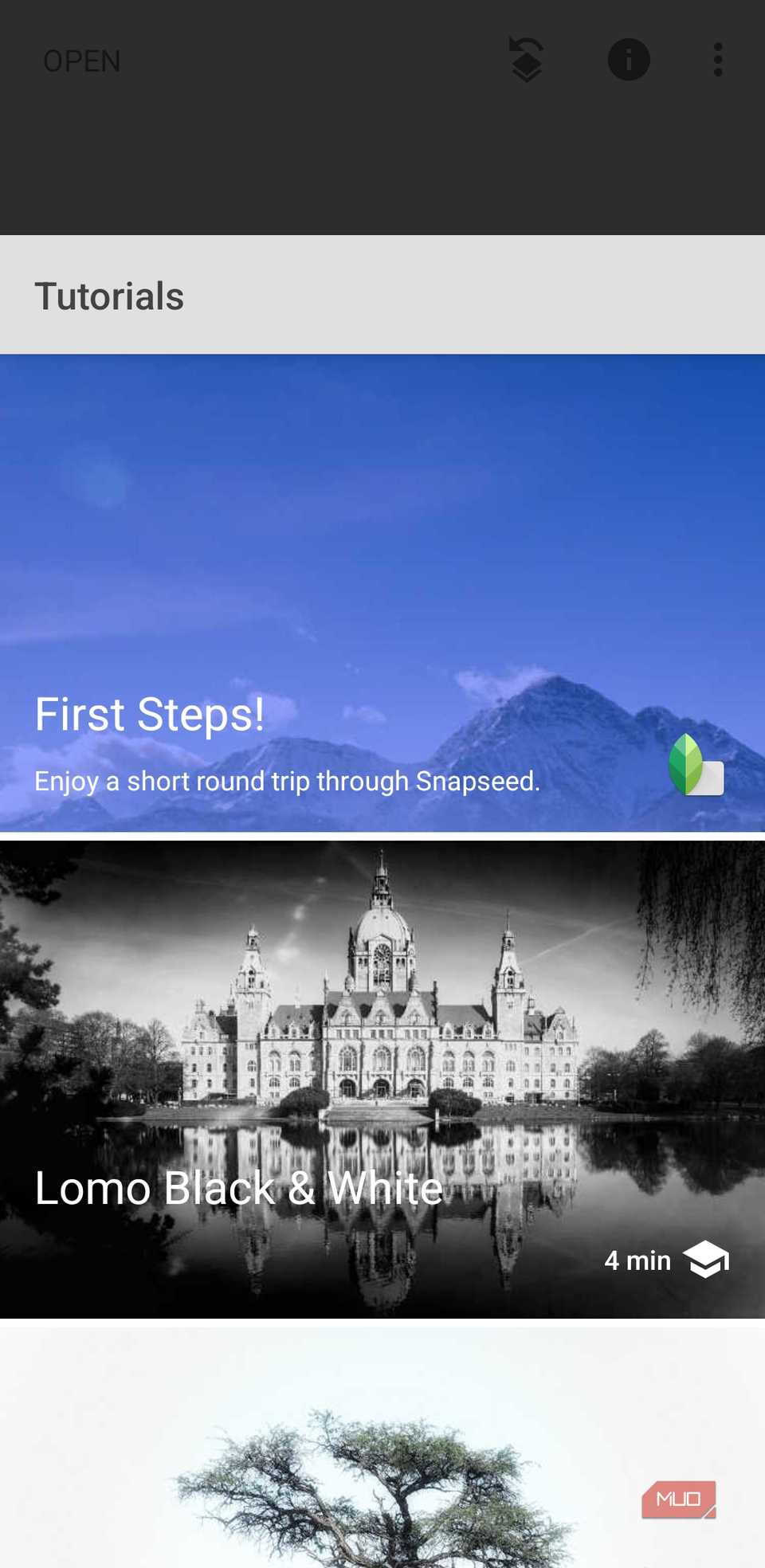
Snapseed also deserves credit for its built-in tutorials. Tap the three-dot menu in the top right corner and select Tutorials. If there’s a feature or tool you don’t understand or want to learn how to use properly, you don’t need to go searching for guides or YouTube tutorials. Everything is explained right inside the app in clear and simple language.
It’s free and shows zero adsThis is the part that almost feels too good to be true. Snapseed is completely free, and it does not show a single ad, just like most Google apps. You download the app, and every tool is available from the start, with no limits and no subscription. This removes the entry barrier completely. Snapseed is also available on iOS, so if you ever decide to switch to an iPhone, you don’t have to worry about starting over with a different app.
Snapseed proves that you don’t need flashy AI tricks or complicated interfaces to make a great photo editing app. For an app this polished and capable, it’s honestly a shame it doesn’t get more attention. Of course, all of that could change if Google simply pre-installed it on Android phones.