
Remember me


I’ve relied on Google Maps for years. For me, navigation meant only Google Maps. However, I’ve always complained about one thing with Google Maps offline navigation: it felt unreliable. I remember my friends and I were on a road trip to Scotland last year, with winding back roads and a spotty network. While planning my trip, I had already downloaded the offline map for that area several weeks ago. So, I was feeling confident. Somewhere in the middle of our route, Google Maps rerouted us down to a road that was blocked. I looked at my phone and found out that my downloaded offline map hadn’t been updated in weeks.
I realized that offline maps can’t be downloaded and forgotten. Over the next few weeks, I experimented with several Google Maps settings to improve offline navigation. Eventually, I found one setting that saved my next road trip.
The one setting that changes everything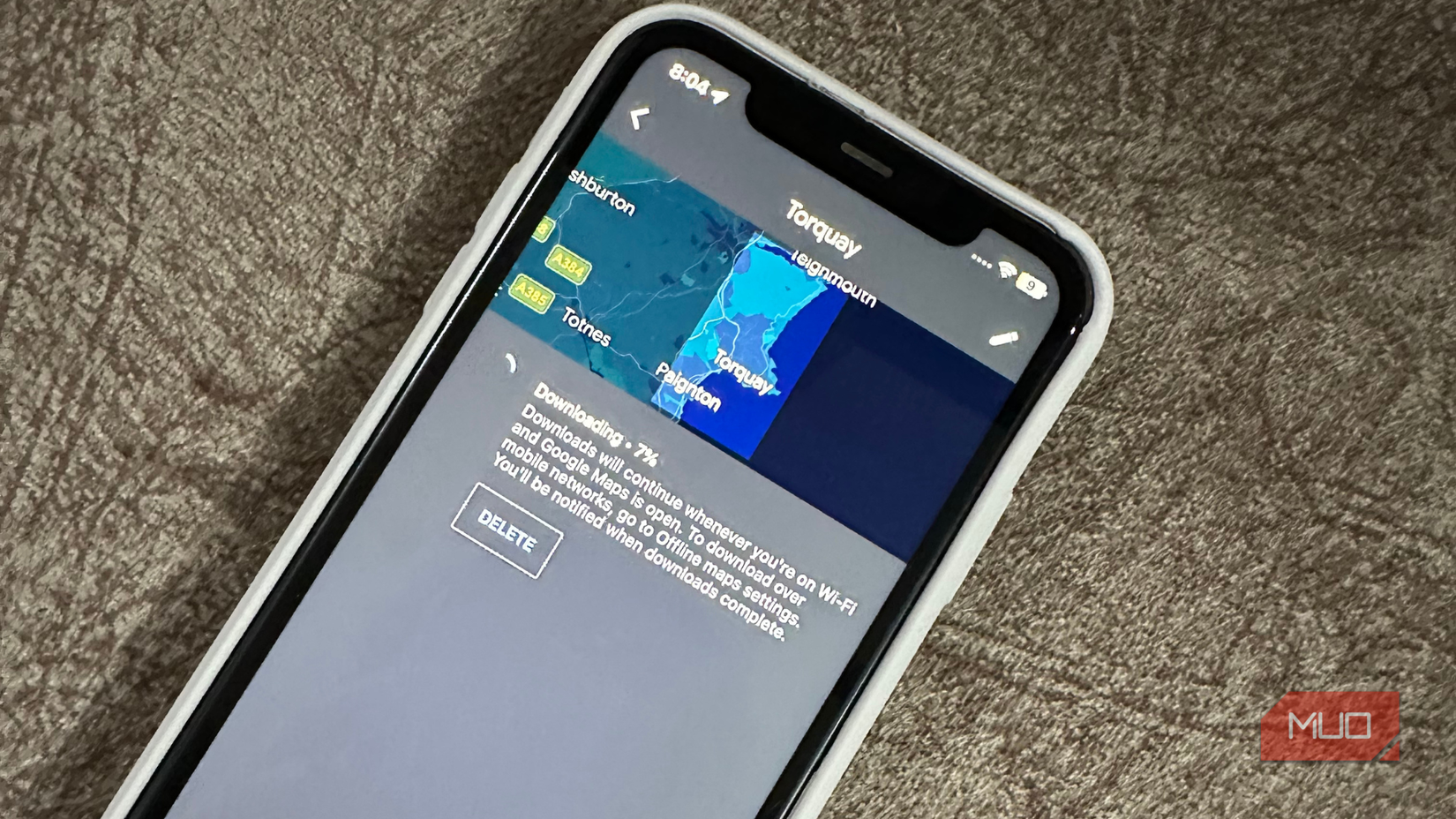 Credit: Kanika Gogia / MUO
If you’re someone like me, you’ve probably downloaded offline maps and believe that they will always be up-to-date. Unfortunately, your offline maps won’t refresh themselves magically, and I’ve realized it only after facing problems. Over weeks and months, there could be new highways, unexpected road closures, old businesses closing, new ones opening, roundabouts popping up, and whatnot. Without updates, your offline maps lose their accuracy. So, even if you’ve taken detailed screenshots, they all expire and fail to fetch accurate navigation.
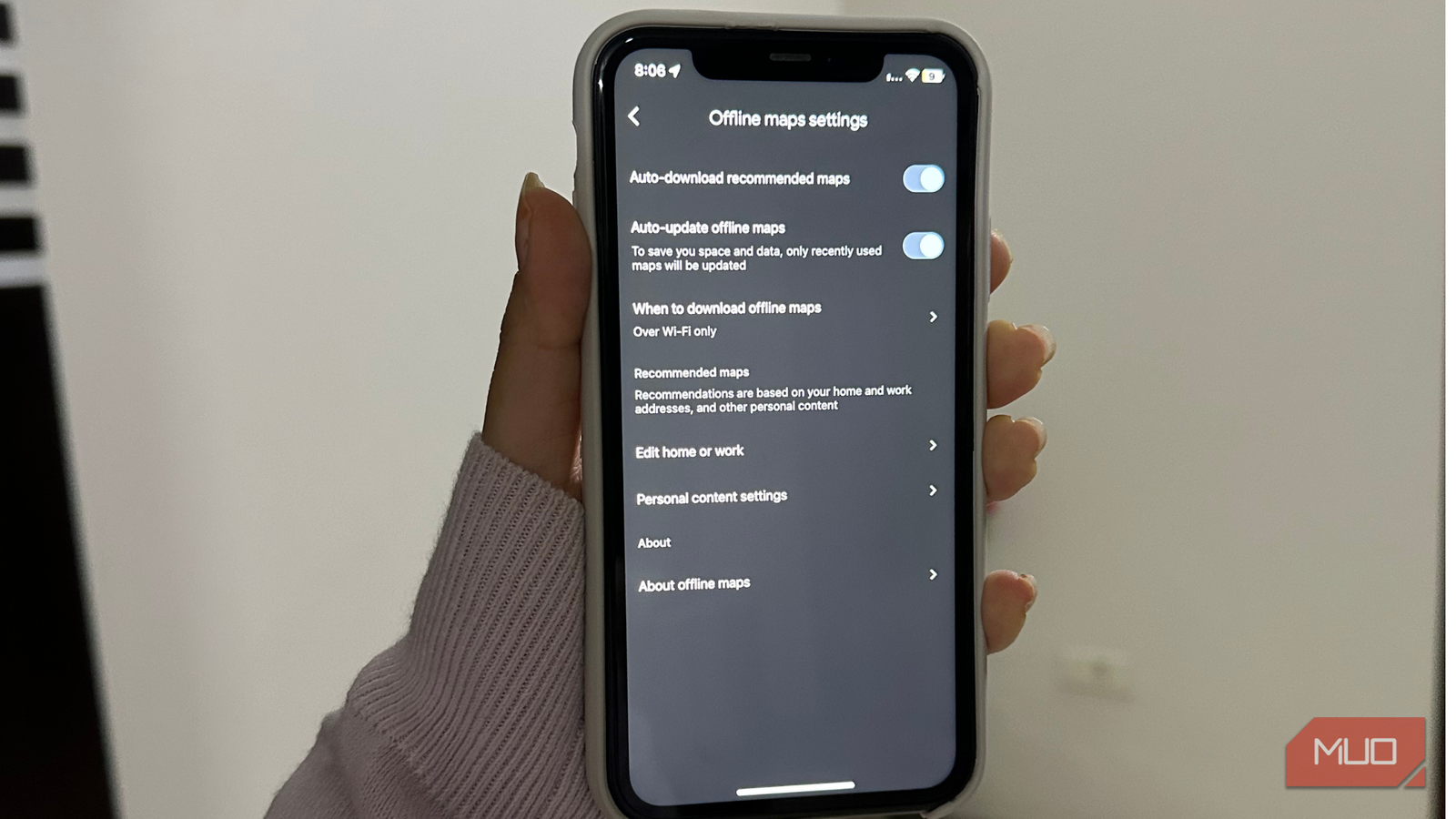
Thankfully, the Auto-update offline maps feature fixes this problem. Once you enable this setting, Google Maps will automatically update your downloaded offline areas whenever your phone connects to Wi-Fi (or mobile data, if selected). This way, your offline maps will remain accurate without having you manually update them regularly.
I first turned this feature on before my trip to Torquay and the surrounding areas, where I could struggle with a reliable network. Previously, I had to spend time ensuring each of my downloaded maps was up to date. After I started using auto-update, I didn’t have to think about it at all. During my entire journey, the offline maps were updated and accurate. All highways, narrow roads, and businesses showed up correctly. I could even see some newly constructed roads in the navigation. I felt like upgrading from an unreliable paper map to a digital one that refreshed itself.
This one setting transformed Google Maps' offline navigation into a dependable tool. I’ve already tried some amazing free offline maps, and one of them even saved my road trip. I keep coming back to Google Maps because it keeps adding useful features.
Here’s a step-by-step guideTurning on the Auto-update setting for offline maps is far easier than you might think. Just set it once, and it will automatically update all your downloaded maps. Here’s what you need to do:
Open Google Maps on your phone. Tap your profile picture in the top-right corner. Here, select Offline Maps. Now, tap on the settings icon in the top-right corner. Finally, turn on the Auto-update offline maps toggle. Under When to download offline maps option, you can choose Wi-Fi to save your mobile data. You can choose the option as per your needs.And you’re sorted. Now, Google Maps will update your offline areas in the background, keeping them up to date for you. So you see, it’s a set-and-forget option.
Here’s a quick tip from my experience. If you often travel to areas with limited network coverage, it’s better to download larger regions rather than multiple smaller ones. The auto-update feature works for all the downloaded regions, but there’s a slight chance of missing a nearby road in a smaller area.
More tips for the best offline navigation experience Stay ahead of offline maps problems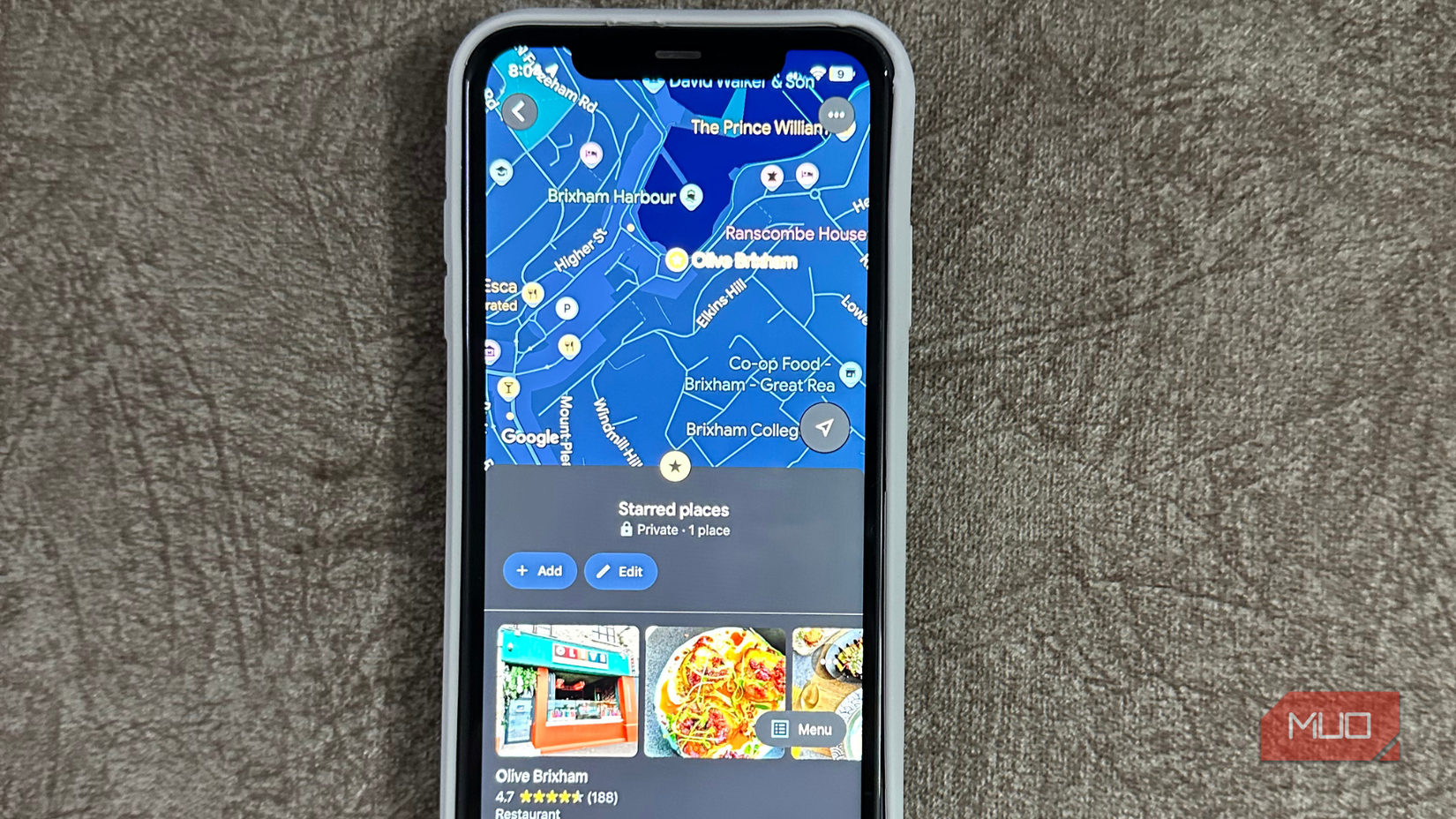 Credit: Kanika Gogia / MUO
Of course, the auto-update offline maps setting alone makes a dramatic difference. There are some smaller yet useful things that can level up your experience.
Download only what you need: Every downloaded map consumes space on your device. If you’ve got larger offline maps, they take up even more storage. Therefore, you should only pick regions you’re likely to use. Rather than downloading the entire state, you can download the area you’re planning to visit along with some buffers around your route. Keep an eye on your storage: Your auto-updated maps can grow over time. Your phone must have enough storage space, so these updates happen smoothly. Otherwise, you could still end up with outdated maps. Update over Wi-Fi: If you’ve got a limited mobile data plan, you obviously don't want your updates to eat up that precious allowance. In that case, you can choose to update your offline maps only over Wi-Fi. Your maps will quietly update in the background. Use starred locations offline: If you often visit the same places, it's best to star them in Google Maps. They remain visible in your maps even without service. So, you will always get driving directions for your starred locations. Related
Offline maps can be a lifesaver, only if they’re accurate
Related
Offline maps can be a lifesaver, only if they’re accurate
For a very long time, I treated offline maps as a “just in case I need it” feature. Most of the time, I was disappointed with outdated data. Fortunately, turning on the auto-update feature fixed that completely. Now, whether I’m traveling to a new city or exploring far-off nature spots, I can rely on offline navigation.
It is one of those settings that doesn’t sound big, but makes a huge difference in your everyday life. If you also rely on Google Maps, make sure to enable the auto-update feature before your next trip. Once you try it, you’ll surely wonder why that wasn’t your first step in setting up offline navigation.
Comments (0)