
Remember me

Sometimes, you'll get a call from someone you know, but the image is just a gray circle with initials on it. Sure, if it's someone you know well, you might suss it out, but if not? Wouldn't it be great to see a picture? My mom could put a photo of herself, my brother could put a picture of his Jeep, whatever they want, and it would become an easily recognizable image when they call.
Google rolled out what it calls Calling Cards in August 2025 — its answer to Apple's Contact Posters. The feature lets you create your own full-screen photo and custom text style that appears on other people's screens when you call them (unless they have set a Calling card for you on their own phone).
Now both sides of the call can see who's calling with no extra effort beyond setting up the individual Calling Cards. Which, by the say, only takes a few minutes, and it's totally worth it.
 Related
How Android's Calling Cards actually work
Get rid of that old gray circle
Related
How Android's Calling Cards actually work
Get rid of that old gray circle
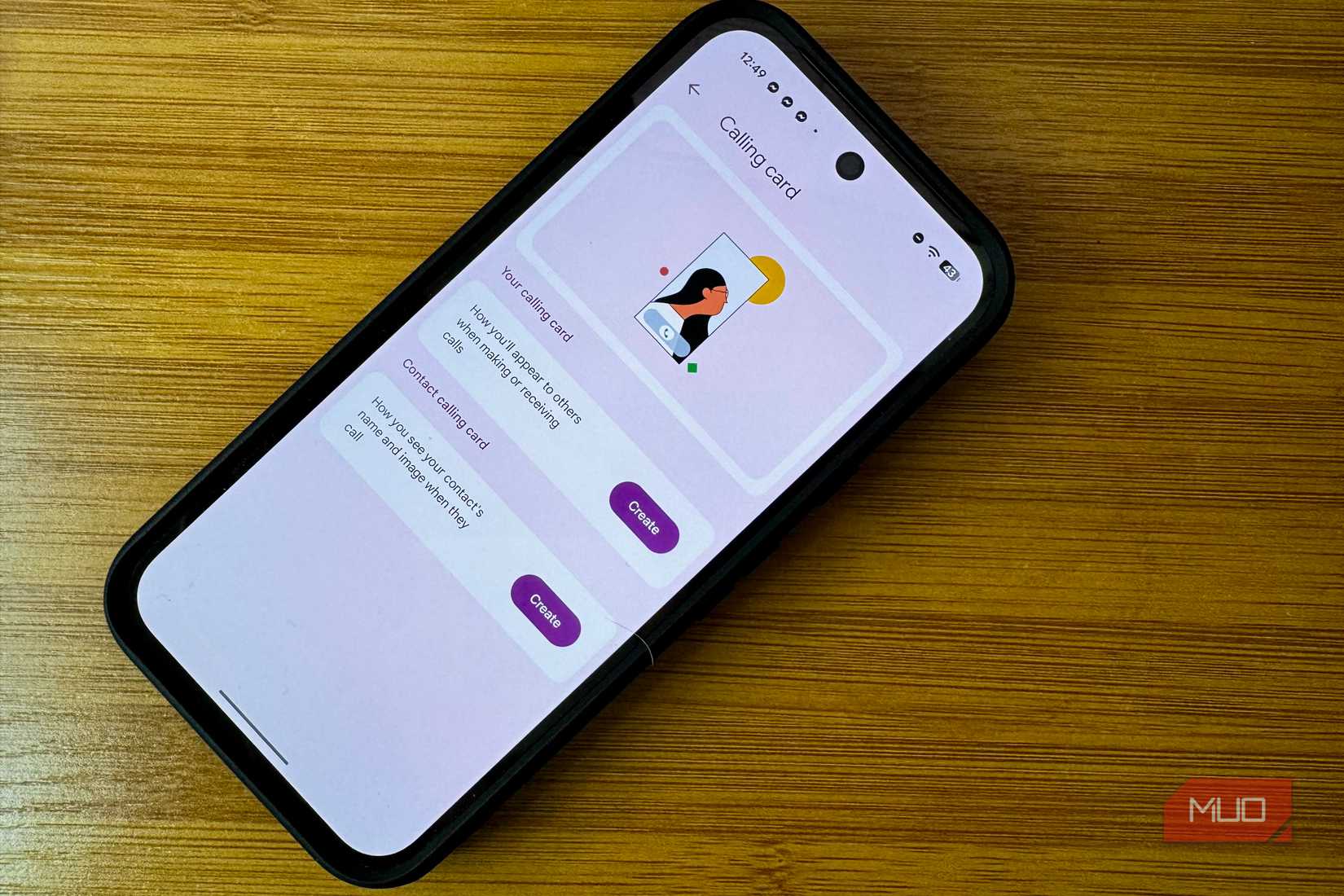
The old contact photo on Android was a small thumbnail. Newer Calling Cards are full screen and let you customize the font and color for your name. It's all part of Google's Material 3 Expressive redesign. While Apple may have inspired this addition, it's definitely a welcome one. Worth noting: there's no rule that says the image has to be a photo of the person. You can use anything from your gallery — a landscape, a pet, a meme — which makes the feature a bit more fun than it might sound.
To find out whether you have the feature (as it's part of a longer rollout), head to your Phone app > Settings > Calling Card.
Now, here's the rub: Google says that if you have set a card in Contacts on your device, you'll see that when they call. If you haven't set one up for them, but they have set up their own Calling Card, you'll see theirs. If neither of you sets a Calling Card for them, you'll see the old-style gray circle. Ew.
 Related
How to Use Google's Android Call Screening Feature
Related
How to Use Google's Android Call Screening Feature
Find out who's calling, and block unwanted callers automatically, using the call screening feature on a Pixel phone.
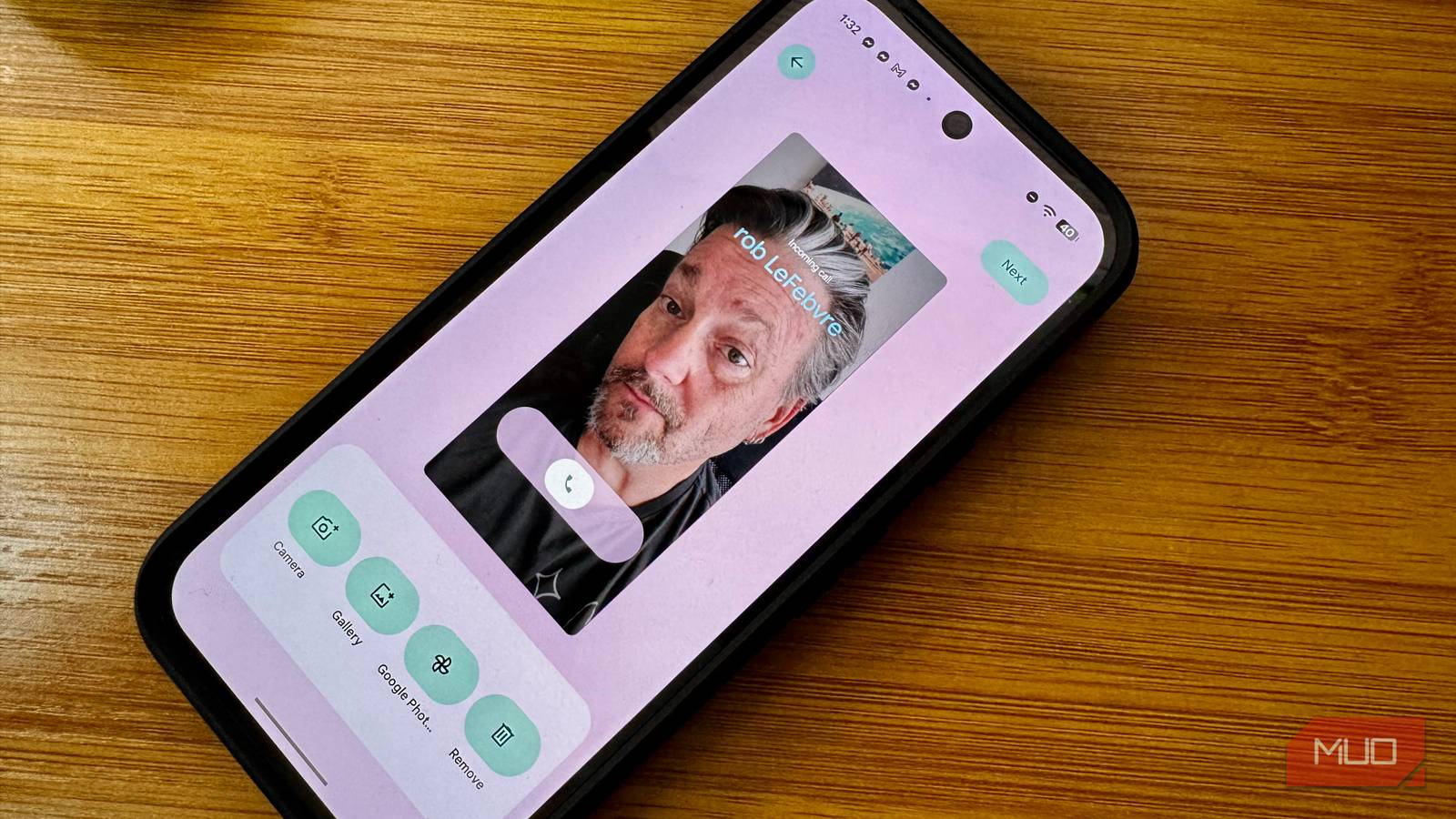
On my Pixel 9, I headed into the Phone app, tapped Settings, then Calling Card. That gave me a screen with two options: Create a calling card for myself, or create one for a contact. I chose to create my own first.
You'll get a screen titled "Create your calling card" where you'll hit a button at the bottom of the screen to continue with the Google account on your phone. You can tap above that to choose a different account if you like. HIt continue and you'll get a screen where you can add a photo from the Camera, the Gallery, or Google Photos. I grabbed a shot from the camera since I was having a good hair day.
Next you can choose a font style and color for your contact name, which seems to pull from your Contact card on your phone. Tap Done and you're, well, done. Oh, wait, no. You'll preview the calling card first, have an option to tap a pencil to edit it, and choose who to show your callijng card to: Only your contacts or Everyone you talk to. That seems like a pretty solid security feature.
Now you can hit Done, and you'll go back to the Calling card screen, where you can edit your card or add a calling card for a contact, which is the same process as above, only for someone else.
If you're using OxygenOS on a OnePlus device, the process is exactly the same, just with different color buttons.
Calling cards require the Google Phone app, which is standard on Pixel and OnePlus, and available for other devices via the Play Store. The feature is rolling out gradually, so it might noe be available yet. If you choose a low resolution image, it's likely going to look bad on the full screen display, so keep that in mind. Cards are local to your phone, but follow your Google account, which means they'll work on your next upgrade as well.
Set it once, and your call screen will never look the sameLook, its an easy thing to do, head into the Phone settings, choose a photo (or take one, you gorgeous thing), and set your calling card. Then do it for a few of your favorite contacts. Easy!