
Remember me
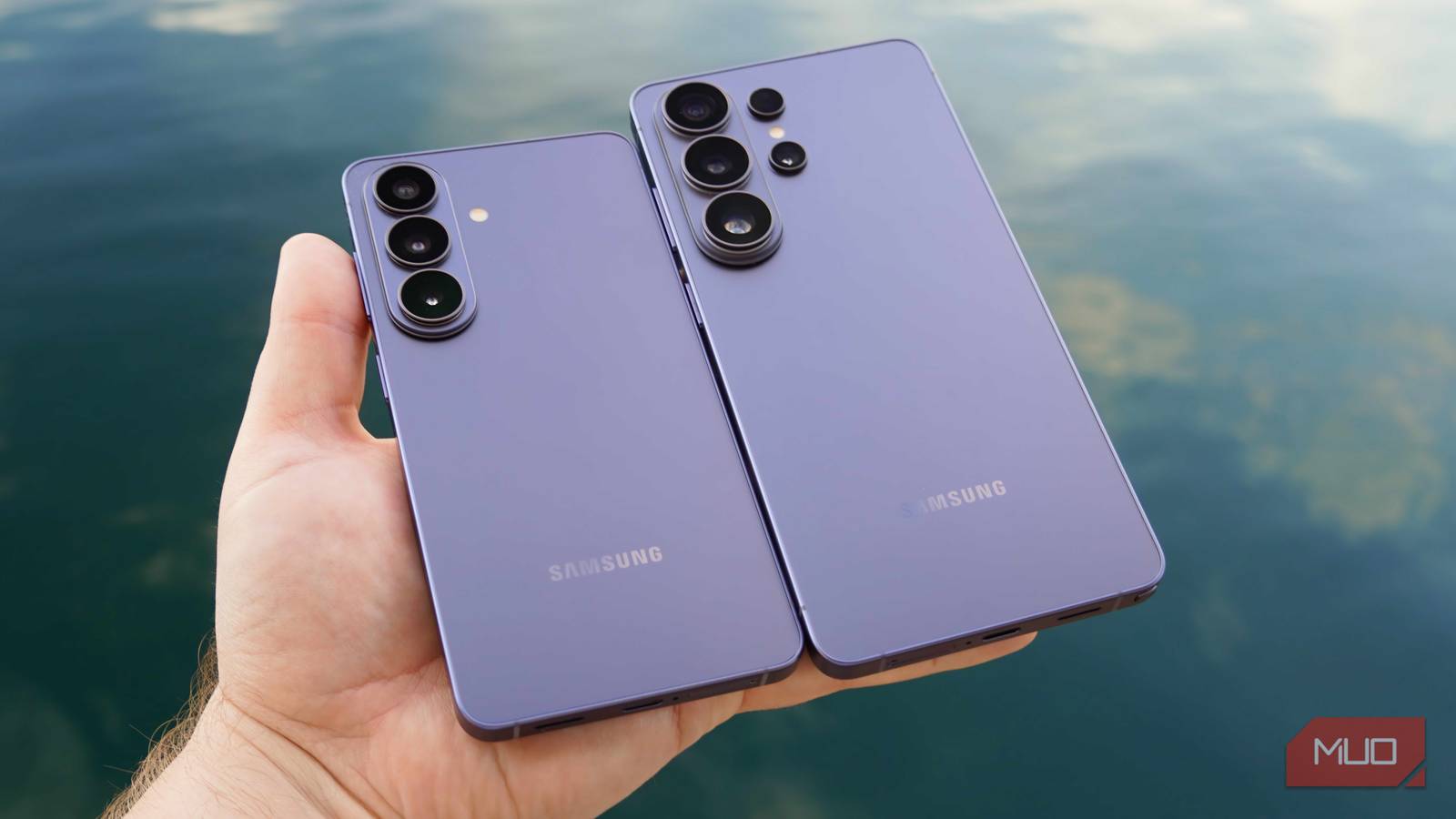

The Galaxy S26 series is the first to launch with One UI 8.5, a mid-cycle overhaul of Samsung's Android 16-based operating system. The experience is almost perfect out of the box, but a few tweaks go a long way in ensuring you get the most out of your brand-new hardware. If you don't change critical settings, you're not using the device you paid for at its fullest potential. Don't believe me? The Samsung Galaxy S26 Plus and Galaxy S26 Ultra, for example, are configured to use a lower display resolution out of the box.
I have other gripes with One UI 8.5 on the Galaxy S26 and Galaxy S26 Ultra, which I've been testing for two weeks now. Wondering why your phone keeps buzzing without notifications appearing on your lock screen? We've got a fix for that. Want to make sure you're using the exclusive Galaxy S26 software features that come with your new smartphone? We'll help you do that, too. In just a few minutes, you'll be a Galaxy S26 pro after changing these five settings.
 Related
I’d happily lose the S Pen on the Galaxy S26 Ultra for this one feature
Related
I’d happily lose the S Pen on the Galaxy S26 Ultra for this one feature
Qi2 and the S Pen are inherently at odds, because MagSafe magnets interfere with Samsung's iconic stylus. Is it finally time to say goodbye?
Set your screen resolution to QHD+ The Galaxy S26 Plus and S26 Ultra revert to FHD+ by default Credit: Brady Snyder / MakeUseOf
A key difference between the Galaxy S26 series models is display resolution — only the Galaxy S26 Plus and Galaxy S26 Ultra offer the highest-quality QHD+ displays. However, you might be surprised to learn that neither the Plus nor the Ultra variants use the best resolution by default. For example, the Galaxy S26 Ultra uses an FHD+ resolution of 2340x1080 out of the box, and you need to manually activate the best QHD+ resolution of 3120x1440 if you want the crispest visuals. The trade-off here is higher battery usage, which is why FHD+ is the default.
To change this, navigate to Settings → Display → Screen resolution and tap QHD+ to change your selected resolution. Then, press Apply to save your changes. Remember, you won't see this option on the base Galaxy S26 because it merely supports FHD+ quality.
 Credit: Brady Snyder / MakeUseOf
Luckily, there's another display setting that any Galaxy S26 owner can tweak to their preferences. It's called Screen mode, and it dictates the color viewing mode and white balance levels for your display. The two options are Vivid and Natural, with the former being cooler and the latter being warmer. In the Advanced settings here, you can individually change the white balance across the Red, Green, and Blue colors. You can also manage the Vividness with a slider when the Vivid color mode is active. To change this setting, navigate to Settings → Display → Screen mode.
Process data only on device If you want the most privacy and zero cloud processing, this is for you Credit: Brady Snyder / MakeUseOf
Every Galaxy S26 model includes Galaxy AI features, and some of them are processed on-device. The Qualcomm Snapdragon 8 Elite Gen 5 processor that powers the Samsung Galaxy S26 series in North America has a powerful NPU for local AI processing, but certain Galaxy AI tools are sent to Samsung's cloud servers for the extra compute power. If you want to keep all your AI processing on-device for latency or privacy reasons, Samsung makes it easy to disable all cloud-based Galaxy AI features with a simple toggle.
To find it, navigate to Settings → Galaxy AI → Process data only on device and flip the toggle on. Samsung explains the feature as follows: "For added privacy, you can prevent collection and processing of your data for Galaxy AI's advanced intelligence features." Keep in mind that some Galaxy AI features, including Call Assist, Writing Assist, Now Brief, and Creative Studio, will be unavailable if you limit your Galaxy S26 to on-device processing only.
Fix your lock screen notifications For some reason, Samsung hides your notifications by default Credit: Brady Snyder / MakeUseOf
One of the more puzzling recent One UI developments is the automatic hiding of lock screen notifications. By default, your Galaxy S26 will buzz or ring when you get a notification while your phone is locked. However, when you activate the lock screen, those notifications will only appear as icons in the status bar rather than viewable notification cards. This can drive you crazy in the first few days of using a Galaxy S26, because it feels like you're getting "phantom notifications." In reality, they're just hidden, but a simple settings tweak can fix that.
Navigate to Settings → Notifications → Lock screen and change the Notification style to Cards. While you're here, you can also optionally enable Show alerting notifications only, which will prevent silent notifications from appearing on your lock screen.
Configure your Privacy Display This one is exclusive to the Galaxy S26 Ultra Credit: Brady Snyder / MakeUseOf
Privacy Display is a feature exclusive to the Samsung Galaxy S26 Ultra, but it's too good not to mention here. The feature uses a pixel architecture with narrow and wide pixels to restrict wide-angle viewing in certain situations, functioning similarly to a privacy screen protector.
There are a few key differences, though. Privacy Display blocks unwanted viewing from all angles, can be limited to certain parts of the screen, and can be turned on and off with a simple software toggle. However, to use Privacy Display to prevent prying eyes, you'll need to configure your settings.
To change your Privacy Display settings, navigate to Settings → Display → Privacy Display and tap the name (not the toggle) to open a new page. Here, you can tap the Conditions for turning on tab (again, not the toggle) to select when Privacy Display will activate automatically. You can make Privacy Display activate when using certain apps, when entering passwords or PINs, or when notification bubbles appear. It can also be activated anytime by flipping the toggle in the Privacy Display settings menu or by tapping the quick settings toggle for Privacy Display.
 Related
The Galaxy S26 Ultra has two new features I actually want on every phone
Related
The Galaxy S26 Ultra has two new features I actually want on every phone
The Samsung Galaxy S26 Ultra is the best new phone from the brand with two especially exciting features you'll want to try right away.
With the Galaxy S26, your phone can stop spam calls in their tracks Credit: Brady Snyder / MakeUseOf
If you're familiar with Google Pixel phones, you'll know that call screening isn't a new feature. However, it is one of the flagship Galaxy AI tools on the Galaxy S26 series, so it's worth trying out. To use it, go to Settings → Galaxy AI → Call Assist → Call Screening and make sure the toggle is flipped on. You can also activate the Auto screen calls toggle, which will automatically screen calls from unknown callers that you haven't had a call with before. There are also settings here for the language and voice used for Call Screening that you can adjust to suit your preferences.
Call Screening works by letting an AI assistant ask about why someone is calling before you answer, saving you the time and hassle of interacting with spam calls or scammers.
Is the Galaxy S26 series worth buying?To state it plainly, the Samsung Galaxy S26 and Galaxy S26 Plus aren't as exciting as the top-of-the-line model this year. Samsung's base model and midsize option didn't get major camera hardware upgrades this year, and they don't have flashy new features like Privacy Display or Horizon Lock, either.
The Samsung Galaxy S26 Ultra is clearly the best of the bunch, both in terms of feature set and value. It's also the only Galaxy S26 model that didn't get a price hike this year. If you're in the market for a new Samsung handset, the Galaxy S26 Ultra is a pretty compelling option.