
Remember me
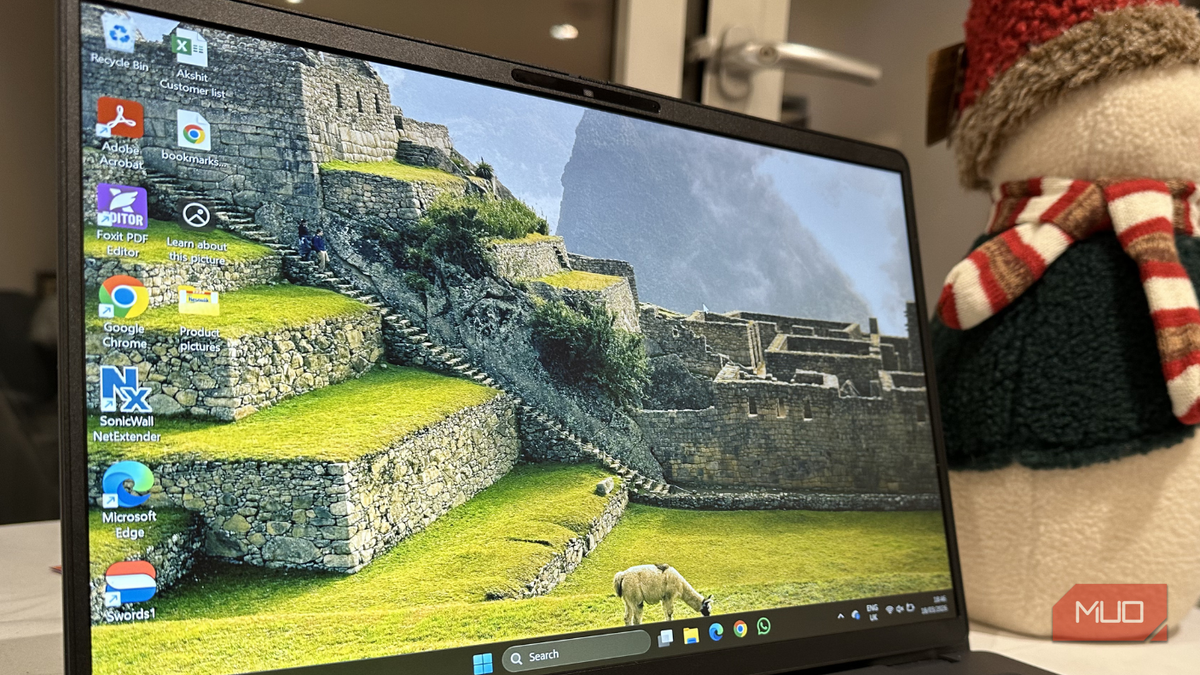


Just like any other modern operating system, Windows 11 comes preloaded with several apps. Of course, some users might find them useful, but some of those apps didn’t fit how I wished to use my machine. I was sure I wasn’t going to use those apps. Also, I didn’t want them to throw unnecessary pop-ups on my PC. Instead of allowing them to sit there and consume precious resources, I decided to remove a few of them right away. In return, I got a cleaner system with fewer background processes and a noticeably smoother performance.
Microsoft ClipchampClipchamp is a built-in video editor on Windows 11. It’s a free, browser-based video editing tool that’s designed for beginners and quick edits. It features a drag-and-drop interface, built-in screen and webcam recording tools, and AI-powered features. On paper, it’s definitely a solid inclusion. But I did not need it. I rarely edit videos on my PC, and when I do, I prefer to use more powerful tools. I rely on DaVinci Resolve for my video editing needs. It’s one of my favorite creative tools. On days when I want some quick edits and conversions, I switch to Photopea rather than installing a full app.
Clipchamp is limited. Some of its features are locked behind a subscription, and it lacks advanced tools like motion tracking and keyframe editing. Also, Clipchamp lacks a robust offline mode and relies on some cloud features. You need a good internet connection to use the app. This isn’t ideal for me. I want fast local performance, and I also work offline sometimes.
It was only adding visual clutter and redundancy to my workflow. That’s why I decided to uninstall it.
Microsoft Teams Not a part of my workflow image credit - self captured (Tashreef Shareef)
Microsoft Teams is deeply integrated into Windows 11. Some early builds even had a dedicated Chat button pinned to the taskbar by default. There’s no doubt that Teams is great for work and communication, but only if you use it. If you rely on Teams for your work meetings or university seminars, you would appreciate that level of integration.
I don’t use Teams for my meetings and messages. I rely on other communication tools like Slack and Google Meet. I’ve been using them for years now. Despite the fact that I wasn’t using Teams, it was running background processes and prompted me to sign in or complete my setup. Together, these little annoyances were adding friction to my otherwise clean experience.
I was sure that Teams didn’t have any purpose in my workflow, so I decided to uninstall it right away. I didn’t want to see unnecessary background presence and setup prompts every day. Removing Microsoft Teams helped me clean up my taskbar and system tray. I also noticed other changes. The startup felt cleaner, and I was no longer being nudged towards a service that I didn’t even want.
Xbox Game Bar Screenshot by Ben Stegner; no attribution required
Xbox Game Bar is a feature-rich and customizable overlay designed for gamers. It allows them to capture footage, monitor performance, and access social features without leaving the game. But I don’t really play any games on my machine. Even if you don’t use Xbox Game Bar actively, it stays there in the background and consumes system resources. Also, it occasionally triggers shortcuts and overlays you don’t intend to use. This might not seem like a big deal, but they can get annoying, especially when you’re trying to focus.
Xbox Game Bar isn’t a huge performance drain, but there’s also no point in having it unnecessarily. After all, small inefficiencies add up over time. This can also make your PC feel sluggish. I’ve always craved for a system that feels responsive, especially when I’m multitasking. I prefer a clean and distraction-free experience. So, I have a habit of uninstalling anything that I don’t really use. Since the Xbox Game Bar wasn’t relevant to how I wanted to use my Windows 11 PC, I removed it on day one.
Outlook Not my daily go-to image credit - self captured (Tashreef Shareef) - No Attribution Required
Well, this was one of the easiest decisions I made on day one. If you’re deep into the Microsoft system, Outlook is unarguably a powerful addition to your PC. It’s a full-featured email client that integrates seamlessly with Calendar, OneDrive, and Teams. But for me, it felt like overkill. I prefer simpler, web-based email services for my everyday communication. They are fast, accessible across devices, and don’t require a heavy desktop client running in the background.
I use Gmail for my personal and professional needs. If Outlook stays on my system, it would only feel redundant. Also, it will take up memory and slow things down. I’ve used Outlook before, and I never liked its interface and performance. There were some delays when clicking between menus. And sneaky ads are another problem. Moreover, I don’t really need an all-in-one email client because my workflow is different.
My PC feels cleaner after removing these appsWindows 11 offers a ton of features and built-in tools, but it offers the best experience when you tailor it according to your needs. I didn’t uninstall these apps to get a dramatically improved performance. Instead, I wanted to have control of my PC environment. Uninstalling some apps gave me a cleaner and faster PC from day one. It helped me free up some space, too.
If you’ve just set up your Windows PC or are planning to do so, I would recommend taking out a few minutes and reviewing what’s installed on your system. You might discover that you only need to remove a few apps to make your system faster and personalized.