
Remember me
Most people never think of a Fire TV device as anything more than a simple streaming tool. But that’s not the full story. Fire TV is far more flexible, and with the right apps and settings, it can become a smart display, a wireless screen mirror, a gaming console, and even a mini computer for light browsing.
The best part is, all of these features are built in, so you don’t need any complex workarounds or extra devices. Once you find them, you’ll start seeing your Fire TV in a completely different way.
Install apps that aren’t on Amazon Appstore Go beyond the built-in appstore Screenshot by Pankil Shah -- No attribution required
A lot of people don’t know this, but the Fire TV devices are based on Android. This means you get all the flexibility that you get with an Android TV, including the ability to sideload apps.
While the Amazon Appstore covers pretty much all the popular apps like Netflix, YouTube, and Prime Video, it lacks many powerful and niche options. With sideloading, you can bring those media players, browsers, tools, and custom launchers to your Fire TV.
The process is quite simple. First, you need to enable the Developer Options menu and allow installation from unknown sources. Once done, you simply have to download the APK file on your phone or PC and transfer it to your Fire TV with an app like LocalSend. Finally, open the file, and install the app as usual.
Mirror your phone to TV Put your phone or laptop on a big screen Screenshot by Pankil Shah -- No attribution required
A Fire TV is not just for watching movies and TV shows. You can also mirror your phone’s screen any time you want to view your photos, videos, or even apps on a bigger screen. This even works with Windows PCs, so you can use your TV as a wireless monitor.
To do this, you need to connect the Fire TV and your phone or PC to the same Wi-Fi network. Then, head to Settings > Display & Sounds and enable Display mirroring.
Once done, open the quick settings panel on your Android phone and choose Screencast or Smart View. On Windows, search for the Connect to a wireless display option. If you have an iPhone, you’ll need to use a third-party app like AirScreen to wirelessly mirror the screen.
Use it as a gaming console Game without buying new hardwareThe Amazon Appstore already offers a few casual games, but you’re not limited to those. If you have a Fire TV that supports Xbox Cloud Gaming, you can play console-quality games without owning an Xbox. All you need is an Xbox Game Pass subscription and a Bluetooth controller.
To get started, download the Xbox app on your Fire TV. Then, head to your TV’s settings and turn on Game Mode. If possible, it’s best to use a wired connection to avoid any latency.
Once the setup is done, you can play games directly on your TV any time. You don’t even have to download any games, so you can switch between popular titles without waiting.
Note that Xbox cloud gaming is only available on select Fire TV models. If yours doesn’t, you can still use Amazon Luna for cloud gaming.
 Related
Just Bought a Fire TV Stick? Change These Settings Immediately
Related
Just Bought a Fire TV Stick? Change These Settings Immediately
These tiny tweaks can give your device a nice little performance boost.
Turn your TV into a smart display Make your TV useful when you’re not streaming Screenshot by Pankil Shah -- No attribution required
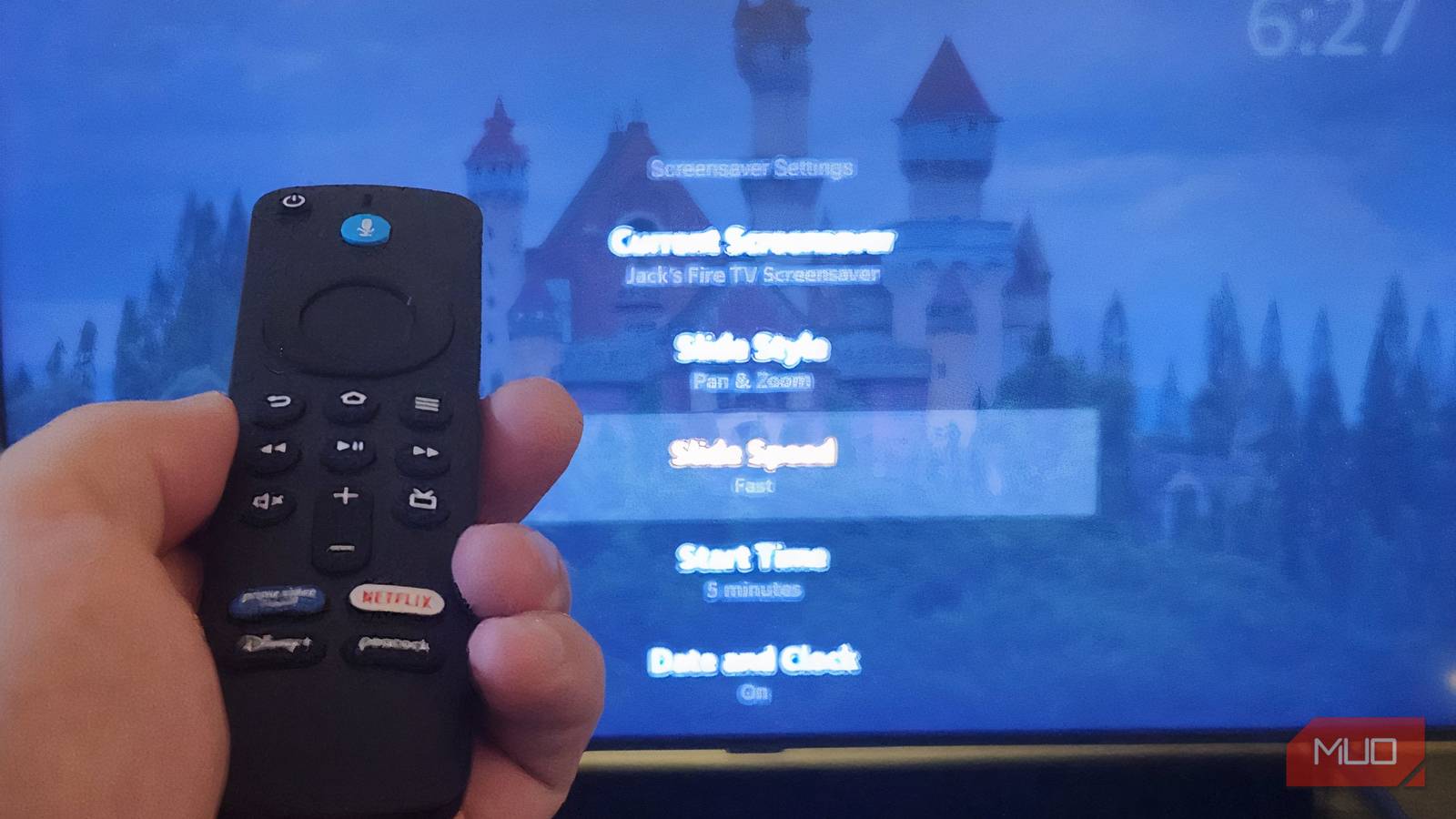
TV is one of those devices that stays off more than it stays on. If you want to make your Fire TV useful even when you’re not streaming or gaming, you can turn on Ambient Experience. It’s basically a screen-saver mode that shows beautiful visuals and your own pictures from Amazon Photos.
What makes this mode useful, though, is the widget support. You can add a weather forecast, a calendar, news headlines, and even a music widget to this screen. This essentially turns your TV into a giant smart display. To add them, press the Menu button on your Fire TV remote and head to Ambient Preferences > Widgets at Start > Show.
If you have Amazon’s Fire TV Omni QLED Series, it also has sensors that can detect when someone enters the room and automatically turn on the Ambient Experience.
Connect Bluetooth headphones, keyboards, and controllers Control your Fire TV your way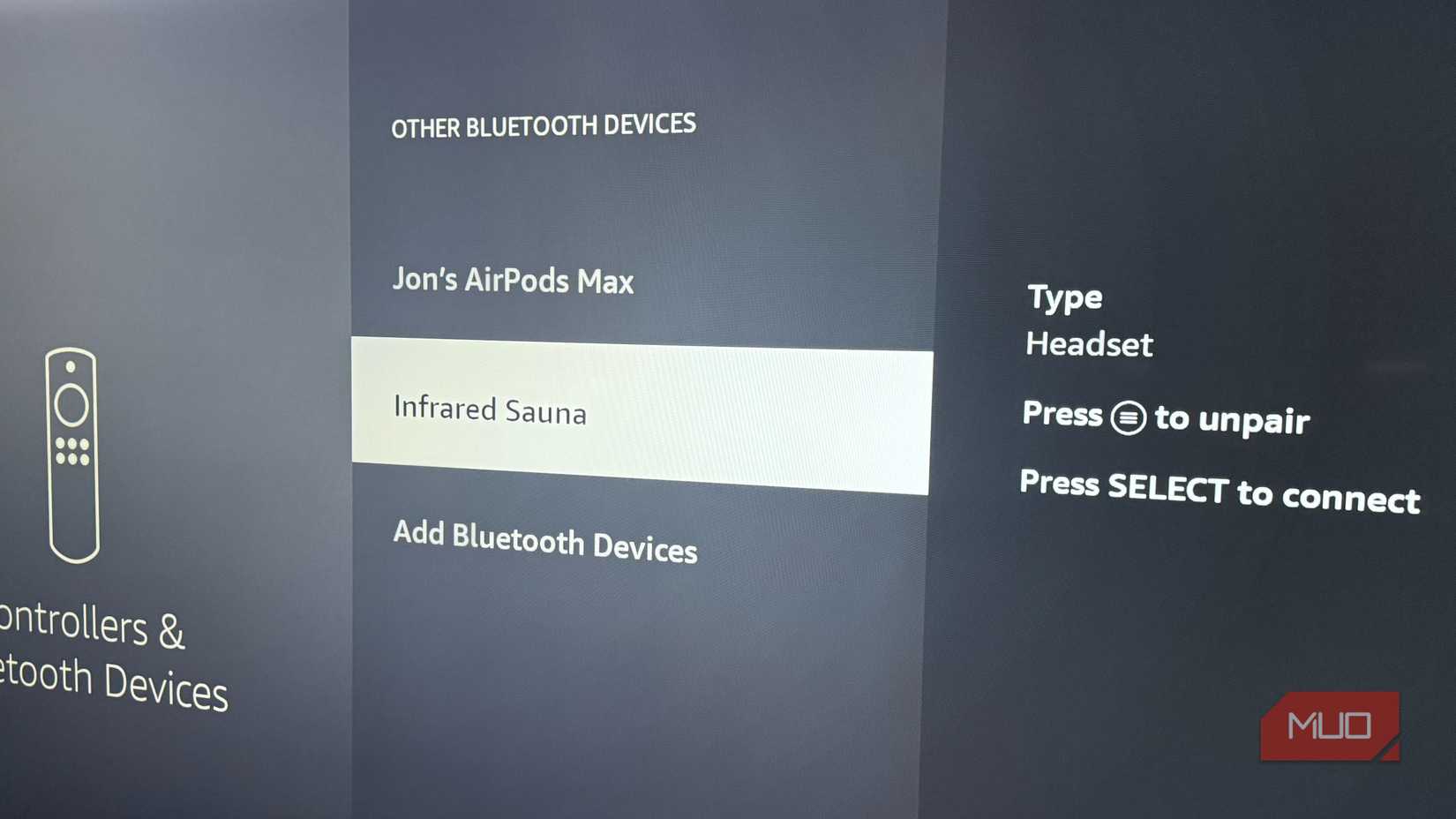
The Fire TV remote is simple and convenient, but it’s not ideal for browsing the web, entering account details, or even gaming. Thankfully, Fire TV supports Bluetooth, which means you can connect keyboards, mice, and even game controllers and use them to control your TV.
A Bluetooth keyboard makes it much easier to search for content, type complex passwords, and browse the web. Similarly, a game controller lets you enjoy cloud gaming more comfortably. Bluetooth support also means you can connect your pair of headphones to enjoy those late-night TV shows and movies without bothering others in your household.
To add a Bluetooth device, head to Settings > Controllers & Bluetooth Devices > Other Bluetooth Devices > Add Bluetooth Device. Then, put your accessory in pairing mode and select it from the list.
Your Fire TV has its best features hiding in plain sight. You just need to explore a bit. And these features are just the start. You can make your Fire TV even more useful with the right apps, like VLC, Total Commander, Downloader, and more.