
Remember me



I have used Google Chrome as my principal browser for years. In fact, it is so familiar that I have been working on autopilot while opening tabs, searching the web, and performing tasks. It was only when I started writing about its standout features and benefits that I was reminded of how useful Chrome can be. This prompted me to take a deeper dive to uncover features that lurk beneath the surface, which, though fairly niche, would appeal to the everyday user.
Some of these features have significantly improved my day-to-day browsing, working, and organization. They each offer practical benefits, from experimental tools and smarter tab control to productivity helpers and notification management. So if you’ve ever felt overwhelmed by open windows, been distracted by alerts, or hoped to tighten up your productivity, these features could completely change how you use this tried-and-trusted browser.
Where Chrome lets you preview and test upcoming featuresAs if to prove my point that Chrome is constantly improving and adding new features, it offers users the option to test upcoming browser capabilities that are still in test mode. Type chrome://flags into the address bar, and you’ll gain access to dozens of tools that include performance improvements, UI changes, new security options, and accessibility enhancements.
While it’s important to keep in mind that Chrome flags are in various stages of development and may not be as polished as the final product, you do get to experience new features ahead of the crowd and incorporate them into your workflow. Each flag is easy to activate, with a short explanation and a simple enable/disable dropdown, and can provide some powerful capabilities. Just be mindful that these tools may have to be deactivated if you notice instability in your browser.
Tab search A built-in tool for navigating multiple tabs in seconds
I must admit that I am not the tidiest person when it comes to my workflow, especially when researching topics. Sometimes I have dozens of tabs open at once, condensed into tiny favicons with no real identifying features. This is where Tab search becomes a lifesaver.
Click the small down-arrow icon on the top-right of Chrome or press Ctrl + Shift + A (Windows) or Cmd + Shift + A (Mac), and all your tabs appear in a searchable list of all open tabs across every window. It also conveniently shows recently closed tabs, making it easy to recover something you accidentally exited. When used in conjunction with tab groups, tab search quickly turns total browser disarray into a streamlined experience.
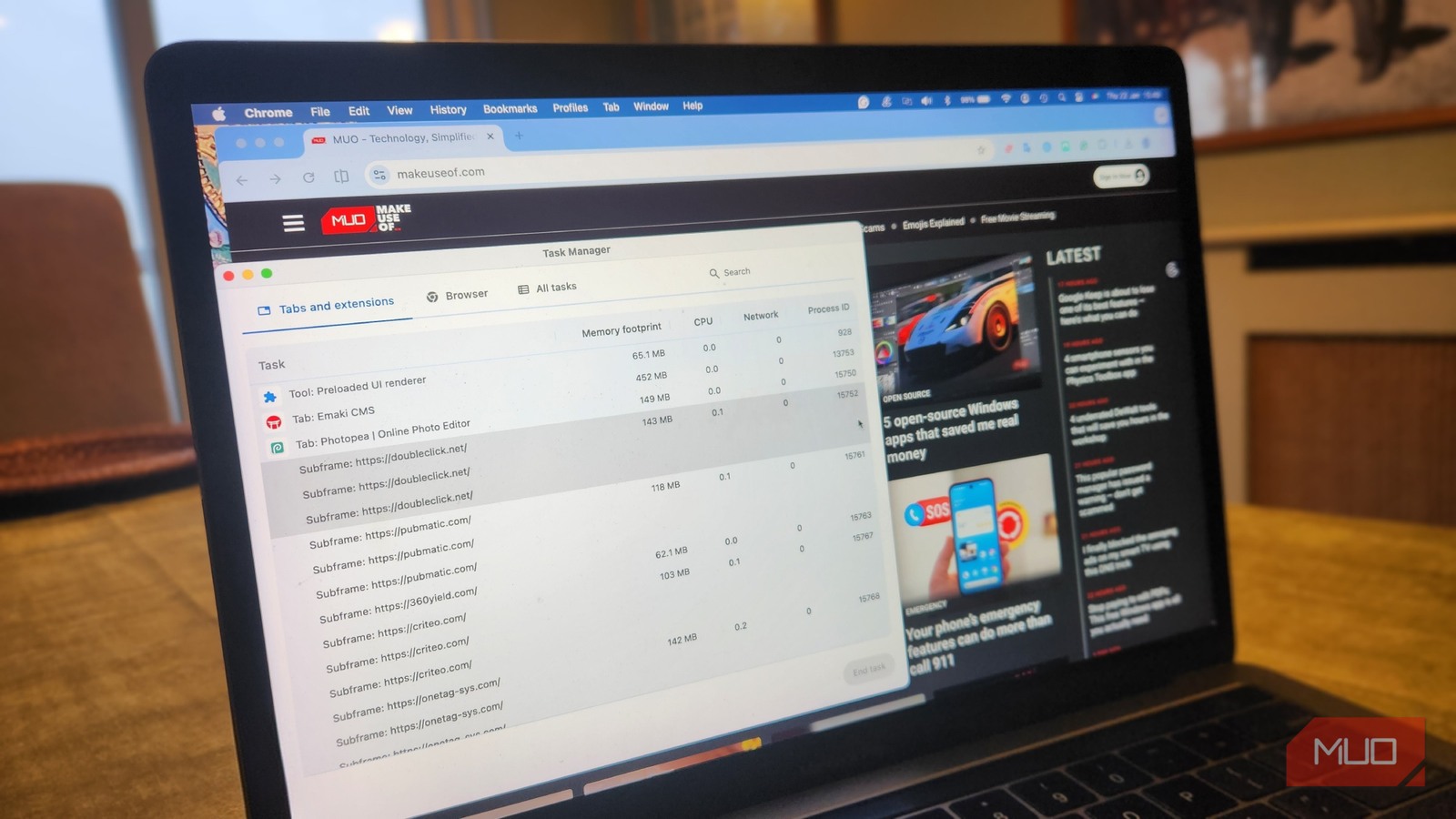
Chrome task manager Get your resource-hungry tabs and extensions under control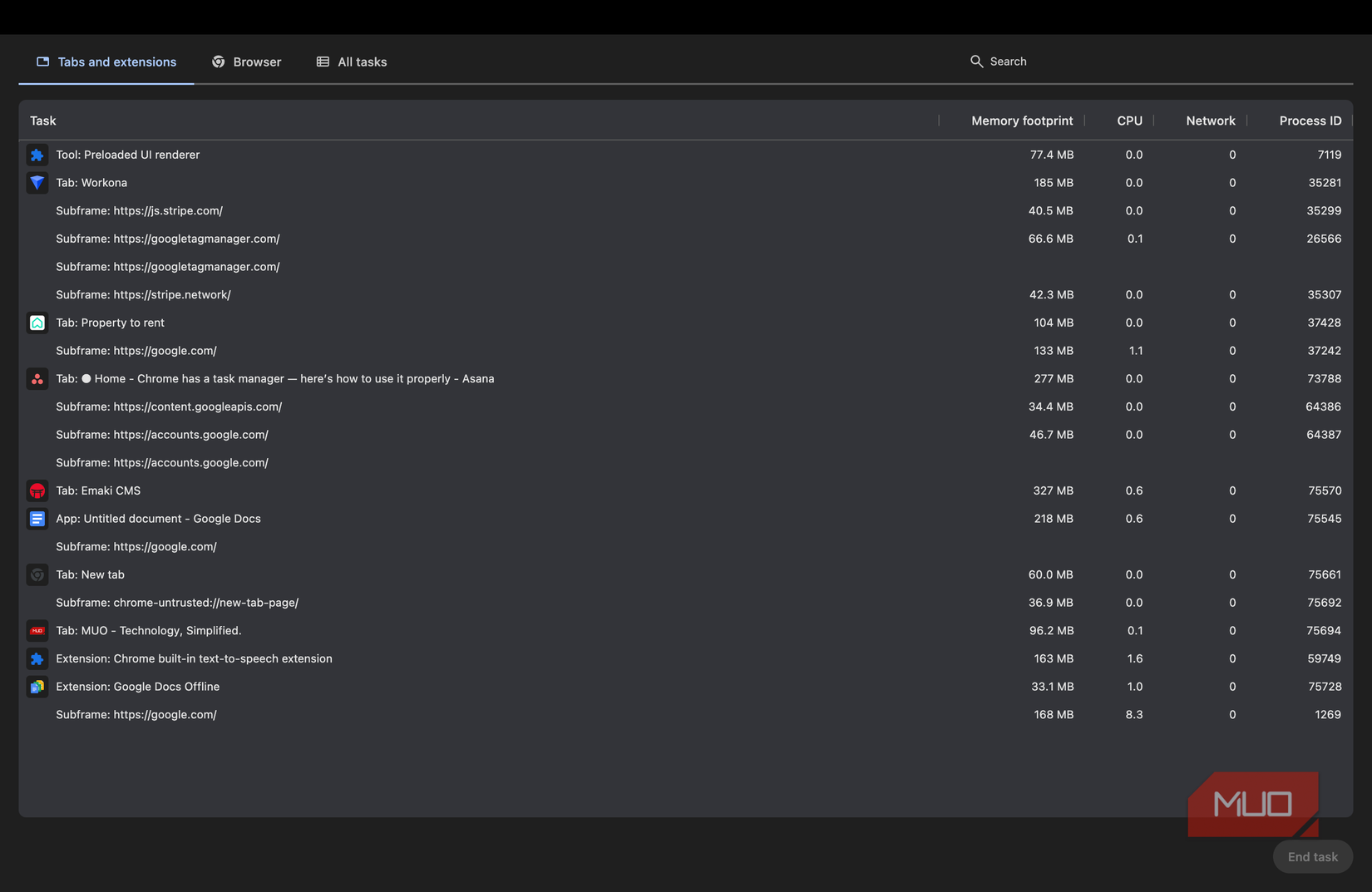 Screenshot by Kanika Gogia
There’s no doubting that Chrome is a big drain on your system, especially if you often have multiple windows open at a time. Luckily, Chrome includes its own Task Manager, similar to the one built into your operating system, which can be opened by pressing Shift + Esc or via the Chrome menu. You can then see exactly how much memory, CPU, and network usage each tab, extension, and background process is consuming.
I use this feature for troubleshooting. As my system could use an overhaul, browsing can feel sluggish, or my computer’s fan can become overactive. When this happens, Chrome’s Task Manager helps me identify the culprit instantly. I can then end individual processes without closing the entire browser, so I don’t have to interrupt my workflow.
Built-in PDF editor Edit and annotate PDFs directly inside the browser
I didn’t realize until recently that Chrome doubles as an effective PDF editor. When you open a PDF in Chrome using Ctrl + O (Windows) or Cmd + O (Mac), the built-in toolbar lets you highlight text, add annotations, and fill in form fields without relying on third-party software like Acrobat Reader. I’ve even used it to sign documents using basic drawing tools.
Instead of downloading a file, opening another app, and re-uploading it, you can handle everything within the browser. This makes it especially helpful for making quick edits, creating reviews, or filling in forms. For students, remote workers, and anyone who frequently deals with documents, Chrome’s PDF editor saves valuable time and keeps you focused on the task at hand.
Send tabs to other devices Continuous, instant browsing across phones, tablets, and computers
I often find myself sharing online news or research between multiple screens and gadgets throughout the day, and this feature makes cross-device browsing effortless. By right-clicking a tab and selecting the option Send to Your Devices, you can instantly send a webpage to another device where you’re signed into the same Google account.
There are a few instances where I find this helpful. For example, I might start reading an article at my desk and continue it on my phone during a commute, or send a map from my phone to my desktop for better detail. Where I used to use bookmarks, this provides a temporary, immediate option that avoids clutter within my browser. Along with the option to arrange tabs in Split View, this is one of my favorite Chrome additions.
Built-in task timer Use the address bar to create quick timers and countdowns
Chrome’s address bar was introduced as an “omnibox,” which I found a little absurd until I realized it has distinct functions that extend beyond basic search. For example, it doubles as a lightweight productivity tool. By typing commands like timer 10 minutes or set a 25-minute timer, Chrome instantly launches a built-in countdown that ticks away on its own tab while you work.
As a remote worker, I find it especially helpful to stick to rigid routines, so the timer helps me with focused work sessions, taking breaks, and setting reminders. Because the timer is activated with a simple search command, it’s fast, accessible, and ideal when I want minimal distractions while staying on schedule. As an aside, if you do want a quick distraction, say, while you’re waiting for a conference call to start, type chrome://dino and press Space to play the addictive offline Dino game.
Quiet notifications Reduce distractions without disabling notifications entirely
Another feature I find helpful for online work is Chrome’s Quiet Notifications. This automatically suppresses notification prompts from sites that frequently send unwanted alerts. Instead of annoying pop-ups, Chrome displays subtle icons that don’t interrupt my workflow.
To enable, go to Settings -> Privacy and security -> Site Settings -> Notifications, then select Use quieter messaging. Chrome may also activate it automatically based on your behavior. This way, I still receive important updates when I want them, but without constant interruptions that disrupt my productivity.
Make Chrome work smarter for youChrome is my go-to browser, in large part because I rely on Google’s native tools for much of my workflow, but also because of its flexibility. These hidden features illustrate how much control and convenience the browser offers once you know where to look.
By experimenting with flags, managing tabs and resources, reducing distractions, and using built-in productivity tools, you can tailor Chrome to suit your habits rather than adapting to its defaults. These small changes combine to make a big difference, and your daily browser can quickly transform into a powerful, feature-rich workspace.